Download the PHP package tobento/app-media without Composer
On this page you can find all versions of the php package tobento/app-media. It is possible to download/install these versions without Composer. Possible dependencies are resolved automatically.
FAQ
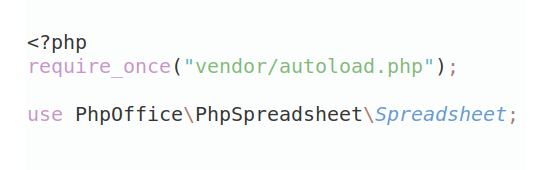
Example:
In general, it is recommended to use always a project to download your libraries. In an application normally there is more than one library needed.
- Some hosting areas are not accessible by a terminal or SSH. Then it is not possible to use Composer.
- To use Composer is sometimes complicated. Especially for beginners.
- Composer needs much resources. Sometimes they are not available on a simple webspace.
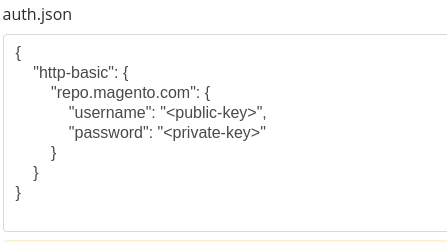
- If you are using private repositories you don't need to share your credentials. You can set up everything on our site and then you provide a simple download link to your team member.
- Simplify your Composer build process. Use our own command line tool to download the vendor folder as binary. This makes your build process faster and you don't need to expose your credentials for private repositories.
Informations about the package app-media
App Media
The App Media package provides a set of features and services for working with media files, including:
- responsive images using the HTML
<picture>element - file download
- image editing for cropping, resizing, and transforming images
- upload validation for validating uploaded files
and more ...
Table of Contents
- Getting Started
- Requirements
- Documentation
- App
- Media Boot
- Media Config
- Features
- File Feature
- File Display Feature
- File Display Signed Feature
- File Download Feature
- File Download Signed Feature
- Icons Feature
- Image Editor Feature
- Edit Image
- Picture Feature
- Display Picture
- Picture Definitions
- Clearing Generated Picture
- Picture Editor Feature
- Edit Picture
- Services
- File Storage Writer
- Copy Mode (CopyFileWrapper)
- Upload Validators
- Uploaded File Factory
- Image Processor
- Picture Generator
- Learn More
- Display And Download Files Using Apps
- Credits
Getting Started
Add the latest version of the app media project running this command.
Requirements
- PHP 8.4 or greater
Documentation
App
Check out the App Skeleton if you are using the skeleton.
You may also check out the App to learn more about the app in general.
Media Boot
The media boot does the following:
- installs and loads the media config
- implements media interfaces
- boots features from media config
Media Config
The configuration for the media is located in the file at the default App Skeleton config location.
Features
File Feature
This feature provides convenient access to files and file URLs from any supported
file storage.
Its primary purpose is to retrieve file URLs or file objects for internal use within your application.
This feature works with both public and private storages.
Private storages are not intended to generate public URLs.
When using a private storage, the File feature is primarily meant for retrieving
file objects for further processing within your application, not for producing URLs.
Requirements
This feature does not have any requirements.
Install
In the media config file you can configure this feature:
Retrieve Files
To retrieve files, use the method from the returning a read-only file storage. The file storage does not throw any exceptions when a file does not exists instead it returns an "empty" file.
By default, the file storage will retrieve only file urls. If you wish to retrieve other file attributes use the file storage method:
If you only want to retrieve a file url, you may prefer to use the method instead:
Retrieve Files Within Views
Make sure you have booted the View Boot.
Use the view method to retrieve file(s) within your views:
If you only want to retrieve a file url, you may prefer to use the method instead:
Using File Display Feature For Urls
If a storage does not support public urls you may use the File Display Feature:
File Display Feature
This feature may be used to display a file from a supported file storage, such as an image or PDF, directly in the user's browser.
Requirements
This feature does not have any requirements.
Install
In the media config file you can configure this feature:
Important
This feature only works with storages of type public.
Private storages will always result in a 404 Not Found response.
Display File
Once installed, files will be publicly accessible by the defined route uri:
To generate a file url, use the router method:
You may check out the Display And Download Files Using Apps if you want to serve files from a customized app.
File Display Signed Feature
This feature may be used to securely display a file from a supported file storage using signed URLs.
A signed URL ensures that the file can only be accessed when the URL contains a valid cryptographic signature, and optionally an expiration timestamp.
This is ideal for displaying private or protected files such as PDFs, images, or documents that should not be publicly accessible.
Requirements
This feature does not have any requirements.
Install
In the media config file you can configure this feature:
Important
This feature only works with storages of type private.
Public storages will always result in a 404 Not Found response.
Display File
Once installed, files can only be accessed using a signed URL. Unsigned URLs will always result in a 403 Forbidden response.
A typical signed URL looks like:
To generate a signed file URL, use the router url method and call sign:
For additional information on signing options and behavior, visit the Signed URL Generation section.
You may check out the Display And Download Files Using Apps if you want to serve files from a customized app.
File Download Feature
This feature may be used to force downloading a file from a supported file storage in the user's browser.
Requirements
This feature does not have any requirements.
Install
In the media config file you can configure this feature:
Important
This feature only works with storages of type public.
Private storages will always result in a 404 Not Found response.
Download File
Once installed, files will be publicly accessible by the defined route uri:
To generate a file url, use the router method:
You may check out the Display And Download Files Using Apps if you want to serve files from a customized app.
File Download Signed Feature
This feature may be used to securely download a file from a supported file storage using signed URLs.
A signed URL ensures that the file can only be accessed when the URL contains a valid cryptographic signature, and optionally an expiration timestamp.
This is ideal for downloading private or protected files such as PDFs, images, or documents that should not be publicly accessible.
Requirements
This feature does not have any requirements.
Install
In the media config file you can configure this feature:
Important
This feature only works with storages of type private.
Public storages will always result in a 404 Not Found response.
Download File
Once installed, files can only be accessed using a signed URL. Unsigned URLs will always result in a 403 Forbidden response.
A typical signed URL looks like:
To generate a signed file URL, use the router url method and call sign:
For additional information on signing options and behavior, visit the Signed URL Generation section.
You may check out the Display And Download Files Using Apps if you want to serve files from a customized app.
Icons Feature
This feature may be used to render SVG icons using the Icon Service.
Requirements
This feature does not have any requirements.
Install
In the media config file you can configure this feature:
Render Icons Within Views
To render icons within your views use the view method returning an icon implementing the Icon Interface:
Access Icons
In addition, to render icons you may just access them within any service:
Storing SVG icons
Store your SVG icon files in the directory:
Clear cached icons
To clear cached icons you may delete the defined folder manually or run the following command:
During development, if you store more SVG icons, you will need to clear the cache to see the changes!
Log Not Found Icons
Make sure you have booted the App Logging Boot.
In the file you may define the logger to be used, otherwise the default logger will be used:
Image Editor Feature
This feature offers a full image-editing interface, making it possible to crop, resize, transform, and adjust images within your application.
Technical Note
The Image Editor uses theImageProcessorfrom
https://github.com/tobento-ch/service-upload/#image-processorapp-media wraps this processor in
Tobento\App\Media\Upload\ImageProcessor
to integrate logging and application-level configuration.Important
The Image Editor loads images in the browser and writes changes back to storage.
For security reasons, access to the editor is protected by a permission check.
By default, the required permission ismedia.image.editor.
You may override this permission, but disabling permission checks is not recommended.
Requirements
This features requires:
Install
In the media config file you can configure this feature:
See the vendor documentation for available actions:
Image Actions - tobento/service-imager
The class used here (Tobento\App\Media\Imager\ImageActions) extends the vendor
ImageActions and adds optional logging support via LoggerTrait.
Logging
Ensure the App Logging Boot is enabled.
In the file you may define the logger to be used, otherwise the default logger will be used:
Edit Image
Use the route name to generate the URL where you can edit the specified image.
Events
The will dispatch after the image is edited.
Picture Feature
This feature integrates the tobento/service-picture-generator package into your application and provides a convenient way to generate responsive <picture> markup.
Images are generated in the background (via queue) when they are first requested.
Until the generated variants exist, a fallback image is returned.
Once generated, the responsive picture markup is served automatically.
For a detailed explanation of how picture generation works internally, see the
Workflow section of service-picture-generator.
Requirements
This feature has no additional package requirements.
Install
Configure the feature in your media config file:
Make sure the storages exist in your
App File Storage Config.
Make sure the queue exists in your
App Queue Config.
Logging
Ensure the App Logging Boot is enabled.
In the file you may define the logger to be used, otherwise the default logger will be used:
Displaying Pictures
Use the picture() helper in your views:
See Basic Usage - Picture Generator section for more information.
Picture Definitions
Store JSON definitions in:
See Json Files Definitions for more information.
Clearing Generated Picture
To clear generated pictures see Clearing Generated Pictures - Picture Generator section.
Picture Editor Feature
This feature provides an interface for editing pictures and their defined variants.
It displays all picture definitions along with their preview images, allowing you to crop, resize, transform, and adjust each variant before regenerating them.
It requires the Picture Feature to be installed.
Technical Note
The Picture Editor relies on two underlying components:
-
Image processing is performed by the
ImageProcessorfrom
https://github.com/tobento-ch/service-upload/#image-processor
app-media extends this processor through
Tobento\App\Media\Upload\ImageProcessor
to add logging and application-level integration. - Picture generation is handled by the
PictureGeneratorfrom
https://github.com/tobento-ch/service-picture-generator
app-media wraps this generator in
Tobento\App\Media\Picture\PictureGenerator
to provide logging support and seamless framework integration.
Important
The Picture Editor loads images in the browser and writes changes back to storage.
For security reasons, access to the editor is protected by a permission check.
By default, the required permission ismedia.picture.editor.
You may override this permission, but disabling permission checks is not recommended.
Requirements
This feature requires:
Install
In the media config file you can configure this feature:
See the vendor documentation for available actions:
Image Actions - tobento/service-imager
The class used here (Tobento\App\Media\Imager\ImageActions) extends the vendor
ImageActions and adds optional logging support via LoggerTrait.
Logging
Ensure the App Logging Boot is enabled.
In the file you may define the logger to be used, otherwise the default logger will be used:
Edit Picture
Use the route name to generate the url where you can edit the specified picture.
Events
The will be dispatched after the picture is edited.
Services
app-media exposes several upload-related services from the
tobento/service-upload package.
For full documentation of upload workflows, validators, file writing, and processing, see: https://github.com/tobento-ch/service-upload
File Storage Writer
Writes uploaded files to a configured storage location (e.g., local disk, cloud storage).
This service comes directly from tobento/service-upload
Documentation: https://github.com/tobento-ch/service-upload#file-storage-writer
Copy Mode (CopyFileWrapper)
Provides copy behavior for uploaded files. https://github.com/tobento-ch/service-upload#copy-mode-copyfilewrapper
Upload Validators
All validators from service-upload are available.
See https://github.com/tobento-ch/service-upload#upload-validators
Uploaded File Factory
Factory for creating UploadedFile instances.
See https://github.com/tobento-ch/service-upload#uploaded-file-factory
Image Processor
\Tobento\App\Media\Upload\ImageProcessor is an app-media wrapper around the
tobento/service-upload ImageProcessor, adding logging support and
application-level integration.
Vendor documentation:
https://github.com/tobento-ch/service-upload#image-processor
It is used by the Picture Editor Feature.
Picture Generator
\Tobento\App\Media\Picture\PictureGenerator is an app-media wrapper around the
tobento/service-picture-generator PictureGenerator, adding logging support and
application-level integration.
Vendor documentation:
https://github.com/tobento-ch/service-picture-generator
It is also used by the Picture Editor Feature.
Learn More
Display And Download Files Using Apps
You may use the Apps to create multiple apps, one for your main app and one for displaying and downloading files only:
Once you have created and configured your apps you may
In Media File Display App
In Main App
Credits
- Tobias Strub
- All Contributors
All versions of app-media with dependencies

tobento/app Version ^2.0
tobento/app-console Version ^2.0
tobento/app-http Version ^2.0
tobento/app-cache Version ^2.0
tobento/app-event Version ^2.0
tobento/app-file-storage Version ^2.0
tobento/app-message Version ^2.0
tobento/app-migration Version ^2.0
tobento/app-logging Version ^2.0
tobento/app-queue Version ^2.0
tobento/app-view Version ^2.0
tobento/js-cropper Version ^1.0
tobento/service-collection Version ^2.0
tobento/service-icon Version ^2.0
tobento/service-imager Version ^2.0
tobento/service-filesystem Version ^2.0
tobento/service-picture Version ^2.0
tobento/service-picture-generator Version ^2.0
tobento/service-upload Version ^2.0
enshrined/svg-sanitize Version ^0.22.0