Download the PHP package tobento/service-imager without Composer
On this page you can find all versions of the php package tobento/service-imager. It is possible to download/install these versions without Composer. Possible dependencies are resolved automatically.
FAQ
Example:
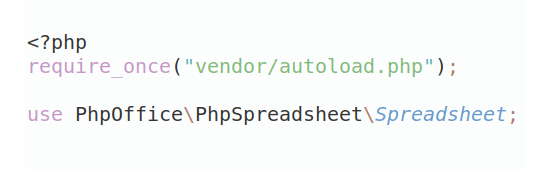
In general, it is recommended to use always a project to download your libraries. In an application normally there is more than one library needed.
- Some hosting areas are not accessible by a terminal or SSH. Then it is not possible to use Composer.
- To use Composer is sometimes complicated. Especially for beginners.
- Composer needs much resources. Sometimes they are not available on a simple webspace.
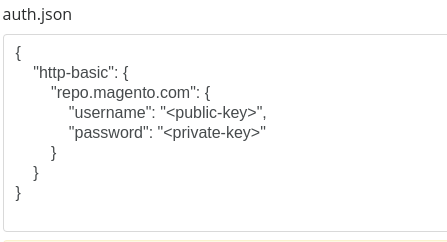
- If you are using private repositories you don't need to share your credentials. You can set up everything on our site and then you provide a simple download link to your team member.
- Simplify your Composer build process. Use our own command line tool to download the vendor folder as binary. This makes your build process faster and you don't need to expose your credentials for private repositories.
Informations about the package service-imager
Imager Service
Image processor interface for PHP applications using Intervention Image as default processor.
Table of Contents
- Getting started
- Requirements
- Highlights
- Documentation
- Basic Usage
- Create Imager
- Image Processing
- Resource
- Base64 Resource
- Binary Resource
- Data Url Resource
- File Resource
- Stream Resource
- Url Resource
- Action
- Background
- Blur
- Brightness
- Colorize
- Contrast
- Crop
- Encode
- Fit
- Flip
- Gamma
- Greyscale
- Orientate
- Pixelate
- Resize
- Rotate
- Sepia
- Save
- Sharpen
- Response
- Encoded Response
- File Response
- Advanced Usage
- Grouping Actions
- Creating New Action
- Actions To Messages
- Image Actions
- Interfaces
- Imager Factory Interface
- Imager Interface
- Processor Factory Interface
- Processor Interface
- Resource Interface
- Action Interface
- Actions Interface
- Response Interface
- Intervention Image
- Intervention Imager Factory
- Intervention Processor Factory
- Basic Usage
- Credits
Getting started
Add the latest version of the imager service project running this command.
Requirements
- PHP 8.4 or greater
Highlights
- Framework-agnostic, will work with any project
- Decoupled design
Documentation
Basic Usage
Create Imager
Check out the Imager Interface to learn more about the interface.
Image Processing
Check out the Resource section for available resources.
Check out the Action section for available actions and its response type.
Check out the Response section for response details.
You might be using the corresponding methods instead
Resource
Base64 Resource
Binary Resource
Data Url Resource
File Resource
You may check out the Filesystem Service - File to learn more about it.
Stream Resource
Url Resource
Action
Background
Applies the specified background color for transparent images.
Blur
Blurs the image.
Brightness
Adjusts the brightness of the image.
Colorize
Colorizes the image.
Contrast
Adjusts the contrast of the image.
Crop
Crops the image with the specified parameters.
Encode
Encodes image to the specified mime type.
Check out the Encoded Response to learn more about it.
mimeType
Supported mime types:
- or just ,
- or just
- or just
- or just
- or just
- or just , , if processor supports it
- or just , if processor supports it
- or just , if processor supports it
- or just , if processor supports it
- or just , if processor supports it
- or just , if processor supports it
quality
The quality for the image ranging from 0 to 100.
Fit
Fits image to the specified width and height.
position
- is default
Examples
Flip
Mirrors image horizontally or vertically.
flip
Gamma
Adjusts the gamma of the image.
Greyscale
Greyscales the image.
Orientate
Auto orientates image by EXIF data to display the image correctly.
Pixelate
Pixelates the image.
Resize
Resizes image by the specified parameters.
Examples
Rotate
Rotates image by the specified number of degrees clockwise and fills empty triangles left overs with the specified background color.
Sepia
Adds a sepia filter to the image.
Save
Saves the current processed state of the image to the specified filename.
Check out the File Response to learn more about it.
filename
The filename to save the processed image.
mimeType
The prioritized mimeType for the filename to save. If specified the filename will change its file extension to the corresponding format.
Supported mime types:
- or just ,
- or just
- or just
- or just
- or just
- or just , , if processor supports it
- or just , if processor supports it
- or just , if processor supports it
- or just , if processor supports it
- or just , if processor supports it
- or just , if processor supports it
quality
The quality for the image ranging from 0 to 100.
overwrite
| Option | Description |
|---|---|
| Allows overwriting image which is the default. | |
| Creates unique image if exists. | |
| Throws ActionException if image exists. |
modeDir
The directory mode to create the folders from the filename if they do not exist.
Sharpen
Sharpens the image.
Response
Encoded Response
File Response
The file response holds the processed image file.
Check out the Response Interface to learn more about it.
You may check out the Filesystem Service - File to learn more about it.
Advanced Usage
Grouping Actions
For reusage, you might create a group of actions to be processed.
Creating New Action
If you want to create a new action, you would need to handle each processor individually.
Actions To Messages
You might render the descriptions of the processed actions using the messages factory.
You may check out the Message Service to learn more about it.
You may check out the Actions Interface to learn more about it.
Image Actions
ImageActions is a high-level manager for working with Imager actions.
It provides validation, filtering, and safe instantiation of image manipulation actions before they are passed to the processor.
This is especially useful when actions come from user input, editor templates, or dynamic configuration, where parameters must be sanitized and unsupported actions must be rejected gracefully.
Key Features
- Define which actions are allowed (withActions())
- Filter actions (e.g., only filters like greyscale, sepia)
- Validate user-provided action lists
- Convert parameter types (numeric strings, booleans, etc.)
- Remove unsupported parameters (e.g., scale for crop)
- Safely create ActionInterface instances
- Optional PSR-3 logging for invalid actions
Creating an ImageActions instance
The constructor accepts a list of allowed action names.
Only valid actions are kept; unknown names are ignored.
Filtering actions
You can create a new instance containing only filter actions:
Both methods return a new instance, keeping the original immutable.
Validating user input
When actions come from a request (e.g., an image editor), they must be validated:
Result:
Invalid actions or parameters are ignored, and optionally logged.
Retrieving and Inspecting Actions
ImageActions provides several helper methods for inspecting the currently allowed actions. These are useful when building editors, debugging templates, or dynamically adjusting available actions.
all()
Returns all action names that are currently allowed for this instance.
has(string $action)
Checks whether a specific action name is allowed.
This is useful when validating editor templates or conditional UI elements.
getAllowedActions()
Returns the list of allowed action classes, not names.
This is primarily used internally by processors or advanced integrations that need to know which concrete ActionInterface implementations are permitted.
Creating an action instance
You can also create a single action manually:
If the action name is unknown or parameters are invalid, an ActionCreateException is thrown.
Using a logger
ImageActions accepts an optional PSR-3 logger:
Invalid user actions will be logged at notice level.
When to use ImageActions
Use ImageActions whenever:
- You accept image actions from user input
- You want to restrict which actions are allowed
- You need to sanitize parameters
- You want to prevent invalid actions from reaching the processor
- You build an image editor or similar UI component
It is the recommended high-level action manager for all editor-style workflows.
Interfaces
Imager Factory Interface
createImager
Creates a new imager.
Imager Interface
resource
Sets the image resource to perform the actions.
Check out the Resource section for available resources.
getResource
Returns the image resource or null if not set.
getProcessor
Returns the processor or null if not yet available.
file
Sets the image resource as file.
action
Adds an action to be processed.
Check out the Action section for available actions and its response type.
Processor Factory Interface
createProcessor
Creates a new processor for the specified resource.
Processor Interface
processAction
Processes the action specified.
Resource Interface
Action Interface
parameters
Returns the action parameters.
description
Returns a description of the action.
processedBy
The action by which the action was processed.
Actions Interface
add
Adds an action.
empty
If has any actions.
filter
Returns a new instance with the filtered actions.
only
Returns a new instance with the specified action(s) only.
except
Returns a new instance except the specified action(s).
withoutProcessedBy
Returns a new instance without actions processed by another.
all
Returns all actions.
Response Interface
actions
Returns the actions processed.
Intervention Image
Intervention Image imager implementation.
Intervention Imager Factory
Check out the Imager Factory Interface for its available methods.
Check out the Intervention Image Configuration for the config available parameters.
Intervention Processor Factory
Check out the Processor Factory Interface for its available methods.
Check out the Intervention Image Configuration for the config available parameters.
Credits
- Tobias Strub
- All Contributors
- Intervention Image
All versions of service-imager with dependencies

tobento/service-dir Version ^2.0
tobento/service-filesystem Version ^2.0
tobento/service-message Version ^2.0
intervention/image Version ^3.11