Download the PHP package solution25/bluesnap without Composer
On this page you can find all versions of the php package solution25/bluesnap. It is possible to download/install these versions without Composer. Possible dependencies are resolved automatically.
Download solution25/bluesnap
More information about solution25/bluesnap
Files in solution25/bluesnap
Package bluesnap
Short Description BlueSnap payment method for Shopware 6
License proprietary
FAQ
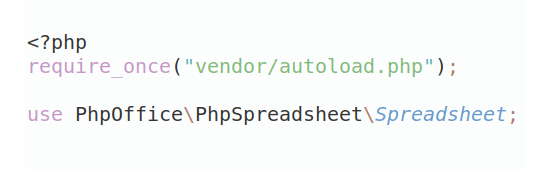
Example:
In general, it is recommended to use always a project to download your libraries. In an application normally there is more than one library needed.
- Some hosting areas are not accessible by a terminal or SSH. Then it is not possible to use Composer.
- To use Composer is sometimes complicated. Especially for beginners.
- Composer needs much resources. Sometimes they are not available on a simple webspace.
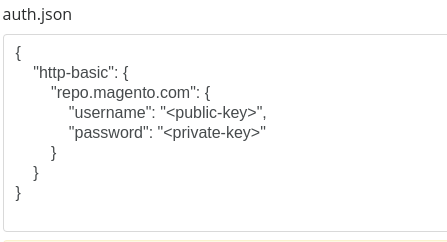
- If you are using private repositories you don't need to share your credentials. You can set up everything on our site and then you provide a simple download link to your team member.
- Simplify your Composer build process. Use our own command line tool to download the vendor folder as binary. This makes your build process faster and you don't need to expose your credentials for private repositories.
Informations about the package bluesnap
Bluesnap Payment
Introduction
The Bluesnap Shopware 6 Plugin is a reliable payment solution that connects Bluesnap’s gateway with your Shopware store. It supports a variety of payment methods such as credit cards, Apple Pay, Google Pay, hosted checkout, and pay-by-link. Merchants can manage full or partial refunds, enable 3D Secure for added safety, and offer customers the option to save, update, or delete their card details. With a clear setup process and secure transactions, the plugin helps businesses offer a smooth and flexible payment experience.
Key Features
- Credit Card Capture: Accept card payments through Bluesnap’s secure gateway.
- Hosted Checkout: Redirect customers to a secure Bluesnap-hosted payment page.
- Apple Pay & Google Pay: Offer fast, device-based payment options.
- Pay by Link: Send customers a link to complete their payment.
- Refunds: Support for full and partial refunds from the order view.
- Save Card: Let customers store card details for future use.
- Update Card: Allow customers to change saved card information.
- Delete Card: Give users control to remove stored cards.
- 3D Secure: Add an extra layer of protection to card transactions.
- Payment Surcharge: Optionally add a configurable surcharge to credit card payments, calculated dynamically at checkout and shown to the customer before the order is placed.
Compatibility
-
✅ Shopware 6.6.x
Shopware Branch Plugin version 6.6.x main1.3.0 6.7.x main-6.72.0.0
Get Started
Installation & Activation
- Download
- Clone the Plugin Repository:
- Open your terminal and run the following command in your Shopware 6 custom plugins directory (usually located at custom/plugins/):
- Install the Plugin in Shopware 6
- Log in to your Shopware 6 Administration panel.
- Navigate to Extensions > My Extensions.
- Locate the newly cloned plugin and click Install.
- Activate the Plugin
- After installation, click Activate to enable the plugin.
- In your Shopware Admin, go to Settings > System > Plugins.
- Upload or install the “Bluesnap” plugin.
- Once installed, toggle the plugin to activate it.
- Verify Installation
- After activation, you will see Bluesnap in the list of installed plugins.
- The plugin name, version, and installation date should appear as shown in the screenshot below.
Plugin Configuration
- Access Plugin Settings
- Go to Settings > System > Plugins.
- Locate Bluesnap and click the three dots (...) icon or the plugin name to open its settings.
- General Settings
Before using the plugin, configure the API keys and payment settings:- API Key for Live: Required for live transactions.
- API Public Key Live: Public key for authentication in the live environment.
- API Key for Sandbox: Required for testing transactions in the sandbox environment.
-
API Public Key Sandbox: Public key for authentication in sandbox mode.
-
3D Secure (Activate/Deactivate): When enabled, 3D Secure authentication will be required for all credit card transactions.
-
Vaulted Customer
-
Enable/Disable Surcharge: When enabled, a payment surcharge is calculated and shown to the customer during credit card checkout before the order is placed.
- Ensure you configure these settings before enabling payment methods in your store.
- Save Configuration
- Click Save in the top-right corner to store your settings.
Features & Usage
1. Credit Card Capture
This feature allows customers to complete transactions via Bluesnap’s PCI-compliant payment gateway using their credit card.
How It Works:
Customers enter their credit card details in a secure form.
The payment is processed via Bluesnap’s gateway.
Steps:
- Select "Bluesnap Credit Card" as the payment method.
- Enter the customer’s credit card details into the Bluesnap form.
- Submit payment.
2. Hosted Checkout
Bluesnap’s Hosted Checkout provides a secure checkout page hosted by Bluesnap, removing the need for merchants to handle sensitive payment information directly.
How It Works:
Customers are redirected to a secure hosted checkout page.
Payments are securely processed through Bluesnap.
Steps:
- Select "Bluesnap Hosted Checkout" as the payment method.
- The customer is redirected to the hosted checkout page.
- The customer completes the transaction on the hosted page.
3. Apple Pay Integration
Bluesnap supports Apple Pay, enabling customers to pay using their Apple devices with a single tap.
How It Works:
Customers use their Apple device to authenticate the transaction via Face ID, Touch ID, or Apple Watch.
Steps:
- Select "Apple Pay" as the payment method.
- Confirm payment through Face ID, Touch ID, or an Apple Watch.
4. Google Pay Integration
Customers can use Google Pay to complete transactions securely and quickly.
How It Works:
Customers authenticate the payment using their Google Pay account.
Steps:
- Select "Google Pay" as the payment method.
- Authenticate the payment via the customer’s Google Pay account.
5. Refunds (Full & Partial)
The Bluesnap plugin supports both full and partial refunds for transactions.
How It Works:
- Full refunds return the entire payment.
- Partial refunds return a portion of the payment.
Steps for Full Refund:
- Navigate to the Orders section.
- Select the order to be refunded.
- Click "Create Refund."
- Change the status to "In Progress."
Steps for Partial Refund:
- Navigate to the Orders section.
- Select the order to be partially refunded.
- Specify the refund amount.
- Click "Create Refund."
- Change the status to "In Progress."
6. Save Card Feature
This feature allows customers to securely save their card details for future transactions.
How It Works:
A Vaulted ID is created to store the customer’s payment details securely.
Customers can select saved cards for future transactions.
Steps:
- During checkout, select "Save my card for future use."
- The card is securely stored and available for future use.
7. Update Card Feature
Allows customers to update their saved card details securely for future transactions.
How It Works:
Customers can modify their saved card information directly within the payment gateway.
Steps:
- Navigate to checkout.
- Update the saved card details.
- Save the updated card information.
8. Delete Card Feature
This feature allows customers to delete their stored card details when they no longer wish to use them.
How It Works:
Customers can remove their stored card information from the system.
Steps:
- Navigate to checkout.
- Select the card to be deleted.
- Click "Delete" to remove the card from the system.
9. 3D Secure Authentication
Enabling 3D Secure adds an extra layer of authentication to credit card transactions, reducing fraud.
How It Works:
After the customer enters their credit card details, they will be redirected to their bank’s authentication page to complete the transaction.
Steps:
- Enable 3D Secure in the plugin configuration.
- Customers will automatically be prompted for 3D Secure authentication during checkout.
10. Payment Surcharge
Merchants can add a configurable surcharge to credit card payments. The surcharge is calculated dynamically through Bluesnap and shown to the customer for confirmation before the order is placed.
How It Works: Once enabled, entering credit card details on the checkout confirmation page shows a "Calculate surcharge and proceed to payment" button instead of submitting immediately. Calculating the surcharge shows the customer the additional amount, which is added to the order as a separate line item. This works both for a newly entered card and for a customer's saved/vaulted card, including when switching cards mid-checkout.
Steps:
- Enable Surcharge in the plugin configuration.
- During checkout, the customer enters their credit card details (or uses a saved card).
- The customer clicks "Calculate surcharge and proceed to payment" to see the surcharge amount.
- The customer confirms and completes the order with the surcharge included.
BlueSnap Plugin - API Documentation
This document provides detailed information about the API endpoints available in the BlueSnap Plugin for Shopware 6. These endpoints allow secure integration with BlueSnap’s payment services, enabling the generation of payment tokens and facilitating hosted payment field rendering within your Shopware storefront.
Generate Payment Field Token
Endpoint:
POST /services/2/payment-fields-tokens
Description:
This endpoint is used to generate a payment field token, which is required to securely render BlueSnap's hosted payment fields on the frontend.
Request Headers:
Authorization: Basic <base64-encoded API credentials>
Successful Response:
Example Error Response:
Capture Transaction
Endpoint:
POST /services/2/transactions/
Description:
This endpoint is used to capture a payment (authorize and capture funds) for a transaction using BlueSnap. It is typically called after the tokenization of payment data via BlueSnap's hosted fields.
Request Headers:
Authorization: Basic <base64-encoded API credentials>Content-Type: application/json
Example Request Body:
Successful Response:
Example Error Response:
Apple Pay Wallet
Endpoint:
POST /services/2/wallets/
Description:
This endpoint is used to create or update an Apple Wallet entry associated with a customer. It typically requires authorization and a JSON payload describing the wallet data. The request sends payment or pass-related information to BlueSnap's Apple Wallet service.
Request Headers:
Authorization: Basic <base64-encoded API credentials>Content-Type: application/json
Example Request Body:
Successful Response:
Example Error Response:
Retrieve Vaulted Shopper
Endpoint:
GET /services/2/vaulted-shoppers/{vaultedShopperId}
Description:
This endpoint retrieves the details of a vaulted shopper from BlueSnap using their unique ID. Vaulted shoppers store payment details and personal data for future transactions (e.g. subscriptions or saved payment methods). This is typically used to manage or reuse stored shopper data securely.
Request Headers:
Authorization: Basic <base64-encoded API credentials>Content-Type: application/jsonAccept: application/json
Example Request:
GET /services/2/vaulted-shoppers/123456789
Successful Response:
Example Error Response:
Hosted Checkout
Endpoint:
POST /services/2/bn3-services/jwt
Description:
This endpoint is used to generate a JWT (JSON Web Token) for initiating a BlueSnap Hosted Checkout session.
Request Headers:
Authorization: Basic <base64-encoded API credentials>Content-Type: application/json
Successful Response:
Example Error Response:
Update Vaulted Shopper
Endpoint:
PUT /services/2/vaulted-shoppers/
Description:
Updates an existing vaulted shopper's payment or personal information.
Request Headers:
Authorization: Basic <base64-encoded API credentials>Content-Type: application/json
Example Request Body:
Successful Response:
Example Error Response:
Refund Transaction
Endpoint:
POST /services/2/transactions/refund/
Description:
Processes a refund for a transaction. Can include metadata and options to cancel subscriptions.
Request Headers:
Authorization: Basic <base64-encoded API credentials>Content-Type: application/json
Example Request Body:
Successful Response:
Example Error Response:
Best Practices
- Use Sandbox for Testing: Always test your payment methods and flows in sandbox mode before going live.
- Enable 3D Secure: Improve fraud protection by turning on 3D Secure for all credit card transactions.
- Keep API Keys Secure: Never share your API keys publicly. Rotate them regularly if needed.
- Inform Customers About Saved Cards: Be transparent about card-saving features and offer easy ways to manage or delete saved cards.
- Monitor Transactions: Regularly check your Bluesnap dashboard to track transactions, monitor refunds, and handle any failed payments.
- Stay Updated: Keep the plugin updated to the latest version to ensure compatibility and security improvements.
Troubleshooting
Issue: Payment method not appearing at checkout
- Ensure the plugin is properly configured with the correct API keys.
- Verify that the desired payment methods are activated in your Shopware settings.
- Check that your store is in the correct mode (sandbox or live) matching the keys.
Issue: 3D Secure not triggering
- Confirm 3D Secure is enabled in the plugin settings.
- Ensure the credit card used supports 3D Secure.
- Test with different cards if needed.
Issue: Saved cards are not displaying
- Verify that the Vaulted Customer feature is enabled.
- Ensure the user is logged into their account during checkout.
Issue: Refund fails or doesn’t reflect in order status
- Make sure the transaction was successfully captured before initiating a refund.
- Confirm you are using the correct order and amount, especially for partial refunds.
- Check Bluesnap’s dashboard for more details on failed refund attempts.
FAQ
What payment methods does the Bluesnap Shopware 6 Plugin support?
- The plugin supports Credit Card, Apple Pay, Google Pay, Hosted Checkout, and Pay by Link.
Can customers save their card details for future use?
- Yes, customers can securely save card details and manage them (update or delete) within their account.
How do I enable 3D Secure?
- You can activate 3D Secure in the plugin configuration settings under the API section.
Is sandbox testing supported?
- Yes, the plugin supports sandbox mode for safe testing. Use the Sandbox API keys in the configuration section.
Can I issue partial refunds?
- Yes, both full and partial refunds are supported via the order management interface.
Can I add a surcharge to credit card payments?
- Yes, enable the Surcharge option in the plugin configuration. The surcharge is calculated at checkout and shown to the customer before the order is placed.
Wiki Documentation
Read more about the plugin configuration on our [Wiki]().
All versions of bluesnap with dependencies

shopware/storefront Version ~6.7.0
guzzlehttp/guzzle Version ^7.0