Download the PHP package thisdata/thisdata-wordpress without Composer

On this page you can find all versions of the php package thisdata/thisdata-wordpress. It is possible to download/install these versions without Composer. Possible dependencies are resolved automatically.

FAQ

After the download, you have to make one include require_once('vendor/autoload.php');. After that you have to import the classes with use statements.

Example:
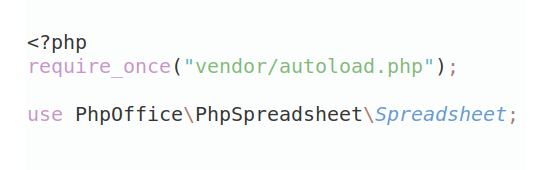
If you use only one package a project is not needed. But if you use more then one package, without a project it is not possible to import the classes with use statements.

In general, it is recommended to use always a project to download your libraries. In an application normally there is more than one library needed.
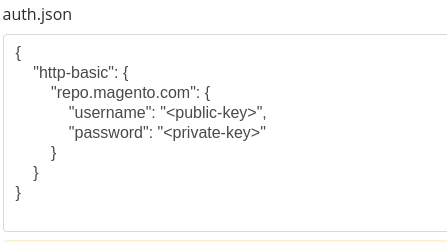
Some PHP packages are not free to download and because of that hosted in private repositories. In this case some credentials are needed to access such packages. Please use the auth.json textarea to insert credentials, if a package is coming from a private repository. You can look here for more information.
  • Some hosting areas are not accessible by a terminal or SSH. Then it is not possible to use Composer.
  • To use Composer is sometimes complicated. Especially for beginners.
  • Composer needs much resources. Sometimes they are not available on a simple webspace.
  • If you are using private repositories you don't need to share your credentials. You can set up everything on our site and then you provide a simple download link to your team member.
  • Simplify your Composer build process. Use our own command line tool to download the vendor folder as binary. This makes your build process faster and you don't need to expose your credentials for private repositories.
Please rate this library. Is it a good library?

Informations about the package thisdata-wordpress

ThisData for WordPress Plugin

ThisData is a security service that monitors for suspicious logins to your WordPress websites.

When suspicious logins are detected ThisData will immediately notify the user by email, asking if the login was actually them.

If the user responds to the email indicating it was not them, then the user session can be automatically terminated and a password reset email will be sent.

It relies on the ThisData anomaly detection algorithms which take into account many behavioral factors including:

You will also benefit from having a beautiful real-time security dashboard for your WordPress website which shows who is accessing, what devices they're using and where they're located.

Installation

To complete the installation of this plugin you will need a ThisData account.

  1. Get a free ThisData account at https://thisdata.com/sign-up
  2. Go to your email and confirm your ThisData account using the link in the email that was just sent to you.
  3. You will now see a Getting Started screen.
  4. Take a copy of your ThisData API Key and Javascript Write Key. You will use them in the plugin setup.

Now install the plugin

  1. Upload the plugin files to the /wp-content/plugins/thisdata directory, or install the plugin through the WordPress plugins screen directly.
  2. Activate the plugin through the 'Plugins' screen in WordPress
  3. Use the Settings->ThisData screen to configure the plugin
  4. Copy your ThisData API Key and Javascript Write Key into the boxes provided and click "Save Changes"

At this stage you will now be tracking log-in, log-out, password reset and plugin installation related events to ThisData. If you log-out of WordPress and log back in you will see your login attempt in your ThisData account.

Advanced setup

To create a really tight security integration you can enable this plugin to end a user session and reset password when the user confirms that the suspicious activity was not them. This requires the use of webhooks from ThisData so you will need to upgrade to a paid account.

  1. From your WordPress->Settings->ThisData screen copy the Alert Webhooks Path which should look like http://[your domain]/thisdata/webhook
  2. In your ThisData account click on API Settings from the top nav bar and near the bottom of the screen you will see an "Internal Notifications" section.
  3. Enter your Alert Webhooks Path into the ThisData Webhook Url box and click "Save API Settings"
  4. Note: You don't need to enter anything for the "Secret for Webhook Signatures"

Congrats! You now have a really sophisticated anomaly detection system protecting your WordPress website.

Frequently Asked Questions

How do I get started with ThisData?

Before installing this plugin, you'll need to sign up for a free ThisData account at https://thisdata.com/sign-up

Is this service free?

Yes, for up to 250 users the basic monitoring and notification service is free. If you want to implement the advanced setup that uses webhooks to disable user access when a threat is confirmed then you will need a paid account, but we offer a 30 day trial, so have a go!

What are alert webhooks?

The webhooks let you create an automated security workflow that will shutdown the access to a confirmed attacker. This happens as soon as the user responds to the email notification indicating that "it was not them".

I'm not seeing events in ThisData

Chances are you have the API key wrong. Double check this and try again. If you're still having trouble contact [email protected], and we will help.


All versions of thisdata-wordpress with dependencies

PHP Build Version
Package Version

Requires thisdata/api Version ^0.1.3
mohiohio/wordpress-lib Version ^0.1
analog/analog Version ^1.0
Composer command for our command line client (download client) This client runs in each environment. You don't need a specific PHP version etc. The first 20 API calls are free. Standard composer command

The package thisdata/thisdata-wordpress contains the following files

Loading the files please wait ...