Download the PHP package rkw/rkw-competition without Composer

On this page you can find all versions of the php package rkw/rkw-competition. It is possible to download/install these versions without Composer. Possible dependencies are resolved automatically.

FAQ

After the download, you have to make one include require_once('vendor/autoload.php');. After that you have to import the classes with use statements.

Example:
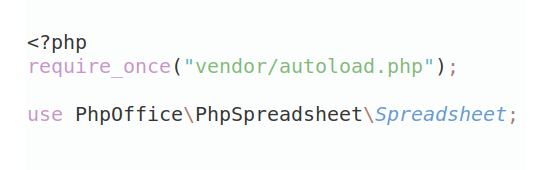
If you use only one package a project is not needed. But if you use more then one package, without a project it is not possible to import the classes with use statements.

In general, it is recommended to use always a project to download your libraries. In an application normally there is more than one library needed.
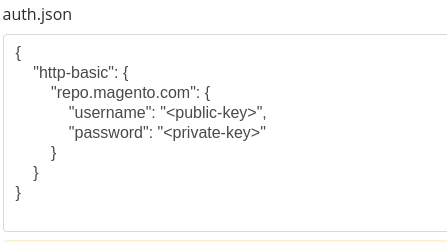
Some PHP packages are not free to download and because of that hosted in private repositories. In this case some credentials are needed to access such packages. Please use the auth.json textarea to insert credentials, if a package is coming from a private repository. You can look here for more information.
  • Some hosting areas are not accessible by a terminal or SSH. Then it is not possible to use Composer.
  • To use Composer is sometimes complicated. Especially for beginners.
  • Composer needs much resources. Sometimes they are not available on a simple webspace.
  • If you are using private repositories you don't need to share your credentials. You can set up everything on our site and then you provide a simple download link to your team member.
  • Simplify your Composer build process. Use our own command line tool to download the vendor folder as binary. This makes your build process faster and you don't need to expose your credentials for private repositories.
Please rate this library. Is it a good library?

Informations about the package rkw-competition

RkwCompetition

1. Extension usage for integrators

  1. Add RkwCompetition TypoScript template to your page
  2. If it hasn't happened yet, install hCaptcha:
    • ddev composer require dreistromland/typo3-hcaptcha
    • Add hCaptcha TypoScript template to your page
  3. Create or use an existing page of type "folder" in your TYPO3 Backend
  4. Create the folder path /fileadmin/user_upload/tx_rkwcompetition/ (if not exists)
  5. Set up your local TypoScript like the following example:

1.1 Create basic records inside a folder of your choice

  1. Create a FrontendUserGroup for FrontendUser participants
  2. Create a FrontendUserGroup for FrontendUser jury members
  3. You will need at least one FrontendUser for usage as a jury member to create a competition
  4. Create "Sector" records ("Bereich") before creating a competition
  5. Create your first "Competition" record ("Wettbewerb")

1.2 Frontend Part One: Competition & Register Plugins

  1. Insert the plugin to show the competitions themselves on your chosen page (settings.competitionPid)
    1. Plugin Name: "RKW Competition: Wettbewerb [rkwcompetition_competition]"
    2. Select a competition record inside the FlexForm of the plugin
  2. Insert the register plugin to the other created page (settings.registerPid)
    1. Plugin Name: "RKW Competition: Anmeldung [rkwcompetition_register]"

1.3 Frontend Part Two: Plugins for Participants & Jury-Member (Login Area)

  1. Create new page "Mein Wettbewerb"
    1. Plugin Name: "RKW Competition: Teilnehmer (Login-Bereich)"
    2. Set the page access rights for specific FrontendUserGroup of participants
  2. Create new page "Meine Jurytätigkeit"
    1. Plugin Name: "RKW Competition: Jury (Login-Bereich)"
    2. Set the page access rights for specific FrontendUserGroup of jury members

2. The Jury

Jury members are basically normal FrontendUsers with a certain FrontendUserGroup.

They can be added to a Competition as a candidate ("jury_member_candidate"). They do not belong to any particular FrontendUserGroup at this time. Through a cronjob ("JuryNotifyCommand"), they will get emails with deadline information and an invitation to accept the membership.

If a FrontendUser and candidate accepts the membership, the FrontendUser gets the defined FrontendUserGroup for jury members and will be added as a confirmed jury member to the competition.

@toDo: Do we need a function for admins to notify them if a jury member does not accept the invitation?


3. Explore the Backend Module

The backend module is used by BackendUsers (also called "Admins") to take a first look at the documents of the registrations.

The admins have the task of accepting registrations in the first instance or refusing them with reasons. This is an important part of the extension's functionality.

Hint for initial usage: It is advisable to have at least one registration created before the backend module is accessed for test purposes.

  1. Click on "RKW Competition" inside the "Web" area
  2. A list of competitions shows up as a table. Select one by using the "show" link on the right
  3. This leads to a list of registrations. You can view them by using the "show" link
  4. Now an admin can get a detailed overview of the registration including a file download
  5. The admin can determine whether to accept or to refuse the registration

4. Cronjobs

This extension comes with a bunch of cronjobs which manage the several steps from initial registration until the assignment to the jury member:


5. Workflow

A step-by-step journey with all components through the RkwCompetition after all configuration steps are done (steps 1-4).

HINT: If the tester has to do something manually that should be done automatically ("cronjobs"), this is displayed below as TASK. If the system does something on its own, this will be displayed as TRIGGER.

5.1 Initial registration procedure (as a FrontendUser)

  1. Go to the competition page (Plugin: rkwcompetition_competition; CompetitionController->showAction)
  2. Click the link to the registration page (Plugin: rkwcompetition_register; RegisterController->newAction)
  3. Fill out the form including all mandatory fields and send it (RegisterController->createAction)
    1. TASK: Kick off cronjob "postmaster:send" manually
    2. TRIGGER: Opt-In email is sent to the registered email address (RkwMailService->optInRequest)
  4. Go to your email program and open the email. Choose one of the two links:
    1. Decline: The registration will be removed (RegisterController->optInAction)
    2. Accept: The registration will be executed (RegisterController->optInAction)
      1. TASK: Kick off cronjob "postmaster:send" manually
      2. TRIGGER: Confirmation email is sent to FrontendUser (RkwMailService->confirmRegisterUser)
      3. TRIGGER: Notification email is sent to FrontendUser ("Upload") (RkwMailService->uploadDocumentsUser)
      4. TRIGGER: Notification email to admin ("New competition registration") (RkwMailService->confirmRegisterAdmin)
      5. TRIGGER: OwnCloud folder created; access links persisted (Register-Model; Competition-Model)

5.2 Uploads and final submit (as a FrontendUser)

  1. Login to "Mein RKW" with the email address of the completed registration (@see 5.1)
  2. Go to the subarea "Mein Wettbewerb" (@see 1.3). You should see at least the competition you have registered for (ParticipantController->listAction)
  3. Click on the button for file uploads ("Dateien hochladen") (UploadController->editAction)
  4. Now upload at least the abstract ("Kurzfassung") as a Word or PDF file
    1. Any other format (.jpg etc.) should throw an error
  5. Go back to "Mein Wettbewerb" (@see 1.3) and click the button on the right ("Submit"; "Einreichen")
  6. A page shows up with a last checklist and hints for the user before committing (RegisterController->submitQuestionAction)
  7. Select the checkbox and submit (RegisterController->submitAction)
    1. TRIGGER: Status of registration is changed to "submitted" (Field: userSubmittedAt)
    2. TASK: Kick off cronjob "postmaster:send" manually
    3. TRIGGER: Confirmation email is sent to FrontendUser (RkwMailService->submitRegisterUser)
    4. TRIGGER: Notification email to admin ("Registration submitted") (RkwMailService->submitRegisterAdmin)

5.3 Admin preselection (as a BackendUser)

  1. Click on "RKW Competition" inside the "Web" area (BackendController->listAction)
  2. Select the desired competition and then the corresponding registration (BackendController->showAction)
  3. Now you can take a look at the registration and choose between two options (BackendController->registerDetailAction)
    1. Refuse: Something is wrong with the registration? Type in the reason for it and submit (BackendController->refuseAction)
      1. TRIGGER: Status of registration is changed to "refused" (Field: adminRefusedAt)
      2. TASK: Kick off cronjob "postmaster:send" manually
      3. TRIGGER: Refusal email is sent to FrontendUser (RkwMailService->refusedRegisterUser)
      4. The reason for refusal is shown to the user inside the email and in the list "Mein Wettbewerb"
      5. Now the user can change things and submit the registration again
    2. Accept: Everything looks good? Approve it! (BackendController->approveAction)
      1. TRIGGER: Status of registration is changed to "approved" (Field: adminApprovedAt)
      2. TASK: Kick off cronjob "postmaster:send" manually
      3. TRIGGER: Success email is sent to FrontendUser (RkwMailService->approvedRegisterUser)
      4. Now the FrontendUser is finished with the registration

5.4 Become a jury member

  1. GIVEN: The competition date is between "RegisterEnd" and "JuryAccessEnd"
  2. GIVEN: A FrontendUser is set as "Jury Member Candidate" for the competition
    1. This means that the jury member is a candidate and not a full-fledged jury member
    2. First of all, the jury candidate has to agree to the terms. If this has not happened yet, do it now:
      1. TASK: Kick off cronjob "rkw_competition:juryNotify" manually (RkwMailService->juryNotifyUser)
      2. TASK: Kick off cronjob "postmaster:send" manually
      3. TRIGGER: Notification email is sent to FrontendUser to confirm the role as a jury member
    3. Login with your FrontendUser (the "jury candidate") to "Mein RKW"
    4. Go to "Meine Jurytätigkeit" (@see 1.3)
    5. Click the button to agree ("Einwilligen")
    6. The FrontendUser is now a fully qualified jury member for this competition and can view the registrations

Hint: To repeat the jury member process for testing purposes, you have to delete the "juryReference" record and reset the field "reminder_jury_mail_tstamp" inside the competition record.

Development

OwnCloud as part of your current DDEV project

Add following as "docker-compose.owncloud.yml" to your .ddev folder:

Restart ddev (if already running):

Get the browser URL of the "OwnCloud"-Service:

URL: http://rkw-website.ddev.site:8985

OwnCloud login:

To work with the API inside the container we have to use the container name as URL (with different port!):

How it's created: http://ddev-${DDEV_SITENAME}-owncloud

TypoScript basic setup:

Example API queries:

You have to be logged in with credentials (admin / admin) before seeing any response from these example queries.

Example API query with credentials and debug info (this query returns a user list of the given OwnCloud instance):


###########################################

DEPRECATED: Independent OwnCloud docker installation (NOT USED: API connection issues)

Local "OwnCloud" installation; add OwnCloud-Container

See: https://doc.owncloud.com/server/next/admin_manual/installation/docker/#docker-compose Config: https://doc.owncloud.com/server/next/admin_manual/configuration/server/config_sample_php_parameters.html

  1. Create new directory for owncloud docker

  2. Copy the docker-compose.yml without any changes into the main directory: "/owncloud-docker-server/docker-compose.yml"
  3. In case of any problems change the Port inside the .env file (which is also placed into the main directory): "/owncloud-docker-server/.env"

DO NOT USE :8080 in your .env file as HTTP_PORT because it may already be in use

  1. Add to your /etc/hosts:

  2. Start it

  3. Use it (login with "admin" / "admin"; @see .env file)

  4. If you are authorized, you can run custom API test in your browser

https://doc.owncloud.com/server/next/developer_manual/core/apis/ocs-capabilities.html

  1. Do not use the port number for API-calls when using it from your local RKW-Machine

  2. Stop it

Learn API stuff here: https://doc.owncloud.com/server/next/developer_manual/core/apis/provisioning-api.html#introduction


All versions of rkw-competition with dependencies

PHP Build Version
Package Version

Requires typo3/cms-core Version ^10.4
Composer command for our command line client (download client) This client runs in each environment. You don't need a specific PHP version etc. The first 20 API calls are free. Standard composer command

The package rkw/rkw-competition contains the following files

Loading the files please wait ...