Download the PHP package pfefferle/wordpress-webfinger without Composer

On this page you can find all versions of the php package pfefferle/wordpress-webfinger. It is possible to download/install these versions without Composer. Possible dependencies are resolved automatically.

FAQ

After the download, you have to make one include require_once('vendor/autoload.php');. After that you have to import the classes with use statements.

Example:
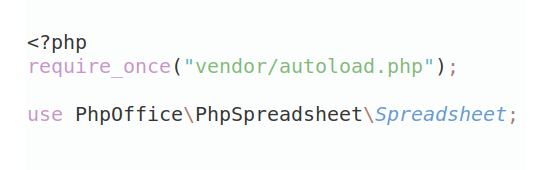
If you use only one package a project is not needed. But if you use more then one package, without a project it is not possible to import the classes with use statements.

In general, it is recommended to use always a project to download your libraries. In an application normally there is more than one library needed.
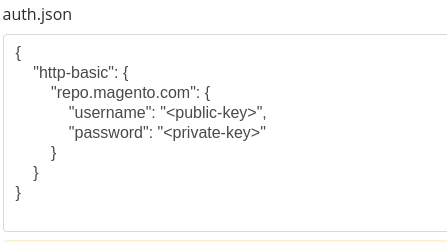
Some PHP packages are not free to download and because of that hosted in private repositories. In this case some credentials are needed to access such packages. Please use the auth.json textarea to insert credentials, if a package is coming from a private repository. You can look here for more information.
  • Some hosting areas are not accessible by a terminal or SSH. Then it is not possible to use Composer.
  • To use Composer is sometimes complicated. Especially for beginners.
  • Composer needs much resources. Sometimes they are not available on a simple webspace.
  • If you are using private repositories you don't need to share your credentials. You can set up everything on our site and then you provide a simple download link to your team member.
  • Simplify your Composer build process. Use our own command line tool to download the vendor folder as binary. This makes your build process faster and you don't need to expose your credentials for private repositories.
Please rate this library. Is it a good library?

Informations about the package wordpress-webfinger

WebFinger

WebFinger for WordPress

Description

WebFinger allows you to be discovered on the web using an identifier like [email protected] — similar to how email works, but for your online identity.

Why is this useful?

How it works:

When someone searches for @[email protected] on Mastodon or another federated service, their server asks your WordPress site: "Who is this person?" WebFinger answers that question by providing information about you and links to your profiles.

Technical details:

WebFinger is an open standard (RFC 7033) that enables discovery of information about people and resources on the internet. It works by responding to requests at /.well-known/webfinger on your domain.

Frequently Asked Questions

How do I customize my WebFinger identifier?

Go to Users → Profile in your WordPress admin and scroll down to the "WebFinger" section. There you can set a custom identifier (the part before the @) and see all your WebFinger aliases.

How do I check if WebFinger is working?

Visit Tools → Site Health in your WordPress admin. The plugin adds checks that verify your WebFinger endpoint is accessible and properly configured. If there are any issues, you'll see guidance on how to fix them.

Does this work with Mastodon?

Yes! WebFinger is the standard that Mastodon and other Fediverse platforms use to discover users. When someone searches for @[email protected], WebFinger tells them where to find your profile.

Do I need pretty permalinks?

Yes. WebFinger requires pretty permalinks to be enabled. Go to Settings → Permalinks and select any option other than "Plain".

For developers: How do I add custom data to the WebFinger response?

Use the webfinger_data filter to add your own links or properties:

add_filter( 'webfinger_data', function( $data ) {
  $data['links'][] = array(
    'rel'  => 'http://example.com/rel/profile',
    'href' => 'http://example.com/profile',
    'type' => 'text/html',
  );
  return $data;
} );

For developers: How do I add alternate output formats?

Use the webfinger_render action to output custom formats (like XRD):

add_action( 'webfinger_render', function( $webfinger ) {
  // Set custom headers and output your format
  // ...
  exit;
}, 5 );

See https://github.com/pfefferle/wordpress-webfinger-legacy for a complete example.

Where can I learn more about WebFinger?

Upgrade Notice

4.0.0

This is a major update with new features (Site Health checks, user profile settings) and requires PHP 7.2 or higher. After updating, visit Tools → Site Health to verify your WebFinger setup is working correctly.

3.0.0

This version drops classic WebFinger (XRD) support to keep the plugin lightweight. If you need legacy XRD format support, install the WebFinger Legacy plugin.

Changelog

Project maintained on github at pfefferle/wordpress-webfinger.

4.0.1

4.0.0

3.2.7

3.2.6

3.2.5

3.2.4

3.2.3

3.2.2

3.2.1

3.2.0

3.1.6

3.1.5

3.1.4

3.1.3

3.1.2

3.1.1

3.1.0

3.0.3

3.0.2

3.0.1

3.0.0

2.0.1

2.0.0

1.4.0

1.3.1

1.3

1.2

1.1

1.0.1

1.0

0.9.1

0.9

0.7

0.5

Installation

From WordPress.org (recommended)

  1. Go to Plugins → Add New in your WordPress admin
  2. Search for "webfinger"
  3. Click Install Now, then Activate
  4. Make sure pretty permalinks are enabled (Settings → Permalinks — select any option except "Plain")
  5. Visit Tools → Site Health to verify everything is working

Manual Installation

  1. Download the plugin from WordPress.org or GitHub
  2. Upload the webfinger folder to /wp-content/plugins/
  3. Activate the plugin in Plugins → Installed Plugins
  4. Enable pretty permalinks if not already active
  5. Check Tools → Site Health to confirm the setup

All versions of wordpress-webfinger with dependencies

PHP Build Version
Package Version

Requires php Version >=7.2
composer/installers Version ~2.2
Composer command for our command line client (download client) This client runs in each environment. You don't need a specific PHP version etc. The first 20 API calls are free. Standard composer command

The package pfefferle/wordpress-webfinger contains the following files

Loading the files please wait ...