Download the PHP package mwguerra/web-terminal without Composer

On this page you can find all versions of the php package mwguerra/web-terminal. It is possible to download/install these versions without Composer. Possible dependencies are resolved automatically.

FAQ

After the download, you have to make one include require_once('vendor/autoload.php');. After that you have to import the classes with use statements.

Example:
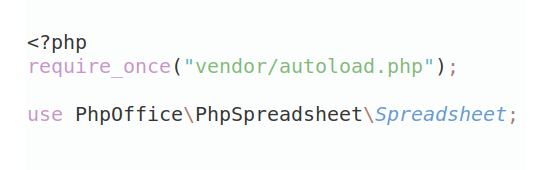
If you use only one package a project is not needed. But if you use more then one package, without a project it is not possible to import the classes with use statements.

In general, it is recommended to use always a project to download your libraries. In an application normally there is more than one library needed.
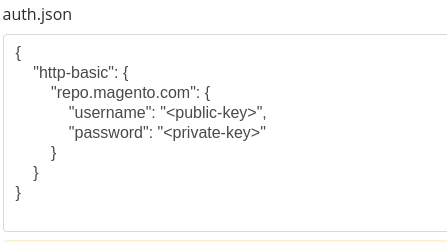
Some PHP packages are not free to download and because of that hosted in private repositories. In this case some credentials are needed to access such packages. Please use the auth.json textarea to insert credentials, if a package is coming from a private repository. You can look here for more information.
  • Some hosting areas are not accessible by a terminal or SSH. Then it is not possible to use Composer.
  • To use Composer is sometimes complicated. Especially for beginners.
  • Composer needs much resources. Sometimes they are not available on a simple webspace.
  • If you are using private repositories you don't need to share your credentials. You can set up everything on our site and then you provide a simple download link to your team member.
  • Simplify your Composer build process. Use our own command line tool to download the vendor folder as binary. This makes your build process faster and you don't need to expose your credentials for private repositories.
Please rate this library. Is it a good library?

Informations about the package web-terminal

Web Terminal

A secure web terminal package for Laravel with Filament integration. Execute allowed commands on local systems or SSH servers.

Version Compatibility

Version Filament Laravel Livewire PHP
2.x 5.x 12.x–13.x 4.x 8.3+
1.x 4.x 11.x 3.x 8.2+

Features

Requirements

For Laravel 11 and Filament 4 support, use version ^1.0.

Warning

This package provides real shell access to real servers. Commands executed through this terminal can modify files, change configurations, and affect running services.

Before using this package:

  • Restrict access to technical personnel only — do not expose terminal pages to general users
  • Review and limit the allowed commands whitelist for each terminal instance
  • Enable logging to maintain an audit trail of all executed commands
  • Test configurations in a safe environment before deploying to production

Use at your own risk. The authors are not responsible for any damage, data loss, or security incidents resulting from the use of this package. Always ensure proper access controls and review your security configuration.

Installation

For Filament 5 / Laravel 12–13 (latest)

For Filament 4 / Laravel 11 (legacy)

Upgrading from v1.x to v2.x

Key changes in v2.x:

Interactive Setup

Run the install command for guided configuration:

The installer will:

Install Options

Non-Interactive Installation

Use --no-interaction (or -n) with specific flags to skip prompts:

Flag Description
--config Publish the configuration file
--migration Publish the database migration
--views Publish Blade views for customization
--migrate Run migration after publishing
--page Generate a custom Terminal page
--resource Generate a custom TerminalLogs resource
--panel= Specify the Filament panel (required for page/resource in multi-panel apps)

Note: When using -n without any flags, the installer defaults to --config --migration.

Generate Custom Pages

Generate customizable Terminal page and TerminalLogs resource in your application instead of using the plugin defaults:

The generated files are placed in directories configured in your panel provider via ->discoverPages() and ->discoverResources(). For example:

Generated File Location
Terminal page app/Filament/Pages/Terminal.php
TerminalLogResource app/Filament/Resources/TerminalLogResource.php
ListTerminalLogs app/Filament/Resources/TerminalLogResource/Pages/ListTerminalLogs.php
ViewTerminalLog app/Filament/Resources/TerminalLogResource/Pages/ViewTerminalLog.php

Important: When using custom generated pages with the plugin, you must disable the corresponding plugin defaults to avoid duplicate pages in your navigation.

If you don't need the plugin at all (using only custom pages), you can remove WebTerminalPlugin::make() from your panel provider entirely.

Terminal Command Permissions

When generating a custom Terminal page, you can specify command permissions:

Option Generated Configuration Description
--allow-secure-commands (default) ->allowedCommands([...]) Safe readonly commands
--allow-all-commands ->allowAllCommands() All commands allowed (dangerous)
--allow-no-commands ->allowedCommands([]) No commands (configure manually)

Create Terminal Page Command

For more control over page generation, use the dedicated terminal:make-page command:

Option Description
name The page class name (default: Terminal)
--panel= The Filament panel to create the page for
--key= The terminal identifier key for logging
--allow-secure-commands Safe readonly commands (default)
--allow-all-commands All commands allowed (dangerous)
--allow-no-commands No commands (configure manually)
--force Overwrite existing file

Interactive prompts (when not using --no-interaction):

  1. Panel selection - if multiple panels exist
  2. Page class name - defaults to "Terminal"
  3. Terminal key - auto-generated from name (e.g., server-terminal-terminal)
  4. Command permissions - secure/none/all options

Manual Setup

If you prefer manual setup:

Quick Start

Get a working terminal in under a minute:

That's it! Visit /admin/terminal to access the terminal.

For a custom terminal with specific commands:

Local Terminal

Filament Integration

The package provides a Filament plugin that adds:

Register the Plugin

Add the plugin to your Filament panel provider:

Plugin Configuration

Customize Navigation

Disable Components

Access Plugin Configuration

Customizing the Plugin's Terminal Page

The plugin provides a ready-to-use Terminal page at /admin/terminal. To customize its terminal configuration (allowed commands, working directory, etc.), create your own page that extends the base:

Then disable the plugin's default page and register your custom one:

Usage

Option 1: Direct Livewire Component

Embed the terminal directly in any Blade view:

Option 2: Filament Schema Component (Recommended)

Use the schema component for Filament pages with fluent configuration:

View file (resources/views/filament/pages/terminal.blade.php):

Default Allowed Commands

The package uses command whitelisting for security. Only commands in the whitelist can be executed.

Config File Defaults

The config/web-terminal.php file includes these default allowed commands:

Note: The * wildcard allows the command with any arguments (e.g., cd /var/log, uname -a, grep pattern file.txt).

Plugin Terminal Page Defaults

The Filament plugin's Terminal page (/admin/terminal) uses an extended command set suitable for Laravel development:

Command Description
ls, ls * List directory contents
pwd Print working directory
cd, cd * Change directory
uname, uname * System information
whoami Display current user
date Show current date/time
uptime System uptime
cat *, head *, tail * View file contents
wc * Word/line count
grep * Search file contents
php artisan * Laravel Artisan commands
composer * Composer package manager

Note: The * wildcard allows the command with any arguments (e.g., php artisan migrate, composer require package/name).

Terminal Commands

Customizing Commands

Override the defaults per-terminal using allowedCommands():

Or bypass the whitelist entirely (use with caution):

Configuration Options

Dynamic Configuration with Closures

All configuration methods accept Closures for dynamic resolution at runtime. This is useful for:

Connection Types

Local Connection

SSH Connection with Password

SSH Connection with Array Configuration

Use an array to configure SSH connections, useful when loading configuration dynamically:

SSH Connection with Key

The key parameter accepts the private key content directly. Load it using your preferred method:

Generic Connection (Advanced)

For complex configurations, use the connection() method with a config array or ConnectionConfig object:

Terminal Settings

Method Description Default
key(string) Unique identifier for the terminal instance 'web-terminal'
allowedCommands(array) Commands users can execute []
allowAllCommands() Bypass command whitelist (use with caution) false
allowInteractiveMode() Enable interactive execution (PTY/tmux) for streaming output and stdin false
allow(array) Set permissions using TerminalPermission enum values -
loginShell() Use login shell for full environment (loads .bashrc) false
timeout(int) Command timeout in seconds 10
prompt(string) Terminal prompt symbol '$ '
historyLimit(int) Command history size 50
maxOutputLines(int) Max output lines to display 1000
height(string) Terminal height '350px'
workingDirectory(string) Initial working directory null
environment(array) Environment variables for commands []
shell(string) Shell to use for execution '/bin/bash'

UI Settings

Method Description Default
title(string) Title shown in terminal header bar 'Terminal'
windowControls(bool) Show macOS-style window control dots true
startConnected(bool) Auto-connect on page load false

Stream Mode

Stream mode provides a full interactive PTY shell via WebSocket, powered by ghostty-web. Unlike the Classic terminal (which executes one command at a time via Livewire), Stream mode gives you a real shell session with canvas-rendered output — supporting full-screen TUI apps like vim, htop, nano, and more.

Enabling Stream Mode

In dual-mode, a toggle pill in the header bar lets users switch between Classic and Stream modes.

Stream Mode Settings

Method Description Default
streamTerminal(bool) Enable Stream terminal mode false
classicTerminal(bool) Enable Classic terminal mode true
streamTheme(array) Theme for the Stream terminal canvas See config
autoConnect(bool) Auto-connect and hide connect/disconnect button false

Stream mode always auto-connects when the terminal becomes visible. The connect/disconnect button is never shown in Stream mode.

WebSocket Server

Stream mode requires a WebSocket server to bridge the browser to a PTY shell process. Start it with:

Options:

The server uses React PHP for the event loop and Ratchet RFC6455 for WebSocket protocol handling.

SSL/WSS Configuration

When your app is served over HTTPS, the WebSocket connection must use WSS. Configure SSL in your .env:

Or configure in config/web-terminal.php:

When ssl_cert and ssl_key are set, the WebSocket server automatically serves over TLS.

Required Dependencies

Stream mode requires additional packages (suggested, not required by default):

Running in Production

For production, run the WebSocket server as a supervised process:

Or with systemd:

Session Management

Control how the terminal handles navigation and inactivity:

Method Description Default
disconnectOnNavigate(bool) Disconnect when user navigates away or refreshes true
keepConnectedOnNavigate() Disable auto-disconnect on navigation -
inactivityTimeout(int) Auto-disconnect after N seconds of inactivity 3600 (60 min)
noInactivityTimeout() Disable inactivity timeout -

Session Configuration in Config File

You can also configure these settings globally in config/web-terminal.php:

The terminal tracks user activity (commands, keystrokes) and automatically disconnects after the configured timeout period. This helps prevent orphaned tmux sessions and releases server resources.

Environment Helpers

Method Description
path(string) Set custom PATH environment variable
inheritPath() Inherit PATH from server's environment

Preset Configurations

Quick presets that configure allowed commands for common use cases:

Preset Allowed Commands Use Case
readOnly() ls, pwd, cat, head, tail, find, grep View-only file access
fileBrowser() ls, pwd, cd, cat, head, tail, find Navigate and view files
gitTerminal() git, ls, pwd, cd, cat Git operations
dockerTerminal() docker, docker-compose, ls, pwd, cd Container management
nodeTerminal() npm, npx, node, yarn, ls, pwd, cd, cat Node.js development
artisanTerminal() php, composer, ls, pwd, cd, cat Laravel development

Note: Presets can be combined with other methods:

Scripts

Scripts allow you to define reusable sequences of commands that can be executed with a single click. They appear in a dropdown menu in the terminal header and provide visual feedback during execution.

Scripts Dropdown Menu

Defining Scripts

Use the Script class to define scripts with a fluent API:

Script Configuration Options

Method Description Default
make(string $key) Create a script with a unique identifier Required
label(string) Display name in the dropdown menu Key value
description(string) Human-readable description null
icon(string) Heroicon name for the dropdown 'heroicon-o-command-line'
commands(array) List of commands to execute sequentially []

Execution Behavior

Method Description Default
stopOnError() Stop execution if any command fails true
continueOnError() Continue execution even if commands fail -
confirmBeforeRun() Require user confirmation before running false

Elevated Scripts

Scripts can bypass the command whitelist using the elevated() method. Use this for trusted administrative scripts:

Warning: Elevated scripts bypass all command authorization checks. Only use for trusted scripts that require commands not in your whitelist.

Disconnection Scripts

For scripts that will disconnect the terminal (like server reboots), use the willDisconnect() method:

Method Description
willDisconnect() Mark script as causing disconnection
beforeMessage(string) Message shown before script starts
disconnectMessage(string) Message shown when disconnection occurs

Script Authorization

Scripts are only shown in the dropdown if the user is authorized to run them. Authorization is determined by:

  1. Elevated scripts: Always authorized (bypass whitelist)
  2. Terminal allows all commands: Always authorized
  3. Command whitelist: All script commands must be in the allowedCommands list

Script Execution UI

Script Execution Status

When a script runs, a slide-over panel displays:

Note: Terminal input is disabled while a script is running to prevent interference with script execution. The input field is re-enabled once the script completes or is cancelled.

Command statuses:

Script Examples

Deployment Script

Log Viewer Script

Database Backup Script

Server Maintenance Script

Logging

The package includes comprehensive logging for terminal sessions, connections, and command execution.

Terminal Logs Resource

Configuration

Logging is configured in config/web-terminal.php:

Fluent API

Override logging settings per-terminal using the log() method:

Array and Closure Configuration

The log() method also accepts an array or Closure, which is useful for dynamic configuration and adding custom metadata:

Log Configuration Options

Key Type Description
enabled bool Enable/disable logging
connections bool Log connect/disconnect events
commands bool Log command executions
output bool Log command output (can be verbose)
identifier string Custom identifier for filtering logs
metadata array Custom metadata stored with each log entry

Standalone Metadata Method

You can also set metadata separately using the logMetadata() method:

This is useful when you want to keep log settings separate from metadata, or when building configurations dynamically.

Event Types

The logger tracks these event types:

Session Info Panel

When logging is enabled, the terminal info panel displays session statistics:

Session Info Panel

Querying Logs

Available Scopes

Scope Description
forSession(string $sessionId) Filter by session ID
forTerminal(string $identifier) Filter by terminal identifier
forUser(int $userId) Filter by user ID
forTenant(mixed $tenantId) Filter by tenant ID
connections() Only connection events
commands() Only command events
errors() Only error events
recent(int $hours) Logs from the last N hours
olderThan(int $days) Logs older than N days

Terminal Log View

Terminal Log Filter

Terminal Log Command Output

Log Cleanup

Clean up old log entries manually:

Multi-Tenant Support

For multi-tenant applications, configure the tenant resolver:

Or use a class-based resolver:

The resolver class must implement __invoke():

Built-in Commands

The terminal includes these built-in commands:

Copy & Paste

The terminal includes clipboard integration for copying output and pasting commands.

Copy All Output

Click the clipboard icon in the terminal header bar to copy the entire terminal output as plain text. ANSI escape codes are stripped automatically. A brief checkmark feedback confirms the copy.

Per-Block Copy

Hover over any command block (a command and its output) to reveal a copy button. Click it to copy that block's content to the clipboard.

Multi-Line Paste

When you paste text containing multiple lines into the terminal input:

Single-line pastes are inserted directly into the input field without a modal.

Note: Multi-line paste is disabled during interactive mode (e.g., when a process like top is running) and during script execution.

Programmatic Access

Security by Design

WebTerminal is built with security as a core principle, implementing multiple layers of protection to minimize attack surface and prevent credential exposure.

Credential Protection

Server-Side Only Credentials: SSH passwords, private keys, and passphrases are stored exclusively in protected PHP properties that are never serialized or sent to the browser. This prevents:

The connection details shown in the info panel (host, port, username) are rendered server-side via PHP methods, not exposed as JavaScript-accessible properties.

Command Filtering

Commands are validated server-side against a configurable allowlist before execution. This provides defense-in-depth against:

Only whitelisted commands can be executed (unless allowAllCommands() is explicitly used).

Blocked Command

Shell Operator Controls

By default, the terminal blocks shell operators (pipes, redirections, chaining, and variable expansion) to prevent command injection. You can selectively enable operator groups based on your security requirements.

Operator Groups

Method Operators Risk Level Description
allowPipes() \| Low Enables piping output between commands. Pipes pass stdout of one command to stdin of another. Example: ls \| grep foo
allowRedirection() > < >> << Medium Enables file I/O redirection. Output redirection (>) can overwrite files. Input redirection (<) reads from files. Append (>>) adds to files. Here-documents (<<) allow multi-line input.
allowChaining() ; && \|\| & Medium Enables running multiple commands. Semicolon (;) runs sequentially. AND (&&) runs next only on success. OR (\|\|) runs next only on failure. Background (&) runs asynchronously.
allowExpansion() $ ` $() ${} | High | Enables variable and command substitution. Dollar sign ($VAR) expands variables. Backticks and $() execute commands and substitute output. ${} enables parameter expansion. Most dangerous group.
allowAllShellOperators() All above High Enables all operator groups at once. Only use in trusted environments.

Usage Examples

Interactive Mode

By default, commands run synchronously — they execute, wait for completion, and return the output. This works for simple commands like ls or pwd, but fails for:

Enable interactive mode to use PTY/tmux sessions with streaming output and stdin support:

When allowInteractiveMode() is enabled:

Permissions with TerminalPermission Enum

Instead of chaining multiple allow*() methods, use the allow() method with the TerminalPermission enum:

Available permissions:

Enum Case Description Equivalent Method
AllCommands Bypass command whitelist allowAllCommands()
Pipes Allow pipe operator (\|) allowPipes()
Redirection Allow redirection (> < >>) allowRedirection()
Chaining Allow chaining (; && \|\|) allowChaining()
Expansion Allow variable expansion ($() ${}) allowExpansion()
ShellOperators All operator groups above allowAllShellOperators()
InteractiveMode PTY/tmux streaming execution allowInteractiveMode()
All Everything above combined -

Security Invariants

Regardless of which operator groups you enable, the following characters are always blocked to prevent fundamental injection attacks:

Why Operators Are Blocked by Default

Shell operators are a common vector for command injection attacks. Even when commands are whitelisted, operators can be used to chain arbitrary commands, redirect sensitive data to files, or substitute variables to bypass restrictions. By blocking operators by default and requiring explicit opt-in, the terminal follows the principle of least privilege and reduces the attack surface for untrusted input.

Input Sanitization

All user input is properly escaped and sanitized:

Session Security

Audit Logging

Optional comprehensive logging captures:

Logging can be configured per-terminal and respects output truncation limits.

Security Best Practices

  1. Use allowedCommands(): Always restrict commands to only what's needed
  2. Avoid allowAllCommands(): Only use in controlled development environments
  3. Enable logging: Track terminal usage for security auditing
  4. Use SSH keys: Prefer key-based authentication over passwords when possible
  5. Set timeouts: Configure inactivity timeouts to limit exposure
  6. Restrict access: Use Filament policies or middleware to limit who can access terminal pages

Rate Limiting

Configure rate limiting in the config file:

The default settings allow 1 command per second per user. Adjust based on your use case:

Events

The package dispatches events you can listen to:

Example listener:

Example Use Cases

Server Monitoring Dashboard

Developer Sandbox

Docker Container Management

Database Admin (Read-Only)

Multi-Tenant SaaS

Localization

The package includes translations for English (en) and Brazilian Portuguese (pt_BR). All UI labels, messages, and Filament resource strings are translatable.

Publishing Language Files

To customize translations, publish the language files:

This will copy the language files to lang/vendor/web-terminal/.

Using Translations

Translations use the web-terminal::terminal namespace:

Available Translation Keys

Group Keys
terminal.* Terminal UI strings (connect, disconnect, session info, etc.)
navigation.* Navigation labels
pages.* Page titles and descriptions
resource.* Resource labels
table.* Table column labels
filters.* Filter labels
events.* Event type labels
connection_types.* Connection type labels
infolist.* View page section and field labels
widgets.* Stats widget labels

Adding New Languages

Create a new directory in lang/ with your locale code and copy the structure from en/terminal.php:

Issues and Contributing

Found a bug or have a feature request? Please open an issue on GitHub Issues.

We welcome contributions! Please read our Contributing Guide before submitting a pull request.

License

Web Terminal is open-sourced software licensed under the MIT License.

Author

Marcelo W. Guerra


All versions of web-terminal with dependencies

PHP Build Version
Package Version

Requires php Version ^8.2
illuminate/contracts Version ^12.0|^13.0
illuminate/support Version ^12.0|^13.0
laravel/prompts Version ^0.3.0
livewire/livewire Version ^4.0
phpseclib/phpseclib Version ^3.0
symfony/process Version ^7.0|^8.0
Composer command for our command line client (download client) This client runs in each environment. You don't need a specific PHP version etc. The first 20 API calls are free. Standard composer command

The package mwguerra/web-terminal contains the following files

Loading the files please wait ...