Download the PHP package lwplugins/lw-migration without Composer
On this page you can find all versions of the php package lwplugins/lw-migration. It is possible to download/install these versions without Composer. Possible dependencies are resolved automatically.
Download lwplugins/lw-migration
More information about lwplugins/lw-migration
Files in lwplugins/lw-migration
Package lw-migration
Short Description Lightweight backup, restore and migration for WordPress, compatible with .wpress archives.
License GPL-2.0-or-later
FAQ
Example:
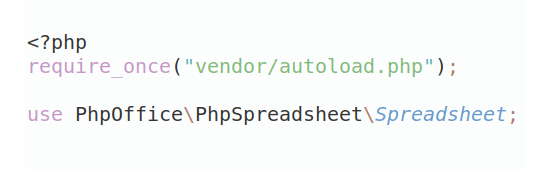
In general, it is recommended to use always a project to download your libraries. In an application normally there is more than one library needed.
- Some hosting areas are not accessible by a terminal or SSH. Then it is not possible to use Composer.
- To use Composer is sometimes complicated. Especially for beginners.
- Composer needs much resources. Sometimes they are not available on a simple webspace.
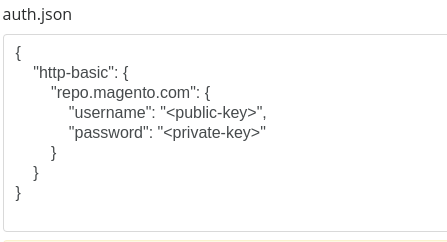
- If you are using private repositories you don't need to share your credentials. You can set up everything on our site and then you provide a simple download link to your team member.
- Simplify your Composer build process. Use our own command line tool to download the vendor folder as binary. This makes your build process faster and you don't need to expose your credentials for private repositories.
Informations about the package lw-migration
LW Migration
Lightweight backup, restore and migration for WordPress, compatible with .wpress archives.
[!WARNING] Alpha version. LW Migration is still in alpha: it is not recommended for production sites. Try it on a test or staging site, and keep another backup of anything you cannot afford to lose.
Website: lwplugins.com GitHub: github.com/lwplugins/lw-migration
What it does
- Back up — the whole site (database, media, plugins, themes, must-use plugins) into one
.wpressarchive. Parts can be left out: media, themes or only the inactive ones, plugins or only the inactive ones, must-use plugins,wp-content/cache, spam comments, post revisions, chosen folders and tables, or the whole database. Optional gzip or bzip2 compression, optional password, and search-and-replace pairs applied to the exported database. - The Backup section — a bar shows what the backup is made of in five parts (media, database, plugins, themes and other files; must-use plugins and the cache count among the other files) and each choice shows its size. The sizes are measured with the export's own roots and exclusions, so a figure is what a backup with that choice archives, uncompressed; changing a choice redraws the bar. Counting a large site takes a few requests: while it runs the sizes read "at least …" and grow, and a part that cannot be counted says "could not be counted" (the backup itself is not affected); after a restore or a reset the site is measured anew. Spam comments and post revisions are shown as counts. Cache folders (
wp-content/cache) are left out by default in the web form, in the Overview's Back up now and in new schedules; switch off Leave out the cache to include them (in a schedule: untick Cache folders under Leave out). On the command linewp lw-migration exportincludes them unless--exclude-cacheis given. Destinations, compression, the password and the Advanced options (folders, tables, search-and-replace pairs) sit beside it, with the summary and Start always in reach. - Restore or move — from a file uploaded in the browser, from an http(s) address, or from a backup already on the server. Before anything is written you see a summary: the old and the new address, the WordPress and PHP versions of both sides, what will be overwritten. By default the current database is backed up first, so a restore can be undone. Addresses and paths are rewritten for the new site, serialized data included; e-mail domains too when the backup asks for it (an option under Advanced, off by default in the admin, so a test copy keeps the admin's working address).
- Backups — one list for this plugin's backups and the other .wpress tool's folder when it exists on the site, grouped by day. A strip on top shows what the backups take here, what the other .wpress tool's folder takes, the free space and the rule that deletes backups by itself (the manual backups' retention and each switched-on schedule's; with no rules, manual backups are never deleted). Filter chips with counts (scheduled, manual, before a restore, before a reset, the other .wpress tool's folder) and a search narrow the list; each row shows where the backup lives and a menu. The panel of the chosen backup holds the actions (restore, download, upload to the cloud, browse the files inside, label, delete), its facts, its copies per destination, its transfer links (create for 1 hour, 24 hours or 7 days, see when each expires, revoke) and its contents: database, media, plugins, themes and must-use plugins, read from the archive's headers for that backup only and remembered, so opening it again costs nothing. Backups in the other .wpress tool's folder are marked as such and get no label; the retention rules never delete them. On a network the list shows the network's backups.
- Scheduled backups — up to 20 schedules, hourly, every N hours, daily, every N days, weekly or monthly, in the site's time zone. Each has its own retention for the backups it makes, a run log and e-mail notifications (off, on failure, on success or always; up to five addresses). A server cron can drive them (see Scheduled backups).
- Backups folder — keep the backups in a folder of your choice (Settings → Backups folder), best one outside the website's web root. The backups move there with a resumable job; nothing is lost if it stops half way (see Backups folder).
- Transfer links — a link to one backup that another site can restore from (Restore → "From an address", or
wp lw-migration import '<link>') without logging in here. A link works for 5 minutes to 7 days (24 hours by default), can be revoked at any time, and is shown only once, when it is created; only a hash of it is stored. The list shows how many downloads started and when the link was last used. - Multisite networks — network-activated, the plugin backs up the whole network or the sites you choose, and restores a network backup into a network, chosen sites or a single-site backup as subsites (each with its own new address), or a subsite backup into a single site. It works from Network Admin and the network's main site only; subsite administrators reach nothing. Users of a restored site are merged into the network by login, existing users are never changed. A site backup brings no plugin or theme code into a network: the network keeps its own copies, plugins and themes it does not have are not written (they are listed, to install on the network if you trust them), and only plugins and themes the network already had are activated.
- Connected sites: push and pull — pair two of your single sites once, then send this site to the other one or bring the other one here, directly between the two sites, with no file to download or upload (see Connected sites).
- Reset tools — delete the other plugins, reset the themes, empty the media library, reset the database to a fresh install, or all of these at once. Each one backs up the whole site first (on by default) and asks for your password (see Reset tools).
- Cloud destinations — upload backups to Amazon S3 and S3-compatible storage (Backblaze B2, Wasabi, Cloudflare R2, DigitalOcean Spaces, Hetzner Object Storage, Scaleway, MinIO and others), Google Drive, Dropbox and OneDrive (through the LW app without registering an app, or your own app), WebDAV (Nextcloud), FTP/FTPS and SFTP from a schedule, from
wp lw-migration export --to=…or with Upload… in Backups; restore, download back or delete the backups there (see Cloud destinations). - Keeping backups — after each new backup, the oldest ones made here are removed once a limit is reached (number, total size, age). The newest backup and the ones taken before a restore or a reset always stay.
Long jobs run in short steps driven by the open admin page (or by WP-CLI), so they finish on hosts with short request time limits and small upload limits. An upload goes in resumable slices that shrink when the web server refuses a large request. A job whose page was closed is offered again — it is never resumed or cancelled by itself. While a job runs, its card shows when it started and how long it has run, the percentage beside what is happening now, and a line with one segment per phase; the note under it asks to keep the tab open, and Cancel asks for confirmation inside the card. Past the point of no return (once a restore or a reset has replaced the database, or the other site of a push may be replacing its content) Cancel is off and the note says why; a stopped job shows when it last made progress, with Continue and Cancel.
Limits to know when restoring:
- Disk space: a restore stops before the files it extracts would leave less than 256 MiB or 5 % of the free disk space free (whichever is more). Every byte counts while it is written; once a file has replaced an existing one, the old file's size is given back, so each file must fit beside the one it replaces. When the free space cannot be read, the limit is 50 GiB (filter
lw_migration_max_extract_bytes). The database the restore writes is not counted: it can live on another server, so the free space here says nothing about it. - Serialized data inside serialized data: addresses are rewritten 32 levels deep, and only while the nested parts searched stay within four times the size of the value. A deeper or larger nested part is kept exactly as it was, without the new addresses, and the import names its table and column once in a warning.
- Table definitions: a column default may only be a literal, NULL, the current date or time (
CURRENT_TIMESTAMP,NOW()and the like, also afterON UPDATE),UUID()orUUID_TO_BIN(UUID()). A generated column or a CHECK constraint may call only pure string, number and JSON functions (CONCAT(),LOWER(),JSON_EXTRACT(),JSON_VALID()and the like), and an index may not have an expression as a key part. A table that uses any other function or expression is skipped, and the import names it in a warning.
Encrypted archives use AES-256-CBC, the scheme existing .wpress archives use, so they stay readable by other tools. File names inside an archive are not encrypted.
The encryption protects confidentiality only. It is the format's own scheme: a 128-bit key from a single unsalted SHA-1 pass over the password, and no authentication code, so a changed archive is not detected cryptographically (only a checksum guards against damage). Use a long, random password, because a short one can be guessed offline, and keep backups on storage you trust.
Install
With Composer:
Or download the release ZIP from the Releases page and install it through Plugins → Add New → Upload Plugin. A clone of this repository runs as it is: without vendor/ it uses its own autoloader, and the built admin screen (build/) is committed. npm ci && npm run build is needed only after changing src/.
Requirements: WordPress 6.6+, PHP 8.0+ (64-bit).
The screen is LW Plugins → Migration; on a multisite network it is Network Admin → Settings → Migration (see below). By default backups are stored in wp-content/lw-migration-<random>/backups/, a folder with its own protection files; Settings can move them to another folder (below). Deleting the plugin removes its settings and temporary data, never the backups.
The first section, Overview, is where the screen opens. It shows at a glance how the site is backed up: the newest backup with its size and where it is kept, a ring counting the days with a backup among the last 14, and a plain note when the last scheduled backup failed, an upload of the newest backup failed, the newest backup is late (later than the switched-on schedule's rhythm plus 12 hours, or older than two days without one), the backups folder needs a look, or a job is running now. Below that: what needs a look (for example a destination that must be connected again), quick actions to back up now, restore or move a site, a 30-day history of the backups, the cloud destinations with their state, the next scheduled run with its latest results, and the connected sites. Drawing it only reads: nothing is contacted or opened, no secret is shown, and days and times follow the site's time zone. Back up now starts a full backup right on the page, with the Backup section's defaults; the other actions lead to the section that does them. On a multisite network it shows the network's backups, destinations and schedules; connections join single sites only, so they are not shown there.
The Restore section
Restoring is three steps, shown at the top: Source, Check and Restore.
- Source — four tiles: a backup already on the server (this plugin's backups and the older
.wpressfolder, with tags for encrypted backups, backups made on another site and the ones also kept in the cloud), a file uploaded in the browser, an http(s) address, or a file in a cloud destination. Continue to the check reads the archive; nothing is written yet. Back from the check returns to the same source with the uploaded file, the typed address and the choice kept. -
Check — the archive next to this site, side by side: the old and the new address, the WordPress and PHP versions, the table prefix and when the backup was made, read from the archive's headers only (no file is extracted). A fact the archive does not tell, as with an archive made by another
.wpresstool, is shown as unknown and never blocks the restore. Below it, What gets replaced shows the database, media, plugins and themes as replaced, kept or not in the backup. On a network, and when a single site is restored, the grid follows what really happens: a site backup restored into a network adds its sites and never writes plugins or themes, a subsite is taken as a single site with only its own media, and each site has its own address. The sizes are the stored ones: for a compressed or encrypted archive they are the bytes it takes in the archive, not the size after unpacking. An encrypted archive asks for its password here; a wrong one stays on this step with the field marked.The same step holds the controls that start the restore: the Safety backup first switch is on by default and backs up the current database before anything is replaced; when the free space is not enough for it, the switch says why and cannot be turned on. You keep the login you restore with: the importing administrator's username and password stay, and if the restore logs you out, log in again and it goes on by itself. Restore now stays off until you type the address of the site that gets replaced (on a network, the network's main address; case does not matter). The typed address is a check in the screen; the restore itself runs with the same checks as from the command line.
- Restore — the restore runs on the running-job screen, with its progress and, when it finishes, the result.
Restoring from a connected site, a network restore and an encrypted archive reach the same check with their own facts and inputs (the sites and their addresses, the password).
Scheduled backups
Schedules runs backups on its own through WP-Cron: each schedule starts a backup at its time and moves it on in short steps until it is done. A missed run is made up once; a backup that makes no progress for 30 minutes is given up and logged as failed. The newest backup and the ones taken before a restore or a reset are never removed by a schedule's retention, and deleting a schedule keeps the backups it made.
The Schedules section opens on a ruler of the next 7 days with one lane per schedule and a mark for every run (point at a mark, tap it, or reach it with Tab and the arrow keys for its time); when two schedules are due in the same minute it says so, and the second waits until the first is done. When WP-Cron is switched off, or runs are late, a box gives the server command with a Copy button. Each schedule is a card with its next runs, a strip of its last 14 results (with the reason when the last run failed) and what it backs up and where it goes; a running schedule shows its progress, when it started and its phase. Run now, Edit and Run log sit on the card, and Duplicate and Delete schedule in its menu. With no schedule yet, three starters (daily at night, weekly, the database every 6 hours) fill the editor, and nothing is saved until Save schedule. The editor opens as a sheet from the right, with a sentence that says in plain words what the schedule does and a preview of its next runs.
On sites with few visitors, or with WP-Cron switched off, run the due schedules from the server's crontab:
The exit status is 1 when a run failed or could not be continued and 2 when the due schedules wait for another backup or restore. wp lw-migration schedule list shows the schedules and their next run, schedule run <id> runs one now (without e-mail), schedule log <id> shows its run log.
Backups folder
Settings → Backups folder (or wp lw-migration backup-dir) moves every backup into another folder, and back to the default one.
- Outside the web root is best, e.g.
/srv/backups/example. The folder you give only holds the backups: the plugin makes a subfolder with a random name in it (lw-migration-backups-<random>), puts deny files in it,robots.txtincluded, and stores the backups there. The random part is never shown in the admin. A folder that does not exist yet is created with it (one level, mode 0750); in a web root it must exist. A folder that is another site's backups folder is refused. Other folders insidewp-content, the folders of plugins, must-use plugins, themes, uploads, WordPress itself and other backup folders are refused too. - Chosen in an earlier version (a folder marked as this site's): it keeps working as it is and its backups stay listed; nothing is moved.
- Permissions: backup files are owner-only (0600), the storage folder and the default backups folder 0700. Downloads go through PHP, so the web server needs no read access. A host that needs group read can return 0640 from the
lw_migration_backup_file_modefilter; anything wider is cut back to 0640. - Moving is a job like a backup: each backup is copied (or hard-linked) into the new folder, checked, and only then removed from the old one. Scheduled backups wait, and no backup or restore can start until it is done. A move that stops half way lists the backups of both folders; finish it or undo it (back to the old folder) in Settings or with
--finish/--undo. - Uninstall removes the setting but never touches a chosen folder: its backups, marker and deny files stay. A new install starts with the default folder and does not take the old one back.
- Filters:
lw_migration_backup_dir_editable(returnfalseto lock the setting, e.g. on a managed host) andlw_migration_move_links(returnfalseto always copy instead of using hard links when backups are moved).
On Windows servers the backups stay in the default folder.
Connected sites: push and pull
Connections (single sites only, not on a multisite network) joins two of your sites:
- Pairing: on the site that receives or gives the content, choose what the other site may do and make a pairing code. It works for 15 minutes, once, and is shown only once; whoever has it can connect a site, so share it only with yourself. Type it on the other site (Connections → Pairing code, or
wp lw-migration link add, which asks for the code: a hidden prompt on a terminal, otherwise one line on standard input;link add <code>works too, but the code then shows in the process list and the shell history until the command ends). - One direction: a connection works from the site where the code was typed. That site sends itself there (push) or brings that site over (pull); the site that made the code only accepts.
- Rights: copying the code's site (pull) is allowed by default; replacing its content (push) only when you tick it. Tick it only for a site you restore from, never for one that must stay as it is.
- The e-mail: every new connection sends a plain-text e-mail to the admins of the site that made the code: the other site's name and address, the IP it connected from, what it may do, and how to remove the connection. The Connections list shows when and from which IP each incoming connection was made.
- Push: this site is backed up, sent in parts and restored on the other site. You confirm the other site's summary on this site before anything is replaced there; its database is backed up first by default. Pull: the other site makes a backup, this site downloads and restores it, after your confirmation here (the other site stores no backup for it).
- The other site's screen only follows a job a connection drives there: it shows the progress and can cancel it, nothing more.
- Removing a connection on either site stops it at once; the site that typed the code also tells the other site.
Each request between the two sites is signed with a 256-bit secret both sites keep sealed with their own keys; it is never shown, logged or put into a backup. Things to know:
- http works, but sends the whole site unencrypted — users and password hashes included — so anyone on the network between the two sites can read it on the way. The other site's answers are signed, so a changed answer is refused. The pairing screen, the connection list and WP-CLI warn about it. Use https on both sites.
- Security plugins that block anonymous REST API requests also block connections; allow the
lw-migration/v1/linkroutes there. - The two server clocks must agree within 5 minutes. Otherwise the screens say by how much they differ.
- A connection stops working when the auth salt of either site changes (new security keys in
wp-config.php): pair the sites again. - A run whose other site stops making progress for an hour is given up. When the sending site stops driving it (the tab closed, the server gone), the job left on the other site can be cancelled on that site's screen; once the sending site let go of it, or has not moved it for half an hour, that screen offers Continue here and finishes it there.
- Filter
lw_migration_link_address: the address this site gives in its codes (default the site address), for a site behind a proxy or reachable under another name. - Filter
lw_migration_allow_ip_link_hosts: returntrueto accept a pairing code that names the other site by an IP address (defaultfalse, e.g. for local test sites). Addresses are still checked before every request: link-local, carrier-grade NAT, benchmark, multicast and reserved ranges are never reached, and loopback or private addresses only for a host core'shttp_request_host_is_externalallows.
Reset tools
Reset (and wp lw-migration reset) has five tools. Each shows what goes and what stays before it asks for your password, and backs up the whole site first unless you switch that off. In the admin you choose a tool from five tiles; the layers of the site (plugins, themes, media, the database, and below them what no reset touches) show what goes and what stays, beside the steps before the start, on the page itself without a dialog.
- Delete plugins — every other plugin is deactivated, its uninstall routine runs once, and its folder and translations are deleted.
- Reset themes — the default theme becomes active (
WP_DEFAULT_THEME, else the newest default theme installed); every other theme but its parent is deleted. When no default theme is installed it is downloaded from wordpress.org (the only network call of a reset); without access a minimal blank theme is written instead. - Clean up media — every attachment is deleted through WordPress, then every file left in the uploads folder.
- Reset the database — a fresh install is built beside the live tables and swapped in with one rename. You stay logged in: your user keeps its id, login, password, profile and sessions and is an administrator. LW Migration stays active with its settings, connections, schedules and transfer links; the site address, the time settings and the security keys stay. Every other user, all content, your application passwords and other personal settings go; connections made by other admins stop working. Other plugins stay on disk, inactive; the current theme stays when it is installed; the media library is emptied, while its files stay in the uploads folder (the layers show plugins and media as staying on disk). This site's other tables (plugin tables) are removed; tables of another WordPress installation sharing the database are kept. You type the site address to confirm.
- Reset everything — all four, in that order; the site address is typed to confirm.
What a reset never touches: LW Migration itself, must-use plugins, drop-ins (object-cache.php, advanced-cache.php, db.php…; a plugin a drop-in, a must-use plugin or auto_prepend_file loads is kept and listed), wp-config.php, the uploads folder's protection files (.htaccess, index.php…), the backups and their folders. A link inside a plugin, theme or uploads folder is removed as a link; its target is never followed.
- The backup before a reset is named
pre-reset-<time>.wpress, labelled Before reset —, marked before a reset in Backups, and kept until you delete it: resets and the retention rules never remove it. - The password is checked once, before anything starts, and never stored. Five wrong passwords in a row lock the reset for that user for 15 minutes (the screen and WP-CLI share the count).
- On a multisite network only plugins, themes and media can be reset in this version, for every site, from Network Admin; the database and everything are not offered.
- File resets never run as root. Deleting plugins, themes or media (and everything) is refused when PHP runs as root; run the command as the site's owner (
sudo -u <owner> wp …). A database reset may run as root.
The password is asked for on a terminal (hidden) or read as one line from standard input; it is never an option. --no-backup skips the backup (--backup, the default, takes it).
Limits to know:
- Uninstall routines on the command line all run in one process, as WordPress' own bulk delete does. A routine that ends the process (
exit,wp_die()) ends the command: run the same command again and the reset continues where it stopped. A routine that checks the value ofWP_UNINSTALL_PLUGINmay skip its own cleanup there; the admin screen runs each routine in its own request. - Another installation that shares this site's users table without the
CUSTOM_USER_TABLEconstants loses its users in a database reset (with the constants, the reset is refused). - After a crash between the table swap and the cache flush, a persistent object cache may serve old values until it is emptied.
- Retired tables a foreign key still holds stay under a temporary name; the daily cleanup tries again.
- Media: a plugin that deletes files on
delete_attachment, or awp_delete_filefilter added after ours at the latest priority, acts outside the reset's folder guard; an offloading plugin's hooks may delete the cloud copies too. On a network, sites with an old customupload_pathkeep the files there that are not attachments. - Block themes: customisations stored as posts (templates, global styles) of deleted themes stay until a database reset.
- Caches on several servers (for example APCu per server) are flushed on the server that ran the reset only.
- Database views with this site's prefix are left; a request killed in the middle of a media batch may count a few deleted items twice in the shown total.
Cloud destinations
Destinations (or wp lw-migration destination) holds up to 20 places backups are uploaded to. The S3 type covers Amazon S3, Backblaze B2, Wasabi, Cloudflare R2, DigitalOcean Spaces, Hetzner Object Storage, Scaleway and any S3-compatible server (MinIO and other self-hosted stores, as a custom address). The connection test writes a small text file, reads it back from its second byte on (as backups are read in parts, so a storage that can only send whole files fails it) and deletes it.
On the screen each destination is a card with its state, where it keeps the backups, the last upload, the schedules that use it and what it keeps. Check connection, Backups there and the card's menu (Edit, Delete) open inside the card, one at a time, and so does a host key or certificate to confirm. Below the list, New destination groups the places by how you get in (with a sign-in, with an access key, on your own server); picking one opens its settings as a draft card right there, with the name and a live line of where the backups will go. Save and check stores a server or a storage and checks the connection on its new card at once; a cloud account is saved and sent to the provider's sign-in (when the sign-in cannot start, the account stays saved: Close closes the draft, and its card offers Connect). Nothing on this screen opens a dialog. A type this site cannot use, and every type once there are 20 destinations, stays on the shelf, closed, with the reason.
The other types:
- WebDAV: a WebDAV address and folder, a user name and a password (on Nextcloud an app password). A Nextcloud address (
…/remote.php/dav/files/<user>/) gets its backups in resumable 10 MiB chunks that Nextcloud joins at the end; an upload folder Nextcloud forgot (after a day without activity, or removed) is started over once in a new one. Any other WebDAV server gets each backup in one streamed request to<name>.lwm-part, then moved to its name (Nextcloud refuses files of the.parttype): outside WP-CLI only up to 200 MiB (filterlw_migration_webdav_single_put_bytes); larger backups go there withwp lw-migration upload <backup> --to=<id>. The Server setting forces either way (Nextcloud only with a Nextcloud address). The move at the end never replaces another file of the same name: one of the backup's size is taken for this backup, one of another size stops that destination. - FTP and FTPS: host, port, explicit FTPS (default) or plain FTP, passive mode, user name, password and folder. Parts go to
<name>.partat their offset (REST), or appended after a size check where the server refuses that (APPE); the file is renamed once complete, never onto another file. FTPS goes through cURL and checks the server's certificate and name before the password is sent; a certificate no certificate authority vouches for (a self-signed one) is shown with its SHA-256 fingerprint at the connection check and confirmed once, like an SFTP host key, and from then on only a server with that certificate's key is accepted (a new host, port or security forgets it). Plain FTP is flagged as unencrypted everywhere. A login never falls back from FTPS to plain FTP. - SFTP: host, port, user name, and a password or a private key (RSA, Ed25519 or ECDSA, OpenSSH or PEM format) with its passphrase; parts are written at their offset into
<name>.part, renamed once complete. The first connection check shows the fingerprint of the server's host key (SHA256:…, the same asssh-keygen -lf); compare it on the server and confirm it (in the card, or withdestination test <id> --trust-host-key=<fingerprint>). From then on the password or key is sent only after the server proved that key; a changed key stops the destination (uploads report it, nothing is ever confirmed by itself) until you check and confirm the new one. SFTP needs no PHP extension: a trimmed copy of phpseclib is bundled. -
Google Drive, Dropbox and OneDrive: by default each connects through the LW app: choose Save and connect, confirm the site on the LW sign-in service's page and sign in at the provider; there is nothing to register. The sign-in and the token refreshes pass through the LW sign-in service, which keeps no tokens and no account data (only a short log with a keyed hash of the IP address); the refresh token stays encrypted on the site and the backups never go there. This needs an https site address with a domain name and the standard REST API address (
…/wp-json/or?rest_route=); the form says so before anyone is sent away. As an advanced option, Use your own app connects through your own app at the provider (a Google Cloud OAuth client of the Web application kind, a Dropbox app with App folder access, a Microsoft Entra app registration), so your backups and the account's keys stay between your site and your provider. The destination form lists the steps for the provider's console and shows the redirect address to register there (this site's…/wp-json/lw-migration/v1/oauth/callback, or?rest_route=…with plain permalinks) with a copy button; when the provider would refuse that address (no https, a bare IP address for Google, a?for a Microsoft app that signs in personal accounts) the form says so before anyone is sent away. Enter the app's Client ID and secret and choose Save and connect: you sign in at the provider and come back to Destinations with the account connected. Each site has its own folder there, named after the site's address (example-comforhttps://example.com) and fixed when the account is connected:LW Migration/<site>on Google Drive (which lets the app see only the files it made) andApps/<app name>/<site>on Dropbox and OneDrive. The card shows it, for example "Dropbox · example-com". Backups go there in resumable parts (Google Drive 256 KiB multiples, Dropbox 4 MiB, OneDrive 320 KiB, growing up to 64, 128 and 30 MiB) that ask the provider where to go on after an interrupted request. When the provider withdraws the access (the app was removed from the account, or a Google app was left in Testing for 7 days), the destination turns Credentials needed, the other destinations still get the backup, and a scheduled run mails the schedule's address once; Reconnect fixes it. A new Client ID needs that app's client secret, and a new Client ID or, for OneDrive, another tenant or permission disconnects the account until you connect again. On the command line,destination add gdrive|dropbox|onedriveconnects through the LW app and asks nothing; with--own-app --client-id=…(or--client-id=…alone) it asks for the secret like any other and prints the redirect address;wp lw-migration destination connect <id> --user=<admin>prints a one-time link (10 minutes) for that administrator to open in the browser. - What is sent, and where: nothing is sent anywhere until you add a destination. Then only your backup archives (and the connection test's small text file) go directly from your server to the storage you chose, signed with your access key or sent with your account's token. Google Drive, Dropbox and OneDrive connected through the LW app have the sign-in and the token refreshes pass through the LW sign-in service, which keeps no tokens and no account data; with your own app they receive its Client ID and secret instead when the account is connected and its tokens are refreshed. Each provider's own terms and privacy policy apply to what you store there;
readme.txt(External services) lists each hosted service with its terms and privacy policy. - Uploading: a schedule uploads each backup it makes to the destinations you pick;
wp lw-migration export --to=<ids>or the Where should it go? section of the Backup form does it for one backup; Upload… in Backups (orwp lw-migration upload) sends a backup that already exists. Uploads go in resumable parts (5 MiB and up), so they survive short request time limits; an interrupted part is sent again in the next step. - Partial runs: one failing destination does not stop the others. The run is reported as partly done in the run log and the CLI, and the backup stays on the server even when Keep the local copy is off. With it off, the local copy is deleted only after every upload succeeded. A scheduled partial run is mailed like a failure when the schedule mails on failures (at most one such mail a day while the schedule keeps failing), and always when it mails on success or on every run; a manual run sends no mail.
- Retention per destination: number, total size and age, applied after a successful upload. It removes only backups this site made there (its own address in the name), only from the same schedule (or only manual backups), never other sites' backups, files copied there by hand, or the backups taken before a restore or a reset. Uploading an existing backup never prunes.
- Backups there: a destination's backups can be listed, restored (downloaded into the Backups list, then restored as usual), downloaded only, or deleted.
- Credentials: the secret key, password, private key and passphrase, an app's client secret and a connected account's refresh and access tokens are sealed on the site with a key derived from the WordPress security keys (auth salt). It is never shown again, never sent to the browser, never written into a job file, a log, an e-mail or a backup; a backup restored on another site does not bring this site's destinations. When the security keys change, the destination asks for the credentials again.
- Addresses: hosted providers are reached over https; plain http is accepted only for a custom address (or a WebDAV address) and flagged in every list. A custom, WebDAV, FTP or SFTP address may point to a private or loopback network (a self-hosted store in the same network), never to link-local, cloud metadata or other special addresses. Every request and connection checks the address the name resolves to and goes to that address; redirects are never followed, HTTPS certificates are always checked, and an FTP server's passive address is ignored (the data connection goes to the checked address).
The secret key is never an option (it would stay in the shell history): destination add asks for it with a hidden prompt on a terminal, or reads it as one line from standard input — printf '%s\n' "$SECRET" | wp lw-migration destination add s3 …. The same goes for a password and a key's passphrase; an SSH private key is read from a file (--private-key-file, never echoed). The user name and the WebDAV address are --username and --address, because WP-CLI keeps --user and --url for itself.
Do not use WP-CLI's global --prompt with destination add: it would show what you type (the command refuses it). upload ends with exit status 1 when not every upload succeeded; export --to ends with 0 and a warning, because the backup exists.
Limits to know:
- Memory: a part is held in memory while it is sent (5 MiB, up to about 105 MiB for a 1 TiB backup). An upload does not start when less than three parts' worth of memory is free; use WP-CLI with a higher
memory_limitfor very large backups. - Slow uplinks: a part request waits up to 120 seconds (filter
lw_migration_cloud_timeout, 10–600). A part whose transfer takes longer than the web server's own limit (PHP-FPMrequest_terminate_timeout,max_execution_time) is cut off every time, and the job stops after five tries; run such uploads with WP-CLI. - Unfinished multipart uploads: when a request dies right after an upload was started, or a destination is removed or edited while it uploads, the unfinished multipart upload may stay at the provider (its parts can count towards your storage) until the provider's expiry or a lifecycle rule removes it. Set an "abort incomplete multipart uploads" lifecycle rule on the bucket where the provider offers one.
- A destination deleted while it uploads: the running step can still finish its part (or the whole upload) and record the copy after the delete. That record is never shown (the destination is gone) and leaves with the oldest records; the file it uploaded stays at the provider.
- Listings read at most 50 pages of 1000 files per folder; files beyond that are not shown and retention does not see them (it then keeps more, never less).
- Give each site its own folder in a shared bucket, FTP, SFTP or WebDAV storage. The form in the Destinations section starts a new destination's folder (the S3 prefix, the other types' folder) as the site's name (
example-com), so two sites do not share one by default; clear it only on purpose. (wp lw-migration destination addand the REST API without a folder still mean the root.) Two installs with the same site address (a live site and its local clone), or two addresses whose first 100 characters agree, write names retention takes as its own, and would prune each other's backups. - One account, several sites: each site keeps its backups in its own folder of a shared Google Drive, Dropbox or OneDrive account, and the sites do not list or prune each other's backups. A site administrator who can run code on a site still reaches the other sites' folders with the access stored there, so only separate accounts (or the own-app option, with an app of that site's own) keep the sites apart.
- Proxies: hosts that reach the internet only through a proxy set in the environment (
http_proxy,ALL_PROXY) must set the WordPress proxy constants (WP_PROXY_HOST,WP_PROXY_PORT) instead: environment proxies are switched off for storage requests. Behind the WordPress proxy a custom address given as a name is refused (its address cannot be checked; give an IP address or exempt it withWP_PROXY_BYPASS_HOSTS), and a hosted provider is reached through the proxy, which then resolves its name. The same check refuses a connected site (push and pull) and an import from a URL whose host is a name behind the WordPress proxy, unlessWP_PROXY_BYPASS_HOSTSexempts that host; the error names the WordPress proxy setting as the reason. - Default regions: an empty region uses the provider's default (Backblaze B2
us-west-004, DigitalOceannyc3, Hetznerfsn1, Scalewayfr-par); set your bucket's own region. DigitalOcean and Hetzner do not document a signing region; the connection test tells whether the location fits. - S3 uploads replace a same-named object: the S3 type does not ask the storage to refuse an existing name (not every S3-compatible storage could), so an object already stored under a backup's name (for example an imported backup that kept the name its owner gave it) is overwritten. WebDAV, FTP and SFTP uploads refuse a name another file holds. Turn on versioning on the bucket to keep overwritten objects.
- A backup deleted at the destination while it is being downloaded makes the restore or download fail; start it again with a backup that is there.
- The connection test runs in one request and makes a handful of storage requests (more for WebDAV, which creates the folder level by level and looks the test file up twice); against a very slow storage it can hit the request time limit.
wp lw-migration destination test <id>has no such limit. - The cURL and SimpleXML PHP extensions are needed for S3 and WebDAV; without SimpleXML the S3 type is listed as unavailable (WebDAV also without cURL), and without cURL a storage address given as a name (every hosted provider) is refused. Plain FTP needs the PHP FTP extension, FTPS cURL with FTP and TLS support; SFTP needs nothing extra.
- WebDAV servers other than Nextcloud get a backup in one request: from the browser or a schedule only up to 200 MiB, larger ones from WP-CLI. ownCloud (10 and Infinite Scale) takes this way too, since its own chunked upload is not supported. A Nextcloud shown under another product name is not recognised: set Server to Nextcloud. Only the product name can be overridden this way: the address must still have Nextcloud's shape (
…/remote.php/dav/files/<user>/). Nextcloud's own chunk-size limit is only reached by backups of about 1 TB. - WebDAV listings larger than 8 MiB (folders with tens of thousands of files) cannot be read; the file list fails and retention keeps everything, with a warning.
- FTPS needs PHP's cURL with FTP and TLS support (and OpenSSL); without it FTPS is refused and SFTP recommended. It connects to the checked IP address under the stored name, so the certificate is checked against that name. A confirmed certificate that the host renews (a new self-signed one) stops the destination until the new fingerprint is confirmed; a certificate from a certificate authority needs no confirmation and may be renewed freely.
- FTP servers must tell file sizes (
SIZE); one that does not is refused, since an upload could neither be checked nor continued. A server that refusesRESTcannot send part of a file, so backups there could never be restored: its connection test fails and says so, and a download that meets such a refusal stops at once. (Uploads alone would work there by appending,APPE, which is also used where onlyRESTwithSTORis refused.) ext-ftp (plain FTP) reports no reply codes, so a refusal is judged by its text: a login turned away with a text that speaks of too many connections, a maximum number, trying again or a temporary problem is retried; any other refused login stops the destination. A server that answers 550 when listing an empty folder makes that listing fail (it passes once a backup is there). When a request dies while a plain FTP part is being appended, a temporary file of up to 32 MiB may stay in the plugin's protected jobs folder (named.lwm-…; it is never read and can be deleted). - Each FTP or SFTP part opens its own connection; parts grow from 1 MiB up to 32 MiB (at most a quarter of the free memory) to make up for it. A part resumed after a request died keeps the size it was planned with, even if less memory is free now.
- The rename at the end of an FTP or SFTP upload first checks that no other file has the backup's name (one that does is never replaced: that destination fails). A file created under exactly that name in the moment between this check and the rename can still be replaced where the server's rename overwrites (many FTP servers do); backup names carry the site, the time to the second and a three-digit number, so only a copy made on purpose could collide.
- SFTP and old RSA: an RSA key is signed with SHA-2 when the server announces it; with a server that does not, phpseclib falls back to the old
ssh-rsa(SHA-1) signature, which OpenSSH 8.8 and newer refuse — use an Ed25519 or ECDSA key there. - Google Drive, Dropbox and OneDrive need an https site address. Through the LW app also a domain name, port 443 and the standard REST API address; with your own app localhost works too, and Google wants a public domain name. A Google app of your own left in Testing loses its connection after 7 days: publish it (In production). A Microsoft client secret expires: renew it in the Entra admin center before it does, and enter the new one on the destination.
- Same-named files at Google Drive: Drive allows two files of one name. The plugin never makes a second one knowingly (a file this site uploaded for that backup, with its size and the plugin's mark, is taken as that backup; any other file of that name stops that destination), but two uploads of the same backup at the very same moment could still make two, and two processes creating the site's folder at once could make two folders (the first one found is used afterwards). Drive shows the app only the files it made, so backups copied into its folder by hand are not listed.
- Dropbox and OneDrive never replace a file: another file already holding the backup's name in the site's folder stops that upload (Dropbox
mode: add, OneDriveconflictBehavior: fail). After a lost final answer, a file of the backup's size whose content hash (Dropbox) or quickXorHash (OneDrive) matches what this site sent is taken as the backup itself. - OneDrive's same-backup check compares the file's size and its quickXorHash with what this site sent. quickXorHash is not a cryptographic hash: it tells this site's own upload from an unrelated file that happens to have the same name and size, not from a file made on purpose to collide.
- Dropbox uploads in progress keep a short record per 4 MiB block in the job's state (about 43 bytes each, so about 11 KB per GiB) until the upload is finished.
- Unfinished uploads at Google Drive and Dropbox: an upload that is given up is not cancelled there; the provider drops it after about a week. OneDrive's are cancelled.
- The account check of a sign-in through the LW app costs one extra request to the provider each time the access token is refreshed. The account a connection is compared with is recorded at connect, and a refresh is never trusted on its own: a connection with no recorded account asks for a new connect. An answer that names another account, refuses the token (401, 403) or names none asks for a new connect; an outage at the provider (a timeout, a network error, 429 or a 5xx answer) stores nothing and the refresh is tried again later. OneDrive is checked by the drive the app folder is on.
- The connect link of
destination connectis a link to the plugin's page that works once, for 10 minutes, only for the administrator it was made for (--user); that page starts the sign-in in the browser's own login session, so the provider's sign-in address never leaves the browser. - The command line cannot change a stored destination: to give an OAuth destination a new client secret (or Client ID) from WP-CLI, remove it and add it again; the Destinations screen can edit it in place.
- When the site's security keys change, stored credentials cannot be opened any more: every destination asks for them again. For a Google Drive, Dropbox or OneDrive destination, a scheduled run then mails once that the account must be connected again; an S3, WebDAV, FTP or SFTP destination sends no such mail of its own (the failed upload is reported in the run log and, as the schedule's notifications say, by e-mail).
- Changed files during a backup are noticed by their size and modification time, not their content: a file that changes within the same second without changing its size is not seen.
WP-CLI
<source> is a backup name from list, a path to a .wpress file, or an http(s) address. The archive password has three forms, the safe ones first: --password-file=<path> (a file holding the password; at most 16 KB, the path is never printed), --password without a value (a hidden prompt on a terminal, otherwise one line from standard input: printf '%s\n' "$BACKUP_PASSWORD" | wp lw-migration export --password), and --password=<value>, which stays in the process list and the shell history. One trailing line ending is cut; an empty password is refused; --password and --password-file together are an error. import and delete ask for confirmation unless --yes is given (required when not run from a terminal). On a multisite network the commands run on the main site: export --sites=2,5 backs up only those sites (without it the whole network), and import --site-url=<url>[,<url>...] gives the new address of each site of a site or single-site backup, in archive order.
backup share prints the transfer link once; --expires takes 30m, 24h, 7d and similar values from 5 minutes to 7 days.
Permissions
Every REST route (lw-migration/v1) needs a logged-in user with the manage_options capability (on a multisite network manage_network_options, on the main site) and the REST cookie nonce. The capability can be changed with the lw_migration_capability filter. Download links are short-lived tokens bound to the user and the login session; a link never carries the REST nonce.
Transfer links are the exception that needs no login: GET /backups/shared?share=<token> serves the one backup the link names until the link expires or is revoked. Every refused link gets the same 404 answer, so a wrong, expired or revoked link cannot be told apart. After a link expires or is revoked, every new request with it is refused; a part that is already being sent still finishes, so a restore over the link stops at its next part (start it again with a new link). Like any address with a token, a link can end up in the web server's access log. A security plugin that blocks anonymous REST API requests blocks transfer links as well; allow the lw-migration/v1/backups/shared route there if you use them.
Connections need no login either: the routes under lw-migration/v1/link are open, but every request must be signed with the connection's secret within 5 minutes of its time and is accepted only once; every refused request gets the same 401 answer. They exist on single sites only.
Development
End-to-end tests run against throwaway WordPress sites on a Docker database (PHP 8.x, WP-CLI, Docker and rsync required):
bin/test-cloud.sh uses images pinned by tag and digest: MinIO, OpenSSH (two servers with different host keys), vsftpd (FTPS, plain FTP, and plain FTP without REST) and Nextcloud (about 1.3 GB). LWM_CLOUD_SERVICES="minio sftp ftp nextcloud" picks which of them start (the tests of the others skip themselves). Docker Hub does not serve the MinIO images without a login, and may refuse anonymous pulls of the others: load them into the local Docker cache (docker login, then docker pull the pinned references in the script), or point LWM_MINIO_IMAGE, LWM_MC_IMAGE, LWM_SFTP_IMAGE, LWM_FTP_IMAGE and LWM_NEXTCLOUD_IMAGE at images you have.
The browser tests use the Chromium build of the pinned @playwright/test; if the run says it is missing: npx playwright install chromium.
License
GPL-2.0-or-later.
SFTP support bundles a trimmed copy of phpseclib 3.0.57 and constant_time_encoding 3.1.3, both under the MIT license, with their namespaces changed so they cannot clash with other plugins. They are in includes/Vendor/ together with their license files.
Credits
Icons from Font Awesome Free (https://fontawesome.com), CC BY 4.0 (https://creativecommons.org/licenses/by/4.0/), and the Backblaze, Wasabi and Hetzner marks from Simple Icons (https://simpleicons.org), CC0 1.0. Brand marks belong to their owners.