Download the PHP package kunoichi/virtual-member without Composer
On this page you can find all versions of the php package kunoichi/virtual-member. It is possible to download/install these versions without Composer. Possible dependencies are resolved automatically.
Download kunoichi/virtual-member
More information about kunoichi/virtual-member
Files in kunoichi/virtual-member
Package virtual-member
Short Description Add virtual member post type for WordPress.
License GPL-3.0-or-later
FAQ
Example:
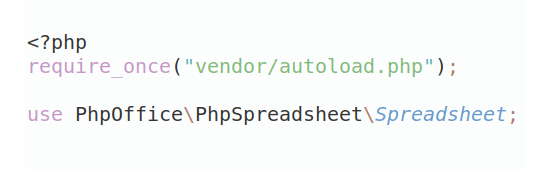
In general, it is recommended to use always a project to download your libraries. In an application normally there is more than one library needed.
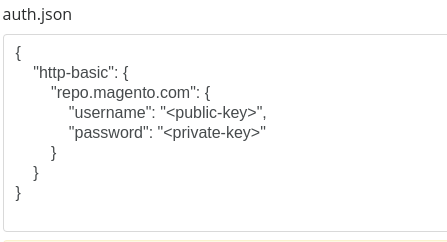
- Some hosting areas are not accessible by a terminal or SSH. Then it is not possible to use Composer.
- To use Composer is sometimes complicated. Especially for beginners.
- Composer needs much resources. Sometimes they are not available on a simple webspace.
- If you are using private repositories you don't need to share your credentials. You can set up everything on our site and then you provide a simple download link to your team member.
- Simplify your Composer build process. Use our own command line tool to download the vendor folder as binary. This makes your build process faster and you don't need to expose your credentials for private repositories.
Informations about the package virtual-member
Virtual Member
Virtual Member is a WordPress plugin that creates a custom post type called "member" to represent authors who are not WordPress users. This allows you to assign virtual members as authors to your posts, which is particularly useful when the actual content creator is different from the person who publishes it in WordPress.
Description
Virtual Member provides a solution for websites that need to display content from authors who don't have WordPress user accounts. Instead of creating WordPress user accounts for every author, you can create "member" posts that contain author information such as name, profile picture, biography, and contact methods.
Key Features
- Create virtual members with profile pictures, descriptions, and contact information
- Assign virtual members as authors to any post type
- Support for single or multiple authors per post
- Group members using taxonomies
- Customize the member post type label and URL structure
- Set a default member for posts without specified authors
- Designate members as organizations or site representatives
- Automatic Open Graph Protocol metadata for virtual members
- Compatible with both classic editor and block editor
Use Cases
- Publishing content from guest authors without creating WordPress user accounts
- Managing content where the actual author is different from the WordPress user who publishes it
- Creating bylines for organizations rather than individuals
- Maintaining a staff directory with author archives
Installation
- Upload the
virtual-memberfolder to the/wp-content/plugins/directory - Activate the plugin through the 'Plugins' menu in WordPress
- Go to "Member Setting" under the "Member" menu to configure the plugin
Customization
Basic Settings
- Navigate to "Member" > "Member Setting" in your WordPress admin
- Under "Basic Setting", select which post types should have virtual members as authors
- Optionally set a default member for posts without specified authors
- Choose whether the member post type should be public (have its own permalink)
- Configure the URL prefix for member archives (default is "member")
- Save your changes
Creating Virtual Members
- Go to "Member" > "Add New" in your WordPress admin
- Enter the member's name in the title field
- Add a description in the content editor
- Set a profile picture using the featured image
- Add contact information in the "Contact Methods" meta box
- Optionally mark the member as an organization or site representative
- Assign the member to groups using the "Group" taxonomy
- Publish the member
Assigning Members to Posts
- Edit a post of a type that you've enabled for virtual members
- Look for the "Member" meta box in the sidebar
- Select a member from the dropdown (single author mode) or use the search field to add multiple members (multiple author mode)
- Update the post
Advanced Settings
Multiple Authors
- Go to "Member" > "Member Setting"
- Under "Basic Setting", select "Multiple Authors" in the "Allow Multiple Assign" option
- Save your changes
- When editing posts, you can now add multiple members as authors
Custom Contact Methods
- Go to "Member" > "Member Setting"
- Find the "Contact Methods" field
- Enter custom contact methods in CSV format (e.g.,
facebook,Facebook) - Save your changes
- These contact methods will appear in the member editor
Member Groups
- Go to "Member" > "Groups"
- Create groups to categorize your members (e.g., "Staff", "Contributors", "Editors")
- When creating or editing members, assign them to these groups
Frontend Display
When a post has a virtual member assigned as its author:
- The author name will display the member's name instead of the WordPress user
- The author link will point to the member's page or archive
- The author avatar will use the member's profile picture
- Author description and contact information will come from the member post
FAQ
Can I use this plugin alongside co-authors?
Yes, Virtual Member can be used alongside other author management plugins, but you may need to ensure compatibility through custom code.
How do I display custom contact methods on the frontend?
The plugin automatically hooks into WordPress's author template functions. You can use standard WordPress functions like get_the_author_meta('facebook') to display custom contact methods.
Can I change the URL structure for member archives?
Yes, go to "Member" > "Member Setting" and change the "URL Prefix" setting. After changing this setting, remember to flush your permalinks by going to Settings > Permalinks and clicking "Save Changes".
How do I set a member as the default author for all posts?
- Create a member that will serve as the default
- Go to "Member" > "Member Setting"
- Select this member in the "Default Author" dropdown
- Save your changes
Can I use this plugin with custom post types?
Yes, you can enable virtual members for any public post type in the plugin settings.
How do I display multiple authors on the frontend?
If you've enabled multiple authors, you'll need to use custom code to display all authors. You can use the get_members() function from the CommonMethods trait to retrieve all members assigned to a post.
Is this plugin compatible with the block editor?
Yes, Virtual Member works with both the classic editor and the block editor (Gutenberg).
Can I designate a member as an organization?
Yes, when editing a member, check the "This is organization" option in the Organization meta box. This will also affect the schema.org markup generated for the member.