Download the PHP package jonnitto/photoswipe without Composer
On this page you can find all versions of the php package jonnitto/photoswipe. It is possible to download/install these versions without Composer. Possible dependencies are resolved automatically.
FAQ
Example:
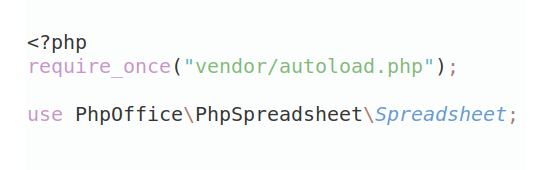
In general, it is recommended to use always a project to download your libraries. In an application normally there is more than one library needed.
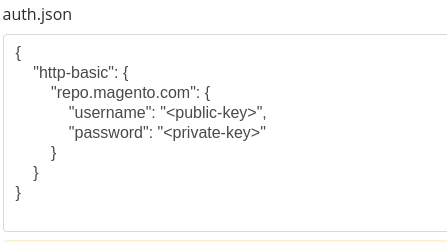
- Some hosting areas are not accessible by a terminal or SSH. Then it is not possible to use Composer.
- To use Composer is sometimes complicated. Especially for beginners.
- Composer needs much resources. Sometimes they are not available on a simple webspace.
- If you are using private repositories you don't need to share your credentials. You can set up everything on our site and then you provide a simple download link to your team member.
- Simplify your Composer build process. Use our own command line tool to download the vendor folder as binary. This makes your build process faster and you don't need to expose your credentials for private repositories.
Informations about the package photoswipe


Jonnitto.PhotoSwipe
This package includes PhotoSwipe into Neos CMS
| Version | Neos | Maintained |
|---|---|---|
| 0.* | 2.* | ✗ |
| > 1.4 | 3.* + 4.* | ✗ |
| 2.* | 3.3 + 4.* | ✗ |
| > 3.* | 3.3 + 4.* | ✗ |
| >= 3.1.2 | 3.3 - 8.* | ✗ |
| 4.* | 7.3 - 8.* | ✗ |
| 5.* | 8.4 - 9.* | ✓ |
Required HTML markup
Each element that matches the selector a.lightbox must have such attributes:
- Image URL in
hrefordata-pswp-srcattribute (latter has higher priority). - Image width in
data-pswp-width. - Image height in
data-pswp-height.
And optionally:
<img>thumbnail within the link element that will be displayed before the large image is loaded- Optional
data-cropped="true"attribute if thumbnail is cropped. See also Animating from Cropped Thumbnail. PhotoSwipe API supports almost any markup and any data source, read more about it here.
Example:
Javascript variables
There is one global variable who get set during the intialisation:
neosPhotoSwipe This object stores the lightbox variables from PhotoSwiper. (The variable who get used to call
lightbox.init()). With this, you can add you own event listener or trigger
methods.
Javascript event listener
If you dispatch the event neos-photoswipe:init all type of lightboxes get initialized. Great if you work in AJAX
enviroments. You can also activate a specific type of lightbox: neos-photoswipe.images:init,
neos-photoswipe.fetch:init or neos-photoswipe.template:init.
Example:
Alter generated markup
Adding custom attributes to the PhotoSwipe container
You can add custom attributes to the PhotoSwipe container like this:
Adding custom attributes to the link in the error fetch message
Installation
Most of the time you have to make small adjustments to a package (e.g.
configuration in Settings.yaml). Because of that, it is important to add the
corresponding package to the composer from your theme package. Mostly this is
the site packages located under Packages/Sites/. To install it correctly go to
your theme package (e.g.Packages/Sites/Foo.Bar) and run following command:
The --no-update command prevent the automatic update of the dependencies.
After the package was added to your theme composer.json, go back to the root
of the Neos installation and run composer update. Et voilà! Your desired
package is now installed correctly.