Download the PHP package itstructure/laravel-grid-view without Composer
On this page you can find all versions of the php package itstructure/laravel-grid-view. It is possible to download/install these versions without Composer. Possible dependencies are resolved automatically.
FAQ
Example:
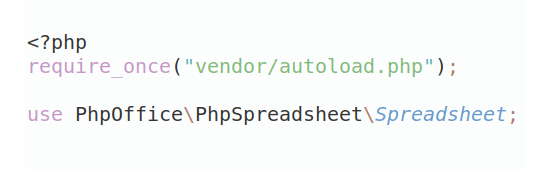
In general, it is recommended to use always a project to download your libraries. In an application normally there is more than one library needed.
- Some hosting areas are not accessible by a terminal or SSH. Then it is not possible to use Composer.
- To use Composer is sometimes complicated. Especially for beginners.
- Composer needs much resources. Sometimes they are not available on a simple webspace.
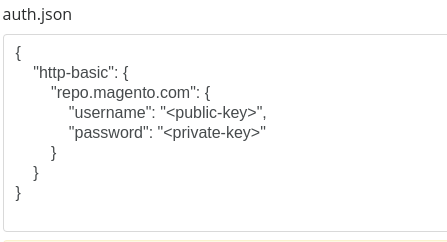
- If you are using private repositories you don't need to share your credentials. You can set up everything on our site and then you provide a simple download link to your team member.
- Simplify your Composer build process. Use our own command line tool to download the vendor folder as binary. This makes your build process faster and you don't need to expose your credentials for private repositories.
Informations about the package laravel-grid-view
Laravel Grid View


Introduction
This package is to displaying the model data in a Grid table.

Requirements
- laravel 5.5+ | 6+ | 7+ | 8+ | 9+ | 10+ | 11+ | 12+ | 13+
- Bootstrap 4 for styling
- JQuery
- php >= 7.1
- composer
Installation
General from remote repository
Run the composer command:
composer require itstructure/laravel-grid-view "^1.1.10"
If you are testing this package from a local server directory
In application composer.json file set the repository, as in example:
Here,
../laravel-grid-view - directory path, which has the same directory level as application and contains Grid View package.
Then run command:
composer require itstructure/laravel-grid-view:dev-master --prefer-source
Publish files (Not necessary)
-
To publish views run command:
php artisan grid_view:publish --only=viewsIt stores view files to
resources/views/vendor/grid_viewfolder. -
To publish translations run command:
php artisan grid_view:publish --only=langIt stores translation files to
resources/lang/vendor/grid_viewfolder. -
To publish all parts run command without
onlyargument:php artisan grid_view:publishElse you can use
--forceargument to rewrite already published files.
Where this is already used (my packages)
You can see this packages above as examples.
Usage
Make sure you use a Bootstrap 4 for styling and JQuery in your application.
Controller part
Must use EloquentDataProvider to insert data in to the view template.
For EloquentDataProvider class constructor use a model query object.
Example:
View template part
Use @gridView() directive with config array in a blade view template.
Simple quick usage
You can simply set columns to display as string format in columnFields array.
Note:
There search filter fields are displayed automatically. By default text form field filters are used.
If you don't want to use search filters, set useFilters = false.
Alternative variant without a blade directive:
Setting custom options
Main columns
Simple example:
Special columns
Besides main columns, there can be the next special columns:
-
ActionColumn- is for displaying Buttons to view, edit and delete rows.Set
'class' => Itstructure\GridView\Columns\ActionColumn::classin column optionThere are the next required
actionTypes:- view - makes a link for viewing. Default url scheme:
url()->current() . '/' . $row->id . '/delete'. - edit - makes a link for edition. Default url scheme:
url()->current() . '/' . $row->id . '/edit'. - delete - makes a link for deletion. Default url scheme:
url()->current() . '/' . $row->id . '/delete'.
They can be simple strings, arrays or callbacks.
For array format it is necessary set
class. And optional:url,htmlAttributes.By callback you can change urls to your routes.
Simple example for a column config:
- view - makes a link for viewing. Default url scheme:
-
CheckboxColumn- is for displaying Checkboxes to multiple choose the rows.Set
'class' => Itstructure\GridView\Columns\CheckboxColumn::classin column optionThere are the next required options:
- field - is for a
namecheckbox input attribute. It is rendered as an arrayname="{{ $field }}[]". - attribute - is for a
valuecheckbox input attribute. It is rendered as:value="$row->{$this->attribute}".
Simple example for a column config:
- field - is for a
Filters
There are the next filter's variants:
-
Column option to switch off the filter:
-
TextFilter- is a default filter, which renders a text form field to search, using column attribute. -
DropdownFilter- is a filter, which renders<select>html tag.Set the next as column option:
If
attributeis not defined for column or you want to set a special filter field name:
Formatters
There are the next formatter keys:
- html - is for passing a row content with html tags.
- image - is for inserting a row data in to
srcattribute of<img>tag. - text - applies
strip_tags()for a row data. - url - is for inserting a row data in to
hrefattribute of<a>tag.
For that keys there are the next formatters:
HtmlFormatterImageFormatterTextFormatterUrlFormatter
Also you can set formatter with some addition options. See the next simple example:
Existing form areas and main buttons

There are two main form areas:
-
grid_view_filters_formTwo buttons affect search request submission:
- Search. You can change a button label by option:
searchButtonLabel. - Reset. You can change a button label by option:
resetButtonLabel.
If
useFilters= false, these buttons will not be displayed. - Search. You can change a button label by option:
-
grid_view_rows_formYou can set a specific
actionattribute value by optionrowsFormAction.One button affect a main submit request:
-
Send. You can change a button label by option:
sendButtonLabel.Note! This button will be displayed under one of two conditions:
- There is a checkbox column.
- Option
useSendButtonAnyway= true.
-
Complex extended example
License
Copyright © 2020-2026 Andrey Girnik [email protected].
Licensed under the MIT license. See LICENSE.txt for details.
All versions of laravel-grid-view with dependencies

laravel/framework Version ~5.5.0|~5.6.0|~5.7.0|~5.8.0|^6.0|^7.0|^8.0|^9.0|^10.0|^11.0|^12.0|^13.0