Download the PHP package fklavyenet/webblocks-cms without Composer

On this page you can find all versions of the php package fklavyenet/webblocks-cms. It is possible to download/install these versions without Composer. Possible dependencies are resolved automatically.

FAQ

After the download, you have to make one include require_once('vendor/autoload.php');. After that you have to import the classes with use statements.

Example:
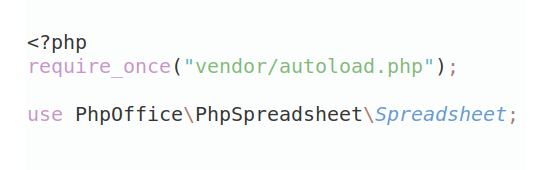
If you use only one package a project is not needed. But if you use more then one package, without a project it is not possible to import the classes with use statements.

In general, it is recommended to use always a project to download your libraries. In an application normally there is more than one library needed.
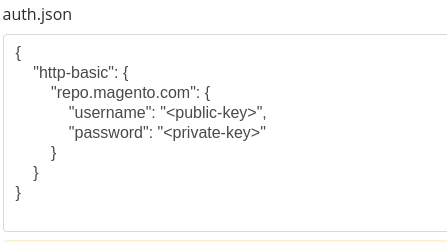
Some PHP packages are not free to download and because of that hosted in private repositories. In this case some credentials are needed to access such packages. Please use the auth.json textarea to insert credentials, if a package is coming from a private repository. You can look here for more information.
  • Some hosting areas are not accessible by a terminal or SSH. Then it is not possible to use Composer.
  • To use Composer is sometimes complicated. Especially for beginners.
  • Composer needs much resources. Sometimes they are not available on a simple webspace.
  • If you are using private repositories you don't need to share your credentials. You can set up everything on our site and then you provide a simple download link to your team member.
  • Simplify your Composer build process. Use our own command line tool to download the vendor folder as binary. This makes your build process faster and you don't need to expose your credentials for private repositories.
Please rate this library. Is it a good library?

Informations about the package webblocks-cms

WebBlocks CMS

A modern block-based CMS

WebBlocks CMS is a Laravel-based, block-driven CMS for managing sites, pages, media, navigation, and editorial publishing from one admin interface. It includes install-level administration for users, updates, backups, site transfer tools, and system settings.

Feature Summary

Architecture Note

WebBlocks CMS can run as a standalone CMS, and it can also be installed beside another Laravel host product as an optional website and content management layer. Coexistence installs should keep host-owned login and host admin routes separate from CMS-owned authorization and content administration. See docs/coexistence.md for the current architecture direction.

The plugin system treats CMS core as a generic plugin host for product-specific capabilities such as WebBlocks UI release/CDN management, QuizTem integrations, analytics, SEO pro tools, commerce, and custom block packs. The runtime foundation includes the plugin registry, enabled state, compatibility metadata and required CMS version checks, enabled-only admin route and command registration conventions, plugin-owned permission registration, read-only settings page scaffolding, health/status reporting with incompatible-plugin and setup-required messaging, a super-admin System -> Plugins listing/detail/upload/enable/setup/disable/uninstall surface, typed dashboard and system card extension slots, plugin-owned block declaration hooks, safe public asset contribution hooks, package convention/collision guards, and manual plugin ZIP installation. Uploaded plugins install under storage-owned paths and remain disabled until explicitly enabled; disabled plugins are inert and health is not checked while disabled. CMS super admins can access enabled compatible plugin admin routes through the plugin-owned permissions declared by the active plugin, while non-super-admin roles require explicit plugin permission grants. Enabled compatible plugin admin routes keep the CMS /webadmin web, install, CMS auth, and CMS admin middleware stack before plugin setup and permission checks, so plugin controllers receive the authenticated CMS user after auth/admin access passes. If an enabled plugin declares migrations and its plugin-owned tables are missing, plugin routes must show controlled setup guidance on the plugin URL instead of raw database errors or dashboard redirects, and super admins can run plugin-owned migrations from the plugin detail screen. System -> Plugins -> Browse Plugin Catalog reads public metadata from the Plugin Catalog service, defaulting to https://plugins.webblocksui.com and configurable with WEBBLOCKS_PLUGIN_CATALOG_BASE_URL; catalog detail pages show safe artifact metadata and can install a compatible release only when the catalog provides a controlled download URL, filename, and SHA-256 checksum, including current latest-compatible responses that return release and artifact metadata as sibling fields. Catalog installs download the ZIP server-side, verify the checksum exactly, then pass the package through the existing manual ZIP validator/installer path. System -> Plugins -> Registered Plugins also shows Update available: {version} and a POST-only Update from Catalog action when an installed plugin has a newer compatible published catalog release with complete artifact metadata. Catalog updates re-read catalog metadata, reuse the same checksum and ZIP validation path, replace the installed plugin package version, preserve enabled or disabled lifecycle state, preserve plugin-owned database tables, do not run plugin migrations automatically, clear optimized runtime caches, and refresh plugin registry/permission/route metadata so the active manifest and route controller path match the updated installed package. Plugin menu visibility and plugin route authorization use the same CMS core permission resolver, including the CMS super-admin bypass for active plugin-owned permissions. Known WebBlocks UI Manager release/settings actions are bridged through CMS core so stale manual artifact route context cannot send enabled compatible plugin admin actions back to /webadmin. Generic plugin dashboard/system contribution cards are not rendered on the plugin management page unless an explicit plugin-management extension slot is added. Manual uninstall is available only for uploaded plugins that have been disabled first, removes the storage-owned package directory, and preserves plugin-owned database tables. WebBlocks UI Manager is now an internal/operator plugin artifact, not a public CMS feature or bundled runtime plugin; ordinary CMS installs should not install it. There is still no marketplace, full remote plugin store, automatic plugin updates, arbitrary Composer package installer, automatic third-party download, external production CDN deployment automation, update-server publishing, or CMS core WebBlocks UI URL change. See docs/plugin-system.md.

Installation

Fresh Laravel Package Install

For a fresh Laravel application that consumes the CMS as a package:

webblocks:install now:

For the current v1.32.x consumer boundary, App\Models\User remains host-owned and is patched in place with the CMS access trait during install.

If a prior failed install left empty CMS tables such as page_types, layout_types, slot_types, block_types, system_settings, or system_update_runs, run php artisan webblocks:install once without repair to review the diagnostic. If every listed CMS table has 0 rows, rerun with --repair-partial to rename those empty tables and continue the install. If any listed table has rows, inspect it manually; the installer will not alter non-empty tables.

After install, open:

The package-owned /webadmin/login screen renders the WebBlocks UI guest auth shell from package views, loads the pinned WebBlocks UI CSS/JS and /cms/css/guest.css, and keeps CMS product brand assets available from /cms/brand. The CMS brand set includes the canonical product mark, dark-surface and on-accent compatibility marks, and dedicated high-contrast favicon/browser-tab assets (logo-mark.svg, logo-mark-dark.svg, logo-mark-on-accent.svg, favicon.svg, and PNG fallbacks). Auth and admin sidebar product chrome use the package-owned inline SVG brand mark component so marks inherit the active accent or surface color without auth-only light/dark image switching, picture markup, img logos, or CSS masks. See CMS Brand Standard.

Package-owned CMS auth routes use CMS-owned names such as webblocks.auth.login, webblocks.auth.login.store, webblocks.auth.logout, and webblocks.auth.password.*. CMS auth views, password flows, logout, and admin guest redirects must use those names instead of the global Laravel login or logout names so co-installed host products can keep their own login routes without taking over /webadmin auth.

WebBlocks CMS has no frontend build step. Do not run or add Vite, Tailwind, npm, Node, @vite, public/build, or hot-file workflows for CMS-owned assets. Product assets are tracked directly in root public/cms and package packages/webblocks-cms/public/cms, while WebBlocks UI continues to be consumed from pinned published assets.

The canonical CMS admin prefix is /webadmin. CMS static assets remain under public/cms, so normal /cms/css, /cms/js, and /cms/brand asset URLs continue to be served as static files without colliding with the Laravel admin route tree. CMS admin prefixes must never reuse a physical public asset directory segment: /cms is reserved for static CMS assets only and must not be reintroduced as an admin route, alias, or redirect.

This split is deliberate. Nginx try_files can resolve /cms/ as the physical public/cms/ directory before Laravel sees a route. The final v1.32.56 behavior avoids that collision with /webadmin instead of relying on a public/cms/index.php front-controller handoff. That handoff file must stay absent from both root public/cms/ and package packages/webblocks-cms/public/cms/ assets.

For a fresh install, first get the source code locally:

If you already created an empty target directory, use git clone https://github.com/fklavyenet/webblocks-cms.git . and then run git remote set-url --push origin DISABLED before continuing. CMS installations consume upstream releases and updates, but they must not publish or push back to the CMS upstream repository.

Native Quick Start

For a fresh install with the browser flow, open /install after the source code, dependencies, and local environment are in place. The install wizard guides database setup, environment creation, core install steps, and first super admin creation.

Typical local URLs:

Trusted Local Development

For a macOS native PHP/Nginx/MySQL or MariaDB/Redis setup, use the HTTPS-only .test guide in docs/native-local-development.md. The canonical native local CMS URL is https://webblocks-cms.test; run composer native:doctor to check readiness without installing services or changing local files, and composer native:smoke after restores or service restarts.

Manual CLI Install

Then open:

See docs/installation.md for the complete install guide.

Quick Start

  1. Install the CMS with the browser wizard or the CLI flow.
  2. Sign in to /webadmin.
  3. Create or edit a site if your install uses more than one site.
  4. Create a page. New pages start as draft.
  5. If you already have a compatible single-page JSON payload, use Admin -> Pages -> Import Page to import one new page into the selected site as draft. This page-scoped workflow is separate from the site-level Export / Import tool.
  6. Build page structure with Section, Container, Cluster, or Grid, then add Header, Plain Text, Rich Text, Button Link, Card, Stat Card, or Breadcrumb blocks inside that layout tree. Plain Text is for plain body copy only. Rich Text is for safe inline formatting such as bold, italic, inline code, links, paragraphs, and simple lists; keep headings, layouts, buttons, media, tables, and raw HTML composition as dedicated first-class blocks or features. Code is for multi-line escaped snippets and should not be replaced with Rich Text. Rich Text is edited visually in the admin through a small dependency-free safe HTML editor. Stored Rich Text content is a restricted safe HTML fragment, and public output still renders through the shipped WebBlocks UI wb-rich-text primitive using wb-rich-text wb-rich-text-readable. Selected description fields still support safe inline code formatting with backticks. Use Breadcrumb for header and context bars, and use navigation-auto only for actual menus. Page Layout is the admin-facing name for the page-level outer wrapper concept. The stored compatibility field remains public_shell, while managed Page Layout records now own optional public body classes plus relational Page Layout Slots that drive slot wrapper resolution from the page layout and slot name so blocks stay focused on content instead of shell markup. Default Layout is for regular public pages. Docs Layout maps header, sidebar, main, and footer regions into the docs-oriented wrapper structure automatically. Shared Slots now render publicly as reusable site-scoped slot block trees inside those existing slot wrappers when the slot source points at a compatible Shared Slot. Shared Slots are dynamic references, not copied templates. Shared Slots can now be created and managed from the top-level admin navigation, including editing the Shared Slot block tree with the same block editor patterns used for page slots. Shared Slots can optionally be constrained to a Page Layout; the stored compatibility field on the Shared Slot remains public_shell for backward compatibility, empty remains generic, and a selected Page Layout requires exact handle matching. On the Edit Page screen, each slot source can now be set to Page Content, Shared Slot, or Disabled. Switching away from page-owned content does not delete existing page-owned blocks, so editors can safely switch back later. For card actions, prefer Card > Cluster > Button Link; the legacy single card action fields remain available as a fallback. Card can now be used for editable image cards inside Grid. Selected media is optional, selecting media is enough to render the card image, clearing media removes it, blank or legacy none image placement falls back to top, the figure renders inside .wb-card-body, shared image placement and alignment stay canonical, image alt text and caption are locale-aware, existing text and action behavior still works, nested Cluster or Button Link footer composition remains supported, the legacy single-action fallback remains available, and existing no-image cards stay valid.
  7. For a docs-style context bar, add Breadcrumb and Header Actions to the Header slot. Header Actions renders system-owned theme utilities such as color mode, theme preset controls, accent controls, and the public search trigger without requiring raw HTML blocks. Public mode and accent behavior uses the shipped WebBlocks UI data-wb-* runtime, while CMS keeps only the separate public search modal runtime as CMS-owned JS. For a site header or reusable Shared Slot header, use Navbar as the primitive wrapper block, then add child blocks such as Container, Cluster, Navbar Brand, Navbar Navigation, Header Actions, or Search Form inside it. Navbar renders only nav.wb-navbar and its child blocks, does not add an automatic container, and keeps Position as its only built-in setting. Navbar Brand and Navbar Navigation must be placed somewhere inside the Navbar tree, but they do not need to be direct children of Navbar. Header slots are layout-neutral by default and do not force wb-stack; use Container, Cluster, or Stack inside the slot when you need layout. For horizontal header composition, set the Container flow to None and use Cluster settings to control width, distribution, alignment, wrapping, and gap.
  8. For a docs-style sidebar, add a Sidebar slot and set the page Page Layout to Docs Layout, then add Sidebar Brand, Sidebar Navigation, and Sidebar Footer as top-level sidebar blocks. Inside Sidebar Navigation, add Sidebar Nav Item and optional Sidebar Nav Group blocks, or point the block at the site-scoped Docs navigation menu so admin-managed Add Group sections render as collapsible docs sidebar groups.
  9. Publish the page as a site_admin or super_admin.
  10. Open the public URL or preview link to confirm the live result.

For common editorial choices, Code, Table, TOC, Quote, Hero, Columns, Link List, and CTA are available as first-class block picker options and remain editable from the slot editor. Use Header as the canonical heading or title block, including optional shared anchor IDs for direct links and TOC targets. TOC renders links from explicit anchored Header blocks on the same public page, including nested headers inside layout wrappers such as Section, Container, Grid, Cluster, or Card. Hero and CTA keep promo copy locale-owned while managed child button URLs stay shared. Columns keeps intro copy locale-owned while child Column Item URLs stay shared. Link List keeps intro copy locale-owned while child Link List Item rows require title and URL, with optional meta and optional description. Code, Table, Quote, TOC, and HTML (Trusted) are content-style blocks, not general-purpose container parents: historical child rows are preserved safely, but new arbitrary child placement is not offered and public rendering ignores those child trees. Do not use the legacy Heading block type.

Feature Grid and Feature Item are also now published source-backed block types, but they remain transitional compatibility aliases over the shared Columns card presentation. testimonial and stats still render through Quote or Columns alias paths and are not treated as standalone published core contracts. Image, Gallery, Download, File, Video, and Audio are also shipped first-class block types. They use the same core catalog sync path, expose product-owned admin forms, and render publicly as media-owning blocks rather than arbitrary child containers.

Gallery is now a media-collection block. Editors manage gallery media as compact Gallery Items rows in the block editor instead of the older large selected-assets grid. Gallery selection order and presentation behavior stay shared, while per-item alt text, caption, overlay title, and overlay text are locale-owned through block_gallery_item_translations. The Add Gallery Items media picker mounts as a plain WebBlocks modal under the shared #wb-overlay-root, so the pinned WebBlocks UI runtime stays responsible for stacked modal interactivity without the older CMS-owned wrapper or z-index stack. Public Gallery variants now differentiate clearly: Grid keeps regular equal cells, Masonry uses a staggered CSS-column layout with natural image heights, and Collage keeps the featured-first composition. Fixed-aspect Gallery tiles preserve the full image for screenshot-style media by using centered contain fitting with intentional letterboxing rather than cropping. The compact picker keeps the list-style row UI, defaults Kind to Image, constrains the Gallery picker dialog itself to the viewport, keeps the normal modal body as the only scroll container, renders the search and filter card in its own non-scrolling region directly between the modal header and body, and renders a real compact empty or error state instead of leaving the picker looking stuck when no rows match or media rows fail to render. Gallery no longer owns a public intro heading or paragraph. The old Gallery Title and Description fields are no longer normal Gallery admin fields, and any legacy stored values may still exist in older content but are ignored by public rendering. When a gallery needs section headings or explanatory copy, use Content Header plus Plain Text or Rich Text before the Gallery block.

HTML (Trusted) is also available in the block picker as an advanced escape hatch for super_admin users only. Use it only for deliberate static trusted markup that cannot be represented cleanly with first-class blocks. For normal editorial work, prefer Rich Text for safe formatted copy and Code for escaped code samples. When trusted HTML includes shipped WebBlocks UI gallery viewer modal markup, the public page shell hoists that overlay content into the single shared page-owned #wb-overlay-root so gallery triggers can keep using the shipped viewer contract without rendering duplicate overlay roots.

On the Edit Page screen, Page Management and slot structure are managed separately. Page Management owns Overview, Settings, Assets, and Layout Slots, while the separate Slots card stays focused on direct page slot/source/block operations. Slot additions are available from a compact Add Slot dropdown, and each slot keeps a compact source summary in the list with Manage Source modal settings for Page Content, Shared Slot, or Disabled. Shared Slot choices are limited to active compatible Shared Slots from the same site. When a slot uses a Shared Slot or is Disabled, the page-owned block tree is preserved and clearly labeled as not currently rendered. The Layout Slots tab shows the Page Layout Slots comparison card that reports which Layout Slots are already present as Page Slots, which are missing, which extra Page Slots are being preserved for safety, plus current Disabled and Shared Slot-backed states. The Add Missing Layout Slots action is explicit and safe: it only creates missing Page Slots from the selected Page Layout and never deletes existing Page Slots, blocks, Shared Slot assignments, disabled states, revisions, or translations.

New page creation now uses the selected Page Layout's active managed Page Layout Slots first, with safe legacy fallback behavior only when managed slot definitions are unavailable. Changing a page's Page Layout on normal save does not silently rewrite slots; editors review the updated comparison card and choose Add Missing Layout Slots only when they want to add the newly missing Layout Slots.

Edit Page -> Page Management now groups Overview, Settings, Assets, and Layout Slots into one calmer top-level admin card. Overview owns page status, published context, and workflow actions. Settings owns the editable page form and the only Save Changes and Cancel footer. Assets is an advanced page-scoped feature for local /site/... CSS and JS files only and keeps its own compact asset card with header-owned Add CSS asset and Add JS asset modal actions. Layout Slots owns the Page Layout Slots comparison card and the Add Missing Layout Slots action so layout alignment is managed separately from direct slot editing. In V1, Page Assets are stored relationally in page_assets, not in pages.settings, only super_admin users can change them, CSS renders in the public <head>, JS renders in the public <head> with defer, and the configured files are loaded only on the owning public page. Public block renderers must not emit inline scripts. CMS core assets now live under public/cms/. Site-level overrides live under public/site/{site_handle}/css/site.css and public/site/{site_handle}/js/site.js, while page-level overrides live under public/site/{site_handle}/pages/{page_slug}/page.{css,js}. Site handles are canonical lowercase hyphenated identifiers such as ui-webblocksui-com. public/storage is the Laravel public storage symlink for storage/app/public and is separate from /site/... override assets. Legacy public named JS rows saved with body_end remain backward compatible, but public named JS output is normalized to <head defer>. When site Export / Import runs with Include media files, referenced page asset files and the canonical site-level css/site.css and js/site.js override files are packaged and restored too. Without that option, the page asset rows still transfer but the target install must already have those public files.

In the admin slot block tree, block deletion now uses a WebBlocks modal instead of a browser confirm dialog. The safe default still deletes only the selected block, which preserves the existing child promotion behavior when a wrapper such as Section or Container is removed. Editors can explicitly opt into Also delete all nested child blocks when they want to remove an entire nested subtree. The modal shows the selected block, whether it has children, direct child count, and total descendant count, and warns that recursive deletion is only recoverable through revision or backup restore flows.

Admin -> Maintenance -> Backups, Admin -> Contact Messages, Admin -> Media, Admin -> Pages, Admin -> Export / Import -> Site Exports, and Admin -> Export / Import -> Site Imports support selected bulk deletion for records visible on the current page. Use the leading row checkboxes or the select visible control to select visible records, then open Delete selected to review the count in a WebBlocks confirmation modal before submitting. These endpoints validate selected IDs again, re-check server-side authorization for every selected record, delete only the records that are still allowed, and report partial failures clearly. Media bulk deletion preserves the existing usage guards and skips media that is still referenced by protected CMS content. Pages and site transfer bulk deletion reuse the same cleanup rules as their single-delete flows, including page related-content cleanup and export/import archive removal. Destructive single-delete actions on these screens use CMS modal confirmation patterns instead of browser confirmation dialogs where the listing exposes a row delete action.

On the Edit Site screen, settings are split into Site, Locales, Branding, SEO Defaults, Contact, and Variables tabs. Manage Domains stays a separate header action instead of a body tab or card. Public-facing Branding and SEO Defaults live on the site itself. Use display_name, tagline, favicon, social image, and site-level SEO defaults there for public metadata fallbacks. The Contact tab owns the site default Contact Form recipient, while individual Contact Form blocks can still override it. Locale-aware page-level SEO overrides now live on each page translation, where editors can override title, description, keywords, and Open Graph fields for one locale without changing the fixed WebBlocks CMS admin product identity.

Site Handle uses the canonical filesystem-safe CMS format: lowercase ASCII-safe text with hyphens as the only separator. Creating a new site auto-suggests the handle from Name, but once an admin edits Handle, later name edits do not overwrite it.

Site Variables are stored relationally in site_variables, not JSON. They are intended for simple reusable public text tokens such as support email addresses, repeated product labels, or legal copy. The only supported token format is {{ site.variable_key }} with optional inner whitespace. Unknown tokens, disabled variables, invalid keys, and non-site tokens remain unchanged. Replacement happens only in shared public rendering and public search indexing; admin forms always keep the raw stored token text.

In the admin slot editor, the Edit Slot Blocks list stays structure-focused as a compact one-row-per-block table with block type, a single primary summary, a dedicated children-count column, status, and actions. The Block Picker now opens with a default Common shortcut tab and additional Layout, Content, Navigation, Advanced, and All tabs so larger catalogs stay navigable without one long mixed list. Advanced only appears when the current user has eligible advanced block types such as HTML (Trusted). Search works across the full eligible picker catalog instead of only the active tab, sort still applies within the currently visible tab or search result set, reset returns the picker to the default Common tab, and the modal keeps the same compact shared admin filter toolbar pattern. On narrow screens the table remains one-row-per-block and scrolls horizontally instead of collapsing labels into vertical letter stacks. Full content should be edited in the block edit modal or block edit page instead of being previewed in the slot list.

When a slot already contains blocks, the slot editor header now also exposes Delete All Blocks. This action is scoped to the current page slot or current Shared Slot only, requires explicit confirmation, shows top-level and nested block counts before submit, and records the change through the normal revision history flow.

Pages index list state is now preserved through the main editorial loop. When editors open a page, slot editor, translation form, or page-assets modal from a filtered Pages list, the admin keeps the same safe Pages return URL so Back to Pages and later save redirects return to the same list context.

The slot editor block picker follows the published block catalog directly. Table, TOC, Quote, and Header appear when their catalog rows are published. The legacy Heading catalog row is removed rather than kept hidden, so it does not appear in normal picker or editor availability.

Admin -> System -> Settings now uses separate focused cards for General, Project Identity, Mail, Privacy, and read-only Runtime Information, with section-specific save actions for editable groups. Project Name and Project Tagline are admin-only context labels used in the topbar so teams can distinguish one install from another. Admin browser tab titles are standardized by the shared admin layout as {Page Title} - WebBlocks CMS. Admin listing rows per page controls the default number of rows shown on paginated core admin listing screens, including Media, defaults to 15, accepts custom numeric values such as 10 or 12, and does not affect public pagination. The Mail card lets CMS-owned password reset and system notification mail use either Laravel environment mail configuration or database-backed CMS custom mail settings, and custom mail fields are shown only when CMS custom mail mode is selected. Admin mail settings do not write to .env, do not overwrite environment variables, and fall back to Laravel MAIL_* configuration when CMS custom mail is disabled. Stored mail secrets are masked and diagnostics only report whether sensitive values are configured. Super admins can send a secret-safe test email from Mail diagnostics through the same CMS mail resolver path used by CMS-owned password reset mail, without affecting host/root auth mail or contact form mail. CMS-owned forgot-password mail always builds a /webadmin/reset-password/{token} reset link through the CMS notification path, remains isolated from host/root password reset callbacks, and does not reveal whether a submitted email belongs to a missing or inactive account. These settings do not change the fixed WebBlocks CMS sidebar brand or version footer, and they do not affect public site metadata, favicon, SEO defaults, search scope, locale-aware page metadata, host/root auth mail, or site contact form routing.

Admin index and listing screens such as Block Types, Blocks, Pages, Media, Contact Messages, Users, Sites, Shared Slots, and Backups should use the shared compact listing filter toolbar partial at resources/views/admin/partials/listing-filters.blade.php whenever the screen has real list-changing filters. The contract is: Search stays first on the far left and grows to fill the remaining horizontal space, Site or other context selectors come immediately after Search, then the remaining compact select or input filters follow, and Apply or Reset actions stay right-aligned on the same toolbar row on wide screens. Page headers should stay focused on title, count, and short description or context, while list-creation actions such as New, Add, Upload, Clone, or Create backup should live in the relevant listing card header instead of the page header. Summary or recommendation cards belong above the filter toolbar, so the listing card or table follows immediately after filters. When a listing uses both page-header and card-header count badges, the page-header badge must show the total record count in the screen's base scope while ignoring active list filters, and the listing-card badge must show the filtered result count for the currently visible list. Admin list pagination should use the shared admin.partials.pagination partial, and dense admin listings should enable its compact mode so the page links and compact summary render together in one row using the from-to/total format instead of a separate verbose summary line. Bulk listing actions should start with page-visible selection only: use a leading checkbox column or visible card checkbox, a select all visible control, a compact selected-count action bar, and a destructive WebBlocks confirmation modal that posts selected IDs to a server-side-validated endpoint. The current bulk action standard does not select all filtered records across pagination; each selected record must still pass server-side authorization and domain-specific safety checks, and mixed success should return partial-success feedback. The super-admin-only Blocks index is linked directly from the main sidebar under Pages and is intended for cross-site block maintenance, especially after imports or other bulk content changes. Its first compact filter set is limited to Search, Site, Page, Block Type, Status, and Locale. On the Pages index, the row-level Page Details action opens the standard admin modal pattern with grouped Page and Status & Audit cards and keeps only Edit Page plus Open Public Page when a public URL exists. Page Details also shows system-managed audit attribution for who created, last edited, published, archived, or submitted the page for review when that metadata exists; older, deleted-user, console, and imported records safely show Not recorded instead of guessing a user.

Admin -> Media now uses Media consistently as both the admin-facing and canonical active internal concept. Legacy Asset names remain only in compatibility wrappers, historical migrations, and legacy payload normalization paths. The Media Library list keeps preview as the eye-icon modal action, but the media title and pencil icon both open Edit Media: {title} with a safe return URL back to the current filtered list. Its compact filter toolbar keeps Search, Kind, and Usage, and now also supports Sort by plus Direction so editors can safely reorder the shared media list by updated date, created date, title, filename, kind, folder, or real usage count without leaving the standard one-row admin listing pattern. On the edit screen, Preview and Usage remain visible as read-only context cards, Media Information owns editable metadata and folder assignment, read-only File Details are available from a modal with the copy-public-URL affordance, and delete remains available from Media list actions.

On Admin -> System -> Block Types, the compact filters now separate metadata from live usage. Support filters capability and content-source metadata such as system-generated vs user-authored behavior plus admin, render, or container support, while Usage filters actual block usage counts so admins can compare used and unused block type rows on an install. The index pencil action now follows the shared query-driven admin modal pattern, so install-specific block types open Edit Block Type: {Name} in a modal and save back to the same filtered or paginated list context. The direct edit route remains available as a no-JavaScript fallback and uses the same named heading. The same index now also exposes a read-only Block Type Contract modal per row so admins can inspect shipped contract details without editing schema, storage, translation ownership, or renderer behavior.

The Admin -> Navigation screen now uses the same query-driven modal pattern as newer admin screens instead of the old drawer. Add Item opens a modal for normal page or custom URL links. Add Group opens the same modal workflow preconfigured for a collapsible parent section. Parent Group only lists existing group items from the same site menu, so editors can clearly build docs-style sections such as Patterns -> Overview / Dashboard Shell / Settings Shell. Site and menu selection now live in the shared compact admin filter bar, while Add Item and Add Group stay with the selected navigation card context. Navigation item icons persist for normal links and groups, including group edits reopened through the edit modal. Public Sidebar Navigation blocks that read a selected navigation menu render those groups with the shipped wb-nav-group contract, keep normal links unchanged, automatically open a parent group when one of its child items is active, and load the CMS sidebar-navigation asset so those groups expand and collapse correctly on click.

Admin -> System -> Icons manages the install-level icon catalog used by admin pickers. The CMS stores labels, active state, sort order, categories, contexts, and keywords, while WebBlocks UI remains the source of shipped icon CSS classes and the manifest. This CMS release pins WebBlocks UI CDN assets to v2.7.12 for stable runtime behavior, using the canonical jsDelivr tag URL format and the standard dist artifacts webblocks-ui.css, webblocks-icons.css, and webblocks-ui.js while minification hardening is deferred. The default icon sync source now matches that pinned release: https://cdn.jsdelivr.net/gh/fklavyenet/[email protected]/packages/webblocks/dist/webblocks-icons.json. Browser-facing CMS CSS and JavaScript must not use the raw.githubusercontent.com fallback because Chrome can block those responses through ORB or MIME handling. Sync icons with php artisan icons:sync-webblocks-ui, or override the source with php artisan icons:sync-webblocks-ui --manifest=/path/or/url/webblocks-icons.json for local development, testing, or a different pinned URL. Navigation item and Sidebar Navigation icon selectors intentionally show only active catalog rows tagged for the navigation context; the full catalog remains on System -> Icons. Custom SVG upload or project-specific icon generation is not part of CMS core.

Admin overlays continue to use the shared #wb-overlay-root. With the pinned WebBlocks UI v2.7.12 runtime, stacked admin modals and pickers follow the shared overlay stack contract: nested overlays render above parent overlays, WebBlocks UI owns backdrop visibility, z-index, pointer lifecycle, Escape or outside-click behavior, top-right toast lifecycle, and topmost interactivity, normal close controls still work through titlebar close or dismiss buttons, dirty admin forms still intercept wb:overlay:close-request only when closing would discard unsaved changes, and those dirty-close flows now use a stacked WebBlocks confirmation modal with Keep editing and Close without saving actions instead of the browser confirm dialog. The CMS no longer hides, reorders, or pointer-manages runtime-owned dialog backdrops.

The Gallery block editor keeps its current stacked overlay flow, but Add Gallery Items now uses a compact media picker result list instead of large cards. Results stay under #wb-overlay-root, open as a normal WebBlocks UI modal without CMS-owned shell sizing or surface overrides, keep search plus folder and kind filters, default Kind to Image, constrain the Gallery picker dialog to the viewport so its header and footer stay visible, keep the modal body as the only scroll container, place the filter card in a dedicated non-scrolling region between the modal header and scrollable body, show a small thumbnail with title, filename, folder, kind, and Select in one row, keep selected rows visibly selected, preserve the existing Add Selected flow back into the Gallery item table, keep natural compact row height even in long result lists, and show a real compact empty or error state instead of lingering placeholder rows.

See docs/getting-started.md for the first-use workflow.

Multisite Domains

Site Promotion

Site Promotion is the controlled one-way workflow for promoting site-owned content from a package into an existing target site.

Supported strategies:

Typical use cases:

CLI examples:

Documentation

Project Layer

Developer Notes

Build Artifacts

License

WebBlocks CMS is open-sourced software licensed under the MIT license.

Trademark

"WebBlocks CMS" and related logos are the property of Fklavyenet.

Fklavyenet operates https://fklavye.net.

You may use, modify, and distribute the code under the MIT license. However, you may not use the name "WebBlocks CMS" or its logos for derived products without permission.

If you fork or redistribute this project, you must remove or replace all branding.


All versions of webblocks-cms with dependencies

PHP Build Version
Package Version

Requires php Version ^8.3
laravel/framework Version ^13.0
laravel/tinker Version ^3.0
Composer command for our command line client (download client) This client runs in each environment. You don't need a specific PHP version etc. The first 20 API calls are free. Standard composer command

The package fklavyenet/webblocks-cms contains the following files

Loading the files please wait ...