Download the PHP package contentreactor/craft-block-collapse without Composer
On this page you can find all versions of the php package contentreactor/craft-block-collapse. It is possible to download/install these versions without Composer. Possible dependencies are resolved automatically.
Download contentreactor/craft-block-collapse
More information about contentreactor/craft-block-collapse
Files in contentreactor/craft-block-collapse
Package craft-block-collapse
Short Description Collapse or expand every block on an element edit screen.
License MIT
FAQ
Example:
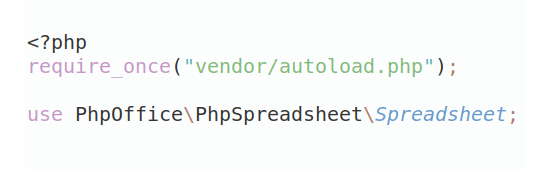
In general, it is recommended to use always a project to download your libraries. In an application normally there is more than one library needed.
- Some hosting areas are not accessible by a terminal or SSH. Then it is not possible to use Composer.
- To use Composer is sometimes complicated. Especially for beginners.
- Composer needs much resources. Sometimes they are not available on a simple webspace.
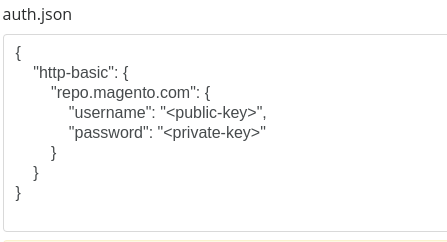
- If you are using private repositories you don't need to share your credentials. You can set up everything on our site and then you provide a simple download link to your team member.
- Simplify your Composer build process. Use our own command line tool to download the vendor folder as binary. This makes your build process faster and you don't need to expose your credentials for private repositories.
Informations about the package craft-block-collapse
Block Collapse
A Craft CMS control panel utility that collapses or expands every block on an element edit screen at once — from a button or from a keyboard shortcut each user picks for themselves.
Editing an entry with long Matrix or Neo fields means a lot of scrolling and a lot of clicking blocks open and closed one at a time. Block Collapse adds two buttons to the element's button bar that toggle all of them, and gets out of the way on pages that have nothing to collapse.
Requirements
- Craft CMS 4.4+ or 5.0+
- PHP 8.2+
Installation
From the Plugin Store in your control panel, or with Composer:
With DDEV:
Upgrading from 1.x: Block Collapse used to be a self-bootstrapping module. It is a plugin now, so after updating install it once — from Settings → Plugins, or with
php craft plugin/install block-collapse. The Composer package name hasn't changed.
Usage
Open any element edit screen that holds collapsible blocks. Two buttons appear at the top of the page:
- Collapse — collapses every block on the page
- Expand — expands every block on the page
Both have a keyboard shortcut, Ctrl + , and Ctrl + . out of the box (⌘ instead of Ctrl on
macOS). Inside a slideout or a nested element editor, the buttons and the shortcuts only act on the
blocks of the editor you're in.
Per-user shortcuts
Each user picks their own combos under My Account → Preferences. Click a shortcut field and
press the keys you want; the field fills itself in. A shortcut needs Ctrl/⌘ or Alt plus one
other key, the two shortcuts have to differ, and combos the browser owns (Ctrl + S and friends)
are turned down.
Shortcuts are stored as text — ctrl+comma, alt+shift+k — so they can also be typed by hand.
Settings
Settings → Plugins → Block Collapse, or in config/block-collapse.php:
Anything set in the config file is locked on the settings screen, as usual in Craft.
Supported blocks
Matrix (Craft 4 and 5) and Neo are supported out of the box. The settings screen lists everything that is currently registered.
Adding your own collapsible blocks
Most field types can be described rather than coded. Register a provider and Block Collapse does the rest:
$event->providers is keyed by handle, so you can also replace or unset() a built-in one.
$event->craftMajorVersion tells you which Craft you're being asked about.
Strategies
| Strategy | What it does | Fields it uses |
|---|---|---|
jquery-block |
Calls collapse()/expand() on the block object the field left on the element's jQuery data — how Matrix and Neo work |
dataKey, collapseMethod, expandMethod |
menu-action |
Activates a menu item or button inside each block | collapseSelector, expandSelector |
class-toggle |
Adds and removes a class on each block | collapsedClass |
js |
Hands off to a handler you registered in JavaScript | handler |
Every strategy uses blockSelector to find the blocks and collapsedClass to tell which of them
are already collapsed.
Doing it in JavaScript
For anything that needs real logic, register a handler from an asset bundle that depends on
ContentReactor\BlockCollapse\Web\Assets\Collapse\CollapseAsset:
root is the form the button group belongs to, so a handler should never reach outside it.
Registering under a handle that is already taken replaces that handler, which is how you swap out a
built-in one.
Localization
Button labels, tooltips and settings are translatable through the block-collapse message
category. English and German ship with the plugin; src/translations/en/block-collapse.php lists
every string, so it's the file to copy for a new language.
Development
prod minifies the JavaScript with terser and the CSS with clean-css; dev leaves both
readable. Both write to public/, so rebuild with npm run prod before you commit.
public/ is committed because it is what the Composer package ships, so run npm run build
before tagging a release — CI fails if the built output doesn't match its sources. Development
happens on the Node version in .nvmrc.
License
MIT