Download the PHP package brilliance/craft-launcher without Composer
On this page you can find all versions of the php package brilliance/craft-launcher. It is possible to download/install these versions without Composer. Possible dependencies are resolved automatically.
Download brilliance/craft-launcher
More information about brilliance/craft-launcher
Files in brilliance/craft-launcher
Package craft-launcher
Short Description Universal search launcher for Craft CMS admin panel
License GPL-3.0-or-later
FAQ
Example:
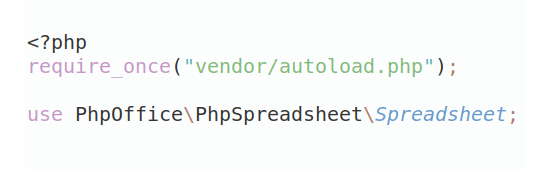
In general, it is recommended to use always a project to download your libraries. In an application normally there is more than one library needed.
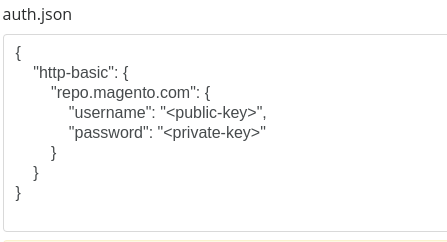
- Some hosting areas are not accessible by a terminal or SSH. Then it is not possible to use Composer.
- To use Composer is sometimes complicated. Especially for beginners.
- Composer needs much resources. Sometimes they are not available on a simple webspace.
- If you are using private repositories you don't need to share your credentials. You can set up everything on our site and then you provide a simple download link to your team member.
- Simplify your Composer build process. Use our own command line tool to download the vendor folder as binary. This makes your build process faster and you don't need to expose your credentials for private repositories.
Informations about the package craft-launcher
Craft Launcher Plugin
A universal search launcher for the Craft CMS admin panel that provides quick access to content, settings, and navigation throughout your Craft installation. Think of it as Spotlight for macOS or Command Palette for VS Code, but specifically designed for Craft CMS with intelligent usage tracking.
The launcher showing popular items with smart keyboard shortcuts and launch counts
Features
Core Search & Navigation
- Universal Search: Quickly search across entries, users, categories, assets, globals, sections, entry types, and more
- Browse Mode: Type
*to explore all content types and drill down into specific areas - Gmail-Style Search Filters: Filter icon opens dropdown panel with toggles for drafts, disabled items, nested entries, and section/entry type filtering
- Smart Navigation: Jump to any section of the Craft control panel instantly
- Keyboard Shortcuts: Navigate entirely with your keyboard for maximum efficiency
- Theme Integration: Seamlessly matches your Craft admin panel theme and styling
- Permission-Aware: Only shows content you have permission to access - comprehensive checks for all content types
Intelligent Usage Tracking
- Launch History: Tracks which items you actually navigate to (not just search for)
- Popular Items: Shows your most-used items when you first open the launcher
- Launch Count Display: See how many times you've accessed each item
- Individual Item Removal: Remove specific items from your history with a subtle X button
- Privacy Controls: Enable/disable history tracking or clear all data
Commerce Integration
- Customer Search: Find Commerce customers by name or email
- Product Search: Search products and variants
- Order Search: Find orders by reference number or customer details
- Customer Name Fallbacks: Handles missing customer names gracefully
Advanced Content Types
- Entry Types: Search and navigate to entry type configurations
- Section Management: Quick access to section settings
- Field Management: Navigate directly to field definitions
- Plugin Settings: Access plugin configuration panels
- User Management: Find users and access their profiles
Requirements
- Craft CMS 5.0.0 or later
- PHP 8.2 or later
Installation
Method 1: Via Composer (Recommended)
-
Navigate to your Craft project:
-
Install the plugin:
- Enable the plugin:
Method 2: Via Control Panel
- Navigate to Settings → Plugins in your Craft admin panel
- Click the "Plugin Store" button
- Search for "Launcher"
- Click "Install" next to the Craft Launcher plugin
- Follow the on-screen installation instructions
Post-Installation
- Set Permissions: Navigate to Settings → Users → User Groups and ensure your user groups have the "Access Launcher" permission
- Configure Settings: Visit Settings → Launcher to customize keyboard shortcuts and search behavior
- Test It Out: Press
Cmd+K(Mac) orCtrl+K(Windows/Linux) anywhere in the admin panel
Usage Guide
Opening the Launcher
- Keyboard Shortcut: Press
Cmd+K(Mac) orCtrl+K(Windows/Linux) from anywhere in the Craft admin panel - Same Shortcut to Close: Press your keyboard shortcut again or
Escto close - Smart Initial Display: Shows your most popular items when first opened (based on actual usage)
Search Modes
Universal Search Mode (Default)
Just start typing to search across all enabled content types:
homepage- Finds entries, categories, assets with "homepage" in the titlejohn- Finds users, entries, or content authored by or mentioning "john"products- Finds entries, categories, sections, Commerce products related to products
Browse Mode
Type * to enter browse mode and explore your content systematically:
- *Type ``** - Shows all available content types
- Select a content type - Use arrow keys or number keys (1-9) to select
- Browse all items - See all entries, users, categories, etc. of that type
- Navigate normally - Use Enter or click to open items
Available browse categories:
- Entries - All entry content
- Categories - Category items
- Assets - Media and files
- Users - User accounts
- Global Sets - Global content
- Sections - Entry section settings
- Entry Types - Entry type definitions
- Category Groups - Category group settings
- Asset Volumes - Asset volume settings
- Fields - Field definitions
- Plugins - Plugin settings
- Settings - System settings and configuration pages
Launch History System
How It Works
The launcher tracks which items you actually navigate to (not just search for) and builds a personalized usage profile:
- Recording: Every time you click or press Enter on a search result, it's recorded
- Frequency Tracking: Items you use more often appear higher in the list
- Intelligent Ranking: Combines frequency with recency for optimal relevance
- Per-User: Each user has their own separate launch history
Popular Items Display
When you first open the launcher (without typing), you'll see:
- Section Title: "Popular Items (hover over items to remove)"
- Launch Counts: Each item shows how many times you've accessed it
- Smart Ordering: Most-used items appear first
- Remove Options: Hover over any item to see a subtle X button
Managing Your History
- Remove Individual Items: Hover over any popular item and click the X button
- Clear All History: Use the "Clear History" utility in plugin settings
- Disable Tracking: Turn off launch history in Settings → Launcher
- Privacy: All data is stored locally in your Craft database
Commerce Integration
If Craft Commerce is installed, the launcher provides enhanced e-commerce search:
Customer Search
- Search by customer name or email address
- Graceful handling of customers without names
- Direct links to customer management pages
Product Search
- Find products and product variants
- Search by product name or SKU
- Quick access to product edit pages
Order Search
- Search orders by reference number
- Find orders by customer name or email
- Multiple search strategies for comprehensive results
Keyboard Navigation
| Key | Action |
|---|---|
| Type anything | Start searching |
| *``** | Enter browse mode |
↑ ↓ |
Navigate through results |
Enter |
Open first result (selected result) |
Cmd+1 to Cmd+9 |
Jump to numbered results (configurable modifier) |
Esc |
Close launcher |
Cmd+K / Ctrl+K |
Close launcher (same as open) |
Hover + Click X |
Remove item from history |
Note: Result navigation uses modifier keys (default: Cmd+1 through Cmd+9) to avoid conflicts when typing numbers in search queries. The modifier key can be customized in Settings → Launcher.
Search Filters
Click the filter icon in the search box to open a dropdown panel with powerful filtering options:
Toggle Filters
- Include Drafts: Show draft entries in search results
- Include Disabled: Show disabled entries in search results
- Include Nested Entries: Show nested/child entries in search results
Content Filters
- Sections: Filter results to specific sections (collapsible checkbox list)
- Entry Types: Filter results to specific entry types (collapsible checkbox list)
How It Works
- Immediate Apply: Filters apply instantly when toggled - no submit button needed
- Per-User Persistence: In the control panel, filter preferences are saved to your user account. On the front-end, filters are stored in your browser's localStorage for cache compatibility.
- Admin Control: Administrators can control which filter options are visible to users in plugin settings
- Smart Defaults: All content is included by default; filters are additive restrictions
Nested Entries
Nested entries (entries that belong to Matrix, Neo, or other nested entry fields) have special handling:
- They appear in search results when "Include Nested Entries" is enabled
- Section filters do not affect nested entries (since they don't belong to sections directly)
- Status filtering (Include Disabled) applies correctly to nested entries
Front-end Launcher
The launcher can also be enabled on the front-end of your website, providing quick access to admin functions while browsing your live site.
Enabling Front-end Access
- Navigate to your account preferences: Go to My Account → Launcher in the admin panel
- Enable the front-end launcher: Toggle on "Enable Front-end Launcher"
- Configure link behavior (optional): Toggle on "Open Front-end Links in New Tab" to keep your current page open when navigating
User account preferences showing front-end launcher options
Using the Front-end Launcher
Once enabled, the launcher works the same way on your front-end as it does in the admin panel:
- Same keyboard shortcut: Press
Cmd+K(Mac) orCtrl+K(Windows/Linux) while browsing your website - Context-aware search: When viewing an entry page, search for "edit" to quickly jump to editing that specific page
- Full admin access: Search all content types, settings, and admin areas you have permission to access
- Recent items: Access your frequently used admin pages from anywhere on your site
Front-end Features
- Context-aware Search: When viewing an entry page, search for 'edit' to quickly edit the current page
- Smart Page Filtering: Current page edit links are filtered out of popular items (no need to see "edit this page" when you're already on it)
- History Tracking: Context actions like "Edit this page" are now tracked in your personal history for better productivity
- Full Search Access: Search all content types you have permission to access
- Admin Navigation: Quick access to settings pages and control panel areas
- Recent Items: Access your recently used items from any page
Security & Privacy
The front-end launcher includes several security measures:
- Authentication required: Only visible when you are logged in with launcher permissions
- Cache-compatible design: Uses a bootstrap approach that works with full-page caching while still validating each user
- Rate limited: Prevents abuse with a limit of 30 searches per minute (60 for bootstrap requests)
- Bot detection: Automatically disabled for bots and suspicious requests (empty user agents)
- Permission validation: Context validation ensures you can only edit entries you have permission for
- Selective loading: Only loads on legitimate user requests, not for crawlers or automated tools
- Local filter storage: Front-end filter preferences are stored in browser localStorage for privacy and cache compatibility
Full Page Caching Compatibility
The front-end launcher is fully compatible with full-page caching solutions:
- Blitz
- Cloudflare CDN
- Varnish
- Similar full-page caching systems
How it works: The launcher uses a bootstrap approach where a small script is injected into pages. This script calls an action endpoint (/actions/launcher/bootstrap) to check authorization. Since Craft action endpoints bypass page caches, each user gets their own authorization check even on cached pages.
Filter Storage: On the front-end, search filter preferences are stored in your browser's localStorage rather than on the server. This ensures filters work correctly with cached pages and provides faster performance. A note in the filter panel indicates when filters are stored locally.
Link Behavior Options
Open Front-end Links in New Tab: When enabled, clicking on entries and pages from the launcher will open them in a new tab, keeping the current page open. This is particularly useful when:
- Browsing your live site and wanting to edit content without losing your place
- Comparing live content with admin interface
- Quick content reviews while maintaining your browsing context
Pro Tips
- Popular vs Recent: The launcher shows popular items (based on usage) rather than just recent items for better productivity
- Usage Tracking: The more you use an item, the higher it appears in your popular items list
- Privacy Control: You can disable history tracking or clear all data anytime in settings
- Commerce Orders: Search for orders using partial reference numbers for quick access
- Entry Types: Quickly navigate to entry type configurations for content modeling work
- Front-end editing: Use the context-aware search to quickly edit the page you're currently viewing
Configuration
Navigate to Settings → Launcher to customize your experience:
Comprehensive settings interface for customizing search behavior and content types
General Settings
| Setting | Description | Default |
|---|---|---|
| Keyboard Shortcut | Hotkey to open/close launcher | Cmd+K / Ctrl+K |
| Search Debounce Delay | Delay before search executes (milliseconds) | 300 |
| Maximum Results | Number of results to show per content type | 10 |
Result Navigation Shortcuts
| Setting | Description | Default |
|---|---|---|
| Modifier Key | Key used with numbers for result selection | Command (⌘) |
Configure how to activate search results:
- First Result: Always uses Return/Enter key
- Numbered Results: Use modifier key + number (1-9)
- Available Modifiers: Command (⌘), Control (Ctrl), Alt/Option (⌥), or Shift (⇧)
- Example: With "Command" selected, press Cmd+1 for first numbered result, Cmd+2 for second, etc.
Launch History Settings
| Setting | Description | Default |
|---|---|---|
| Track Launch History | Enable intelligent usage tracking | Enabled |
| Max Popular Items | Maximum number of popular items to show | 10 |
Control your privacy and usage tracking:
- Enable/Disable: Turn launch history tracking on or off
- Clear History: Remove all stored usage data
- Per-User Storage: Each user maintains separate history data
Content Types
Control which types of content appear in search results:
- Entries - Blog posts, pages, and other entry content
- Categories - Category taxonomies
- Assets - Images, documents, and media files
- Users - User accounts and profiles
- Global Sets - Site-wide content and settings
- Sections - Entry section configurations
- Entry Types - Entry type definitions
- Category Groups - Category group settings
- Asset Volumes - Asset storage configurations
- Fields - Custom field definitions
- Plugins - Installed plugin settings
- Settings - System settings and configuration pages
Commerce Settings
If Craft Commerce is installed:
- Search Commerce Customers - Include customer accounts in search
- Search Commerce Products - Include products and variants
- Search Commerce Orders - Include order search functionality
Content Filtering
Fine-tune which content appears in results:
- Search Drafts: Include draft entries in search results
- Search Revisions: Include entry revisions in search results
- Search Disabled Items: Include disabled entries, users, etc.
- Search Entries by Author: Find entries by author name
- Searchable Sections: Limit entry search to specific sections
- Searchable Entry Types: Limit entry search to specific types
- Searchable Category Groups: Limit category search to specific groups
- Searchable Asset Volumes: Limit asset search to specific volumes
Permissions
The launcher respects all existing Craft permissions with comprehensive checks:
General Permissions
- Users only see content they can access
- The "Access Launcher" permission controls who can use the plugin
- All element-level permissions are automatically enforced
- Launch history is stored per-user and private
Admin-Only Content
Non-admin users will not see these content types in search results:
- Sections and Entry Types (configuration)
- Fields and Field Groups
- Plugins and Plugin Settings
- Asset Volumes (configuration)
- Category Groups (configuration)
- Static Settings pages
Permission-Checked Content
These content types check specific permissions:
- Utilities: Checks
utility:<handle>permission for each utility - Globals: Checks
editGlobalSet:<uid>permission for each global set - Users: Requires
viewUserspermission to search users
Commerce Permissions (if installed)
- Customers: Requires
commerce-manageCustomerspermission - Products: Requires
commerce-manageProductspermission - Orders: Requires
commerce-manageOrderspermission
Admin User Management
Administrators can view and edit other users' launcher preferences:
- Navigate to a user's profile page in the admin panel
- Click the Rocket Launcher tab (visible for users with launcher permission)
- View or modify the user's front-end launcher settings
- Click Save to apply changes
This is useful for:
- Enabling front-end launcher for content editors
- Troubleshooting user-specific settings
- Standardizing preferences across team members
Recent Improvements
Version 1.4.0 Features
Thanks to Brian Hackett for reporting the front-end launcher issues (#16)
Blitz Cache Compatibility Fix
- Event Timing: Fixed an issue where the front-end launcher script was not being injected on the first page load when using Blitz cache
- Root Cause: The launcher was using
Response::EVENT_BEFORE_SENDwhich fires AFTER Blitz captures the response for caching - Solution: Changed to
Response::EVENT_AFTER_PREPAREwith handler prepending to ensure the launcher script is injected BEFORE Blitz caches the page - Result: The launcher now works correctly on the first page load, even with full-page caching enabled
Front-End Action URL Fixes (Fixes #16)
- Fixed front-end action URLs to use
UrlHelper::actionUrl()for proper routing - Ensures
/actions/launcher/...URLs work correctly on front-end pages - Resolves issue where front-end search returned no results
Search Index Utility
A new Search Index Status section has been added to the Rocket Launcher utility (Utilities > Rocket Launcher):
- Indexed Sections Table: Shows each section with total entry count, indexed count, and status indicator
- Status Indicators: Green (fully indexed), orange (partially indexed), red (not indexed)
- Per-Section Reindex: Click "Reindex" next to any section to rebuild its search index
- Reindex All: One-click button to reindex all sections at once
- Searchable Fields List: View all fields configured for search indexing
- Total Keywords Count: See the total number of indexed keywords in your database
Search Content Requirements
Craft CMS always indexes entry titles and slugs by default. To search content within other fields:
- Field Configuration: Each field must have "Use this field's values as search keywords" enabled in its field settings
-
Index Rebuild: After enabling searchability on a field, run a search index rebuild via the utility or command line:
- Verification: Use the new Search Index Utility to verify entries are properly indexed
Version 1.3.0 Features
Gmail-Style Search Filters
- Filter Dropdown: Click the filter icon in the search box to open a filtering panel
- Toggle Filters: Include/exclude drafts, disabled entries, and nested entries
- Content Filters: Filter by specific sections and entry types with collapsible checkbox lists
- Instant Apply: Filters take effect immediately without needing to click a button
- Persistent Preferences: Filter settings are saved per-user and restored on next visit
- Admin Control: Plugin settings control which filter options users can see
Comprehensive Permission System
- Admin-Only Content: Sections, entry types, fields, plugins, and other configuration items hidden from non-admins
- Utility Permissions: Each utility checks its specific permission before appearing
- Global Permissions: Global sets check
editGlobalSet:<uid>permission - Commerce Permissions: Products, orders, and customers check their respective Commerce permissions
Admin User Management
- User Profile Tab: Rocket Launcher tab appears on user profile pages
- Edit Other Users: Admins can view and modify other users' launcher preferences
- Save Functionality: Full form submission with proper save button
Nested Entries Improvements
- Proper Search: Nested entries now appear correctly when enabled
- Section Filter Compatibility: Nested entries (which have no section) work with section filters
- Status Filtering: Include Disabled toggle properly applies to nested entries
Version 1.1.0 Features
Enhanced History Tracking
- Proper Item IDs: All search results now include proper item IDs for accurate history tracking
- Settings Handles: Static settings pages now use meaningful handles (e.g., "categories", "fields") instead of NULL values
- SHA-256 Support: Updated database schema to support full SHA-256 hashes (64 characters) for better uniqueness
- Database Migrations: Automatic migration to fix existing installations with incorrect column sizes
Improved Front-end Experience
- Context Action History: "Edit this page" and similar context actions are now tracked in personal history
- Smart Filtering: Current page edit links are filtered out of history results when viewing that page
- Better UX: No redundant "edit this page" suggestions when you're already on the page
Browse Mode Enhancements
- Settings Browse: Type
*and select "Settings" to browse all system configuration pages - Complete Coverage: Browse mode now includes all 15+ settings areas (General, Email, Categories, etc.)
- Consistent Navigation: All settings pages properly tracked with meaningful identifiers
Utility Improvements
- Table Management: New "Launcher" utility in Utilities menu for database table diagnostics
- Success Reporting: Fixed utility feedback to properly report table creation success/failure
- Schema Validation: Automatic validation of table structure and column sizes
Developer Experience
- Better Debugging: Improved error handling and logging for troubleshooting
- Migration Safety: Safe database migrations that handle missing tables gracefully
- API Consistency: All search results now have consistent data structures
Advanced Features
Custom Search Providers
Developers can extend the launcher with custom search providers:
Custom Actions
Register custom actions for search results:
Launch History API
Programmatically interact with launch history:
Plugin Integrations
The Launcher includes an extensible integration system that allows plugins to display contextual information and actions in search results.
Built-in Integrations
Blitz Cache Integration
- Shows cache status (Cached/Uncached/Not Cacheable)
- Provides "Clear Cache" action for cached pages
- Automatically detects cacheable pages
View Count Integration
- Displays view count statistics for elements
- Formats counts with K/M suffixes for large numbers
- Works with entries, categories, and other elements
Creating Custom Integrations
Third-party plugin developers can register their own integrations to appear in Launcher search results.
Step 1: Create an Integration Class
Step 2: Register Your Integration
In your plugin's init() method:
Integration Data Structure
Available Helper Methods
BaseIntegration provides helpful methods:
Best Practices
- Performance: Keep integration logic lightweight - it runs on every search result
- Error Handling: Always wrap logic in try/catch and return null on errors
- Permissions: Check user permissions before showing sensitive data
- Icons: Use simple SVG icons (16x16) for best visual consistency
- Actions: Provide confirmation prompts for destructive actions
- Status Types:
success(green) - Positive statessecondary(gray) - Neutral stateswarning(yellow) - Caution statesdanger(red) - Error statesdefault(blue) - Information states
Drawer Content Providers
Third-party plugins can register custom drawer content that appears in the launcher's tips and resources drawer. This allows plugins to provide context-aware tips, links, and resources to users.
How It Works
The drawer system allows plugins to contribute content that appears alongside the default Brilliance content. Each provider can register content that adapts based on the current context (e.g., different content for the search tab vs. assistant tab).
Step 1: Register a Drawer Content Provider
In your plugin's init() method:
Content Structure
Context Values
The $context parameter indicates which launcher tab is active:
'search'- Main search/launcher tab'assistant'- AI assistant tab (if Launcher Assistant plugin is installed)- Custom tab handles from other plugins
Priority System
When multiple plugins register drawer providers, they're merged in priority order:
- Higher priority numbers appear first
- Default Brilliance content has priority
100 - Your plugin can use any priority value to control placement
Best Practices
- Check if Launcher exists: Wrap registration in
class_exists()check - Context-aware content: Provide relevant tips for each context
- Concise tips: Keep tips short and actionable (1-2 lines)
- Useful links: Provide links to documentation, issues, or reviews
- Error handling: Wrap content generation in try/catch blocks
- Performance: Keep content generation lightweight (it's called on drawer open)
Example: Context-Aware Content
Removing a Provider
Database Schema
The plugin creates one additional table for launch history tracking:
launcher_user_history
Stores per-user launch history data:
- userId: References the user who performed the launch
- itemType: Type of item (Entry, Section, User, Settings, etc.)
- itemId: Unique identifier for the specific item (entry ID, section ID, settings handle, etc.)
- itemTitle: Display name of the item
- itemUrl: Admin URL that was accessed
- itemHash: SHA-256 hash for uniqueness and deduplication (64 characters)
- launchCount: Number of times the user has launched this item
- lastLaunchedAt: Timestamp of most recent launch
- firstLaunchedAt: Timestamp when first launched
Troubleshooting
Common Issues
Launcher Won't Open
- Check plugin status: Ensure the plugin is installed and enabled in Settings → Plugins
- Verify permissions: Make sure your user has the "Access Launcher" permission
- Keyboard conflicts: Try changing the shortcut if it conflicts with browser/OS shortcuts
- Clear caches: Run
php craft clear-caches/all
No Search Results
- Permission check: Verify you can access the content you're searching for
- Content type settings: Check that the content types are enabled in Settings → Launcher
- Field searchability: Ensure fields have "Use this field's values as search keywords" enabled in field settings
- Check index status: Use Utilities → Rocket Launcher to view Search Index Status
- Rebuild indexes: Click "Reindex" in the utility or run
php craft resave/entries --update-search-index - Check filters: Review content filtering settings (drafts, disabled items, etc.)
Popular Items Not Showing
- Launch history disabled: Check that launch history is enabled in settings
- No usage data: Use the launcher a few times to build up history data
- Clear caches: Run
php craft clear-caches/alland test again - Database issues: Verify the launcher_user_history table exists and has correct column sizes
- Table Recreation: Use the "Launcher" utility in Utilities → Launcher to check table status and recreate if needed
Commerce Search Not Working
- Commerce not installed: Verify Craft Commerce is properly installed and enabled
- Class loading issues: Clear all caches and restart your web server
- Permission issues: Ensure you have permission to access Commerce data
Browse Mode Not Working
- Clear storage: Delete the
storage/folder contents and reload - JavaScript errors: Check browser console for any error messages
- Browser cache: Clear your browser cache completely
Styling Problems
- Clear CP resources: Run
php craft clear-caches/cp-resources - Browser cache: Perform a hard refresh (Cmd+Shift+R / Ctrl+Shift+F5)
- Theme conflicts: Check if other plugins are overriding CSS
Debug Mode
To enable detailed logging, add this to your config/general.php:
Check storage/logs/web-[date].log for launcher-specific log entries.
Contributing
We love contributions! Here's how you can help make Craft Launcher even better:
Bug Reports
Found a bug? Please create an issue with:
- Clear description of the problem
- Steps to reproduce the issue
- Your Craft CMS version and PHP version
- Screenshots or videos if helpful
Feature Requests
Have an idea for a new feature? Open a feature request and tell us:
- What problem it would solve
- How you envision it working
- Any examples from other tools
Pull Requests
Ready to contribute code? We'd love your help!
- Fork the repository
- Create a feature branch (
git checkout -b feature/amazing-feature) - Make your changes with clear, descriptive commits
- Test thoroughly (include new tests if applicable)
- Submit a pull request with a clear description
Development Guidelines
- Follow Craft CMS coding standards
- Write clear commit messages
- Include tests for new functionality
- Update documentation for any user-facing changes
Discussion
- Join the conversation in GitHub Discussions
- Share your use cases, tips, and workflows
- Help other users with questions
Support & Community
- Bug Reports: GitHub Issues
- General Discussion: GitHub Discussions
- Documentation: This README and inline code comments
- Help: Tag us in the Craft CMS Discord #help channel
License
This plugin is licensed under the MIT License - see the LICENSE.md file for details.
Credits
Developed by Brilliance
Special thanks to:
- The Craft CMS team for creating an incredible platform
- The Craft community for inspiration and feedback
- All contributors who help make this plugin better
Made with care for the Craft CMS community