Download the PHP package actualizer/passkey without Composer
On this page you can find all versions of the php package actualizer/passkey. It is possible to download/install these versions without Composer. Possible dependencies are resolved automatically.
Download actualizer/passkey
More information about actualizer/passkey
Files in actualizer/passkey
Package passkey
Short Description Passkey / WebAuthn login for Shopware storefront and administration
License MIT
FAQ
Example:
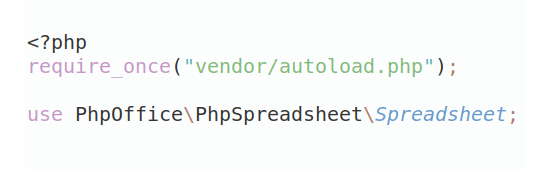
In general, it is recommended to use always a project to download your libraries. In an application normally there is more than one library needed.
- Some hosting areas are not accessible by a terminal or SSH. Then it is not possible to use Composer.
- To use Composer is sometimes complicated. Especially for beginners.
- Composer needs much resources. Sometimes they are not available on a simple webspace.
- If you are using private repositories you don't need to share your credentials. You can set up everything on our site and then you provide a simple download link to your team member.
- Simplify your Composer build process. Use our own command line tool to download the vendor folder as binary. This makes your build process faster and you don't need to expose your credentials for private repositories.
Informations about the package passkey
ActPasskey - Shopware Plugin
A Shopware 6 plugin that adds Passkey / WebAuthn login for both the storefront and the administration.
Passkeys are additive: the password login keeps working for every account. Anyone without a passkey, without WebAuthn support, or on a domain the shop does not cover simply sees the normal password form.
Features
- Passwordless, phishing-resistant login via Passkeys (WebAuthn) for storefront customers
- Passwordless login via Passkeys (WebAuthn) for administration users
- Usernameless sign-in (discoverable credentials): the browser offers the matching passkey, no username needed
- Self-service management: register, rename and revoke your own passkeys from the admin profile page or the customer account
- Operator revocation: authorised administrators can revoke — never create — the passkeys of other admin users and customers
- Admin and customer passkeys are strictly separated: a customer passkey can never authenticate an administrator
- Multi-domain aware: on a shop serving several storefront domains, each passkey is bound to the domain it was created on, so every domain issues and accepts its own domain-correct passkeys
Requirements
- Shopware 6.7.x
- PHP 8.4 or higher
Installation
Via Composer (recommended)
Manual
- Download or clone this plugin into your
custom/plugins/directory - Install and activate the plugin via CLI:
Usage
Passkeys are self-service: every account registers its own passkeys. An administrator cannot create a passkey for another user; the Passkeys card in Users & permissions and in the customer detail only lets authorised administrators revoke existing ones (see Revoking passkeys of other accounts).
Administration
- Open the user menu (bottom left) and choose Your profile.
- In the Passkeys card, click Register new passkey and confirm your password.
- Follow the browser or device prompt.
From then on, the admin login page offers a passkey sign-in button.
Storefront
- Log in and open Account > Profile (
/account/profile). - In the Passkeys section, click Register new passkey and confirm your password.
- Follow the browser or device prompt.
The storefront login page then offers passkey sign-in.
A login challenge is bound to the sales-channel context that requested it. Headless clients using the store-api routes must therefore send the same sw-context-token header to /store-api/act-passkey/challenge and /store-api/act-passkey/login; if the first call has none, reuse the token returned in its response header.
Throttled requests answer 429 with Shopware's own rate-limit error; its meta.parameters.seconds states how long to wait before trying again.
If the register button does not appear, the page is not running on a covered HTTPS domain or the browser lacks WebAuthn support (see Domain coverage).
A passkey that is already registered for the account cannot be registered a second time: the browser or password manager refuses it, usually with a notice of its own, and the Passkeys card reports that the passkey is already registered. Some third-party passkey managers instead show their own notice and then hand over to the browser; dismissing that prompt is reported as a cancelled registration. Use another authenticator, or remove the existing passkey first.
Revoking passkeys of other accounts
A password reset lets the owner back into a compromised account, but it does not remove a passkey an attacker may have added. An authorised administrator can therefore revoke passkeys of other accounts. Revoking only deletes: nobody can create or rename a passkey for someone else, and the account's password login keeps working.
- Customers: Customers > [customer] > General tab, Passkeys card.
- Administration users: Settings > System > Users & permissions > [user], Passkeys card. Revoking an administration user's passkey asks for your password, as every change in Users & permissions does.
The Last used column counts accepted logins only. A login refused because the account is inactive, not yet confirmed or belongs to another user does not update it.
Full administrators can always revoke. For restricted roles, grant Customer passkeys (under Customers) or User passkeys (under Settings) with the Delete permission in Users & permissions > Roles. Every revocation is recorded in the log (see Logging).
Possibly cloned passkeys
Many authenticators count their signatures, and the count only ever goes up. If a login presents a count that is not higher than the last one seen, another copy of the key may be in use. The login is refused, the event is logged (see Logging), and the passkey is marked Possibly cloned in the owner's own list and in the operator's Passkeys card. The mark stays until the passkey is removed; the credential listings of the API report the time of the first detection as cloneWarningAt.
The passkey is not disabled: a login with a count higher than the last one seen is still accepted — and that may come from either copy. An authenticator whose counter was reset, for example by a firmware update, stays refused until its count passes the last one seen. In either case, if the owner cannot explain the mark, remove the passkey and register a new one. Synced passkeys (iCloud Keychain, Google Password Manager and most password managers) do not count and are never marked.
Known limitations
Administration SSO
Registering, renaming or revoking a passkey requires confirming the account password. Shopware only issues the required user-verified scope through the password grant, so this step-up is unavailable to administrators who sign in via SSO — on shops where the administration login is delegated to an identity provider, the admin self-service routes return HTTP 403.
The passkey login itself and the entire storefront side are unaffected — unless the shop is SSO-only. With shopware.admin_login.use_default: false (an experimental core YAML setting that disables the password login), the administration refuses the passkey login as well, exactly like the password grant.
This fails closed by design. Shopware core skips its own step-up under SSO, but core uses that check to guard profile edits, whereas this plugin uses it to guard the enrollment of an authentication factor. A passkey enrolled locally would keep working after the account is deprovisioned in the central identity provider — bypassing the very control SSO exists for. Proper support means requiring a fresh SSO re-authentication instead of a password prompt; that is a separate feature, not a configuration toggle.
For the same reason, administrators signed in via SSO cannot revoke other administration users' passkeys. Revoking customer passkeys asks for no password confirmation and stays available.
Domain coverage
A passkey is bound to the shop's domain (that is what makes it phishing-resistant). Trusted origins are derived from APP_URL and the configured sales channel domains — never from the request host. On a domain that is not covered, the browser will not offer the passkey, and both the login button and the account "add a passkey" control stay hidden; the password login remains available.
If a covered domain is later retired, or the shared parent domain is changed, a passkey created for it can no longer run a login ceremony. Such a passkey is not silently dropped: it stays listed in the customer account with a note that its domain is no longer active, so it remains renameable and deletable and never becomes stranded.
Multi-node / clustered setups
A passkey ceremony spans two requests: one issues a challenge, a second redeems it. By default the challenge lives in a dedicated filesystem cache pool (act_passkey.challenge_pool) and its single-use guarantee is serialized with a flock lock — both node-local. The pool is pinned to the filesystem adapter deliberately: Shopware maps cache.app to an in-memory adapter in the dev environment, which would break every ceremony locally, so the pool does not follow the global cache configuration.
On a single application server this is correct. Behind a load balancer with more than one node it is not: a challenge issued on node A is absent when the redeem request lands on node B (surfacing as "Invalid or expired challenge"), and the single-use lock only serializes redemptions within one node.
For a clustered deployment, point both at shared backends:
- Override the challenge pool with a shared adapter (for example Redis) via
framework.cache.pools.act_passkey.challenge_pool.adapterin your own config. Because of the pinning above, the plugin will not switch automatically when you move the rest of Shopware to a shared cache. - Ensure the application lock uses a shared store (
LOCK_DSN, for example Redis or a database) instead of the defaultflock. A shop already running multiple nodes normally has this configured for Shopware core anyway. On a single server, the defaultflockstore also leaves one empty lock file per redeemed challenge in the system temp directory, because the lock component never deletes them; pointingLOCK_DSNatsemaphore, Redis or a database avoids these files.
Credential names
A passkey name is limited to 128 characters. Registering a passkey with a longer name is rejected, and so is a rename beyond that limit: the request fails with a validation error and the existing name stays unchanged. Surrounding whitespace is removed. On rename, a name consisting of whitespace only is rejected and saving an unchanged name sends no request at all; on registration, a blank name falls back to "Passkey".
Logging
Passkey diagnostics go to a dedicated act_passkey log channel, so they can be filtered — or silenced — without touching the rest of the Shopware log. WARNING-level records of that channel go to the plugin's own rotating file, var/log/act_passkey_<environment>-<date>.log (kept 30 days); NOTICE-level records follow the shop's normal Shopware log configuration instead. Logging never alters a response: every ceremony stays fail-closed, and the log only records why one failed. No WebAuthn payloads or credential data are written.
Public authentication attempts (storefront login, the administration grant, the profile listing) log at NOTICE. A normal production log level does not write NOTICE, so failed or automated login attempts cannot bloat the log, while the detail becomes available as soon as an operator lowers the level for diagnosis. Operations that run after authentication — enrollment, rename, revoke — log at WARNING, because a failure there is genuinely unexpected. One exception: a login whose signature counter did not go up (see Possibly cloned passkeys) logs at WARNING with the passkey's row id, realm and owner id. Only a correctly signed login can trigger it, so it cannot be flooded.
Shopware's default production configuration only writes error and above, which would otherwise discard these WARNING-level records — this is why the plugin ships its own rotating file handler for the channel (see above). Operator revocations are written there as the audit record — who revoked which passkey of which account. NOTICE-level diagnostics still require lowering the level.
Compatibility
- Shopware Version: 6.7.x
- PHP Version: 8.4+
Support
For issues and feature requests, please use the GitHub issue tracker. Please report security vulnerabilities privately instead, as described in the security policy.
License
This plugin is licensed under the MIT License - see the LICENSE file for details.
Credits
Developed by Actualize
Made with ❤️ for the Shopware Community
All versions of passkey with dependencies

shopware/core Version >=6.7 <6.8
shopware/storefront Version >=6.7 <6.8
web-auth/webauthn-lib Version ^5.3