Download the PHP package 4-angles/contao-google-calendar-bundle without Composer
On this page you can find all versions of the php package 4-angles/contao-google-calendar-bundle. It is possible to download/install these versions without Composer. Possible dependencies are resolved automatically.
Download 4-angles/contao-google-calendar-bundle
More information about 4-angles/contao-google-calendar-bundle
Files in 4-angles/contao-google-calendar-bundle
Package contao-google-calendar-bundle
Short Description Google Calendar synchronization bundle for Contao CMS
License MIT
FAQ
Example:
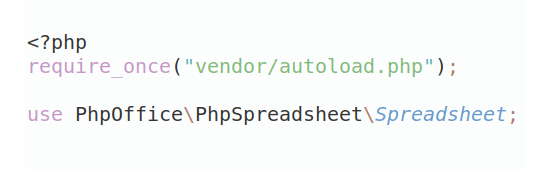
In general, it is recommended to use always a project to download your libraries. In an application normally there is more than one library needed.
- Some hosting areas are not accessible by a terminal or SSH. Then it is not possible to use Composer.
- To use Composer is sometimes complicated. Especially for beginners.
- Composer needs much resources. Sometimes they are not available on a simple webspace.
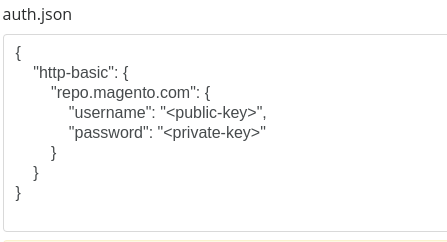
- If you are using private repositories you don't need to share your credentials. You can set up everything on our site and then you provide a simple download link to your team member.
- Simplify your Composer build process. Use our own command line tool to download the vendor folder as binary. This makes your build process faster and you don't need to expose your credentials for private repositories.
Informations about the package contao-google-calendar-bundle
Contao Google Calendar Sync Bundle

Bi-directional synchronization between Contao CMS calendars and Google Calendar. Import events from Google Calendar into Contao and export Contao events to Google Calendar with automatic scheduling via cron jobs.
Version control
I will always publish releases version based on which Contao version they support, so if its 5.3.0 it supports 5.3.* Contao version, etc...
Features
- ✅ Bi-directional Sync: Import from Google Calendar to Contao and export Contao events to Google Calendar
- ✅ Automatic Sync: Configurable cron jobs (minutely import, hourly export)
- ✅ Manual Sync: On-demand import/export buttons in the backend
- ✅ Separate Calendars: Different calendars for import and export to prevent sync loops
- ✅ Recurring Events: Full support for recurring events (RRULE parsing)
- ✅ Privacy Mode: Option to sync events as "Busy" without details
- ✅ Import Location Override: Optionally write a fixed value to the Contao event
locationfield during import - ✅ Flexible Configuration: Configure via backend UI or .env file
- ✅ Rate Limiting: Built-in Google API rate limit handling
- ✅ Sync Window: Configure date range for event synchronization
- ✅ Auto-cleanup: Removes deleted events from both systems
- ✅ Event-Level Sync Tracking: Read-only Google tracking fields and sync status icons in
tl_calendar_events
Requirements
- Contao 5.3+
- PHP 8.1+
- Google Cloud Project with Calendar API enabled
- OAuth 2.0 credentials from Google Cloud Console
Need Help Installing?
If the setup looks too technical, we offer installation as a service. We'll handle the Google Cloud configuration, bundle setup, and authentication so you can focus on managing your events.
Contact us at [email protected] and we'll take care of it for you.
Installation
1. Google Cloud Console Setup
1.1 Create a Google Cloud Project
- Go to Google Cloud Console
- Create a new project or select an existing one
- Note your Project ID for reference
1.2 Enable Google Calendar API
- In your Google Cloud Project, navigate to APIs & Services → Library
- Search for "Google Calendar API"
- Click Enable
1.3 Configure OAuth Consent Screen
- Go to APIs & Services → OAuth consent screen
- Choose External (or Internal for Google Workspace domains)
- Fill in the required information:
- App name: Your application name (e.g., "Contao Calendar Sync")
- User support email: Your email address
- Developer contact information: Your email address
- Click Save and Continue
- Scopes: Click "Add or Remove Scopes"
- Add:
https://www.googleapis.com/auth/calendar(See, edit, share....)
- Add:
- Click Save and Continue
- Test users (for External apps in testing): Add your Google account email
- Click Save and Continue
- When you finish testing publish app so renew token works automaticly.
1.4 Create OAuth 2.0 Credentials
- Go to APIs & Services → Credentials
- Click Create Credentials → OAuth client ID
- Select Application type: Web application
- Name: Give it a descriptive name (e.g., "Contao Calendar OAuth")
- Authorized redirect URIs: Add your callback URL
- Format:
https://yourdomain.com/contao/google-calendar-callback - Note: The redirect URI is now generated automatically, so you just need to add it here in Google Console
- Format:
- Click Create
- Copy the Client ID and Client Secret - you'll need these for configuration
2. Bundle Installation
Install via Composer:
Or manually:
- Copy the bundle files to your Contao installation
- Run
composer installto install dependencies - Clear the cache:
php vendor/bin/contao-console cache:clear
3. Configuration
You can configure the bundle in two ways (backend UI takes precedence):
Option A: Backend UI (Recommended)
- Log in to Contao backend
- Navigate to System → Google Calendar Settings
- Enter your credentials:
- Google Client ID: From Google Cloud Console
- Google Client Secret: From Google Cloud Console
- Application Name: (Optional) Custom name shown during OAuth
- Save
Option B: Environment Variables (.env) (Test 1st)
Add to your .env.local file:
4. Authentication
- Navigate to Content → Calendars
- Edit a calendar
- Enable Google Calendar Sync
- Select calendars for (you can select only import, or only export):
- Import: Google Calendar to import FROM
- Export: Google Calendar to export TO
- You'll be prompted to authenticate with Google (click link in the message)
https://yourdomain.com/contao/google-calendar-auth - Grant access to your Google Calendar
Important: Use different calendars for import and export to prevent sync loops!
Cron Job Setup
The bundle provides automatic synchronization via Contao's cron system:
Manual Cron Setup (Production)
For production environments, set up a system cron job for better reliability:
Cron Schedule Details
Import (Every Minute)
- Pulls events from Google Calendar to Contao
- Only syncs future events (from today onwards)
- Respects the configured sync window
- Updates existing events if changed in Google
Export (Every Minute)
- Pushes Contao events to Google Calendar
- Only exports published events
- Skips events that haven't been modified (if they exist in Google calendar)
- Deletes unpublished/expired events from Google
Manual Console Commands
You can also trigger sync manually:
Usage
Calendar Configuration
For each calendar you want to sync:
- Go to Content → Calendars
- Edit the calendar
- In the Google Sync section:
- ✅ Enable Google Calendar Sync
- Import Calendar: Select Google Calendar to import FROM
- Export Calendar: Select Google Calendar to export TO
- Sync Until: Date range limit (default: 1 year ahead)
- Privacy Mode: Optionally sync as "Busy" without event details
Manual Sync Buttons
In Content → Calendar Events:
- Import from Google: Manually trigger import (icon in toolbar)
- Export to Google: Manually trigger export (icon in toolbar)
Buttons are shown only when the current calendar has Google sync enabled and the corresponding import/export calendar is configured.
Event-Level Behavior (tl_calendar_events)
- Adds read-only tracking fields for Google IDs and sync metadata
- Adds sync status icons in the event list label (import/export)
- Intercepts publish/unpublish toggle and syncs to Google immediately
- Removes exported Google event when an event is unpublished
- Resets event origin to
contaowhen a user edits an imported event, so changes can be exported again
Configuration Options
Calendar-Level Settings
| Field | Description |
|---|---|
| Google Sync Enabled | Enable sync for this calendar |
| Import Calendar ID | Google Calendar to import events FROM |
| Export Calendar ID | Google Calendar to export events TO |
| Sync Until | Import/export events up to this date (default: +1 year) |
| Sync as Busy | Hide event details, show as "Busy" only |
| Busy Text | Custom text for busy events (default: "Busy") |
| Override import location | If enabled, imported events use custom location text |
| Import location text | Custom value written into imported event location field |
Global Settings (System → Google Calendar Settings)
| Field | Description |
|---|---|
| Google Client ID | OAuth Client ID from Google Cloud Console |
| Google Client Secret | OAuth Client Secret from Google Cloud Console |
| Application Name | Name shown during OAuth flow |
Architecture
Sync Logic
Import Direction (Google → Contao)
- Fetches events from Google Calendar API
- Creates new Contao events or updates existing ones
- Tracks events by
google_event_id - Marks events as
google_event_origin = 'google' - Stores source calendar in
google_calendar_source - Only syncs future events within configured date range
- Deletes Contao events if deleted in Google
Export Direction (Contao → Google)
- Exports published Contao events to Google
- Updates existing Google events or creates new ones
- Tracks exports by
google_export_event_id - Only exports modified events (checks
tstamp) - Deletes from Google when unpublished in Contao
- Skips events imported from the same calendar (loop prevention)
Sync Loop Prevention
- Events imported from Calendar A are NOT exported back to Calendar A
- Separate tracking IDs:
google_event_id(import) vsgoogle_export_event_id(export) - Origin tracking:
google_event_origin= 'google' or 'contao'
Database Fields
Additional read-only tracking fields added to tl_calendar_events:
| Field | Purpose |
|---|---|
google_event_id |
Event ID in import calendar |
google_export_event_id |
Event ID in export calendar |
google_updated |
Timestamp of last sync |
google_event_origin |
'google' or 'contao' |
google_calendar_source |
Source calendar ID (for imports) |
Troubleshooting
Authentication Issues
Error: "Could not generate authorization URL"
- Check that Client ID and Client Secret are configured
- Verify credentials in System → Google Calendar Settings
Error: "Access token expired"
- Re-authenticate: Go to calendar settings and save again
- Check
var/google-calendar-credentials.jsonpermissions
Sync Issues
Events not importing
- Verify Google Calendar ID is correct
- Check that events are in the future (past events are not synced)
- Verify sync window (
Sync Untildate) - Check logs:
var/logs/contao-*.log
Events not exporting
- Ensure events are published in Contao
- Check that export calendar ID is different from import calendar ID
- Verify event hasn't been modified since last export
Duplicate events
- This can happen if using the same calendar for import AND export
- Solution: Always use separate calendars for import and export
Rate Limiting
The bundle handles Google API rate limits automatically:
- Max 10 requests/second (100ms delay between calls)
- Max 590 requests/minute (waits if limit approached)
- Exponential backoff on errors
Security Considerations
- OAuth credentials stored in
var/google-calendar-credentials.json - Client Secret can be hidden in backend (password field)
- Credentials in
.envshould not be committed to version control - Add to
.gitignore:
Known Issues
Current Limitations
-
Complex Recurring Patterns: Some advanced RRULE patterns (BYDAY, BYMONTHDAY, BYSETPOS) may not sync perfectly between systems due to differences in how Contao and Google Calendar handle recurring events
-
Timezone Handling: Events are stored in google calendar timezone by default. Multi-timezone support may need additional configuration, or maybe not I didnt tested trough
-
All-Day Events: Google Calendar all-day events use exclusive end dates (end date + 1 day), which is automatically handled but may cause confusion when viewing raw data
-
Instance-Based Sync: Recurring events with
singleEvents=trueonly import the first instance to prevent duplicates. Changes to individual instances of recurring events may not sync -
OAuth Token Refresh: If refresh token expires (rare), manual re-authentication is required. Token refresh should happen automatically if the app is published and in production mode
-
Attachment/Image Sync: Event attachments and images are not synced between systems
- Attendee/Guest Lists: Attendee information is not synced
TODO / Roadmap
- [ ] Better error messages for users (currently logged, not always shown)
Contributing
Contributions are welcome! Please:
- Fork the repository
- Create a feature branch
- Make your changes
- Add tests if applicable
- Submit a pull request
License
This project is licensed under the MIT License.
Support
For issues, questions, or feature requests:
- Open an issue on the project repository
- Check existing issues for similar problems
- Provide detailed information: Contao version, PHP version, error messages, logs
Credits
Developed by Kimleta
Built with:
⚠️ Important Reminder: Always test in a development environment first. Back up your database before enabling sync on production calendars.
All versions of contao-google-calendar-bundle with dependencies

contao/core-bundle Version 5.3.*
google/apiclient Version ^2.0